Before you start
- Export your data first if you want a copy. If you do not know your password, reset it first.
Steps
- 1
Open “Settings” and choose “Account” in the bar of sections.
- 2
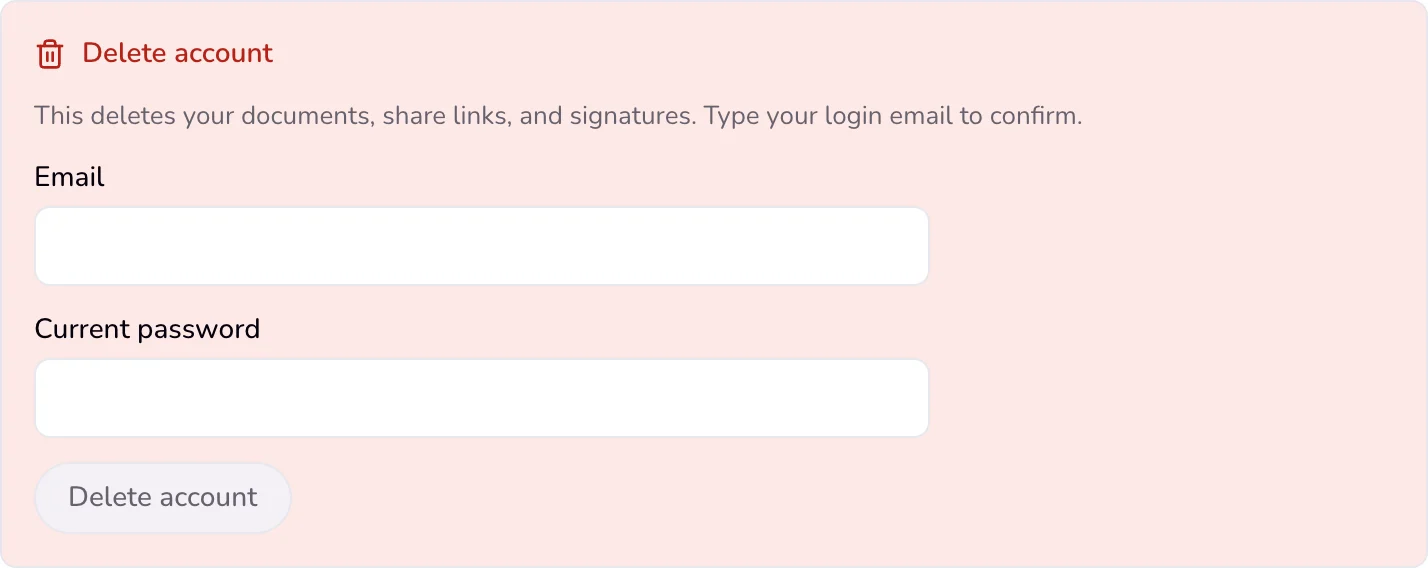
In the red “Delete account” box at the end of the section, type the email on your account in “Email”.
- 3
Type your “Current password”.
- 4
Press “Delete account”. The button works only when the email matches your account and the password is filled in.
Good to know
- There is no second question. The account is deleted at once, you are signed out, and you land on the home page. It cannot be undone.
- What is removed: your documents, client links and signatures, your clients, projects, time sessions, reminders and notifications, your profile and logo, and every signed-in device, the Mac app included. Your feedback, your invite records, and any waitlist entry with the same email are removed too. Client links stop opening.
- Backups can keep a copy of deleted data for up to about 6 months before it is gone.
- You can try 5 times in 15 minutes.
If something goes wrong
- “That password is not right.”
- Type your current password again. If you do not know it, use “Forgot password?” on the sign-in page first.
- “Type the email on this account.”
- Type the same email shown on the Profile section.
- “Too many requests. Try again in an hour.”
- You reached 5 tries in 15 minutes. Wait 15 minutes and try again.
Last updated 6 Oct 2026
Was this helpful?