Before you start
- Settings has no change-password form today. The reset link below is the way to change your password, whether you forgot it or not.
Steps
- 1
On the sign-in page, press “Forgot password?”.
- 2
Type the email on your account and press “Send the link”.
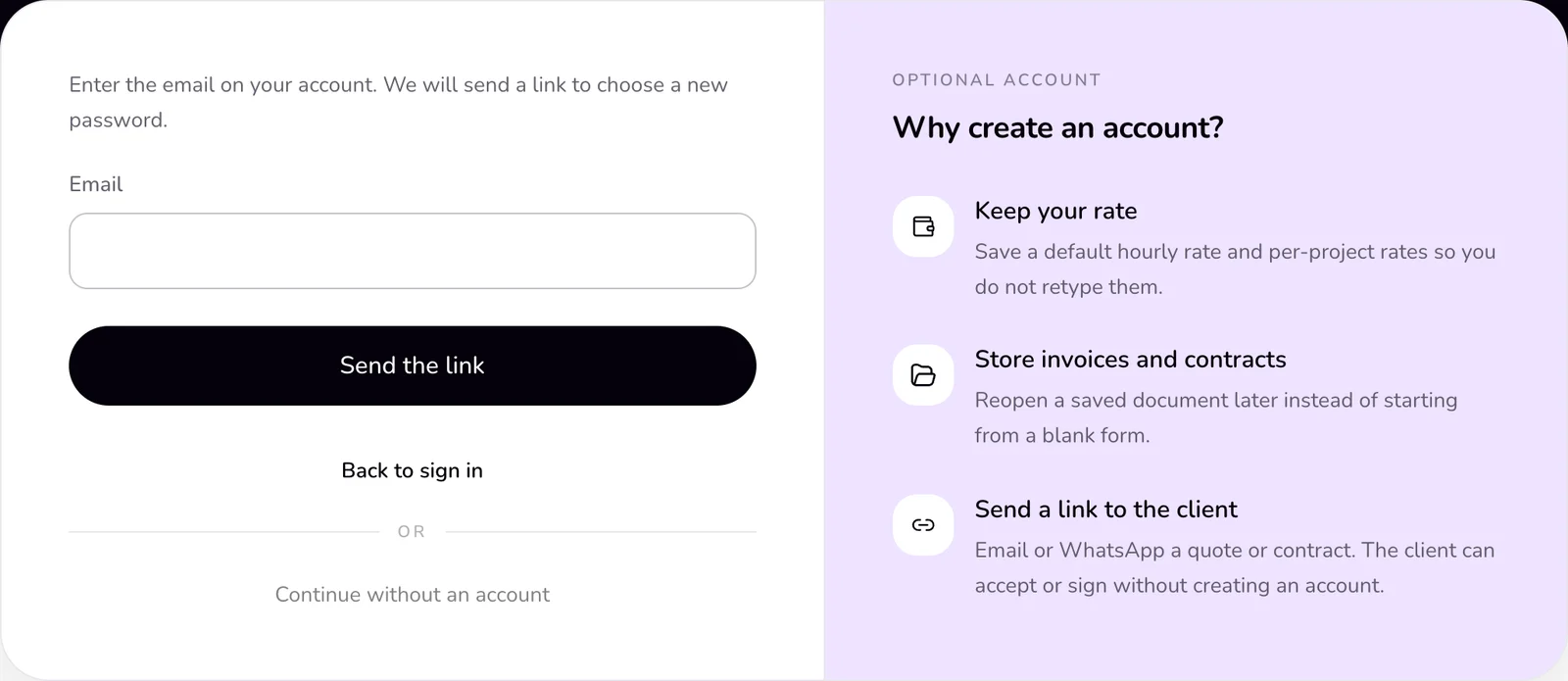
- 3
Open the email from Qufy and press its link within 30 minutes.
- 4
Type a “New password”, then type it again in “Repeat the new password”.
- 5
Press “Save and sign in”.
Good to know
- The page gives the same answer for any email, so it never shows whether an account exists: “If an account uses that email, a reset link is on its way. It works for 30 minutes. Check spam if you do not see it.”
- The link works once, for 30 minutes. Asking for a new link turns off the older ones.
- A password has 8 to 72 characters.
- After the reset you are signed in on this device, and every other device is signed out, the Mac app included. Qufy also emails you “Your Qufy password was changed”. If you did not make the change, reset your password again and reply to that email.
- You can ask for a link 3 times an hour for the same email.
If something goes wrong
- “This link is not valid or was already used. Ask for a new one.”
- Press “Ask for a new link” and use the newest email.
- “This link has expired. Ask for a new one.”
- More than 30 minutes passed. Press “Ask for a new link”.
- “The two passwords are not the same.”
- Type the same new password in both fields.
- “At least 8 characters”
- Choose a password of 8 to 72 characters.
- “Too many requests. Try again in an hour.”
- Too many links were asked for. Wait, then try again, and check your spam folder for the earlier emails.
Last updated 6 Oct 2026
Was this helpful?