Steps
- 1
Open “Settings” and choose “Account” in the bar of sections.
- 2
Look at “Devices and sessions”. Each row shows the browser, such as Chrome or Safari, or “Qufy for Mac”; its type, “Browser” or “Mac app”; and the date it was last seen. The browser you are using is marked “This device”.
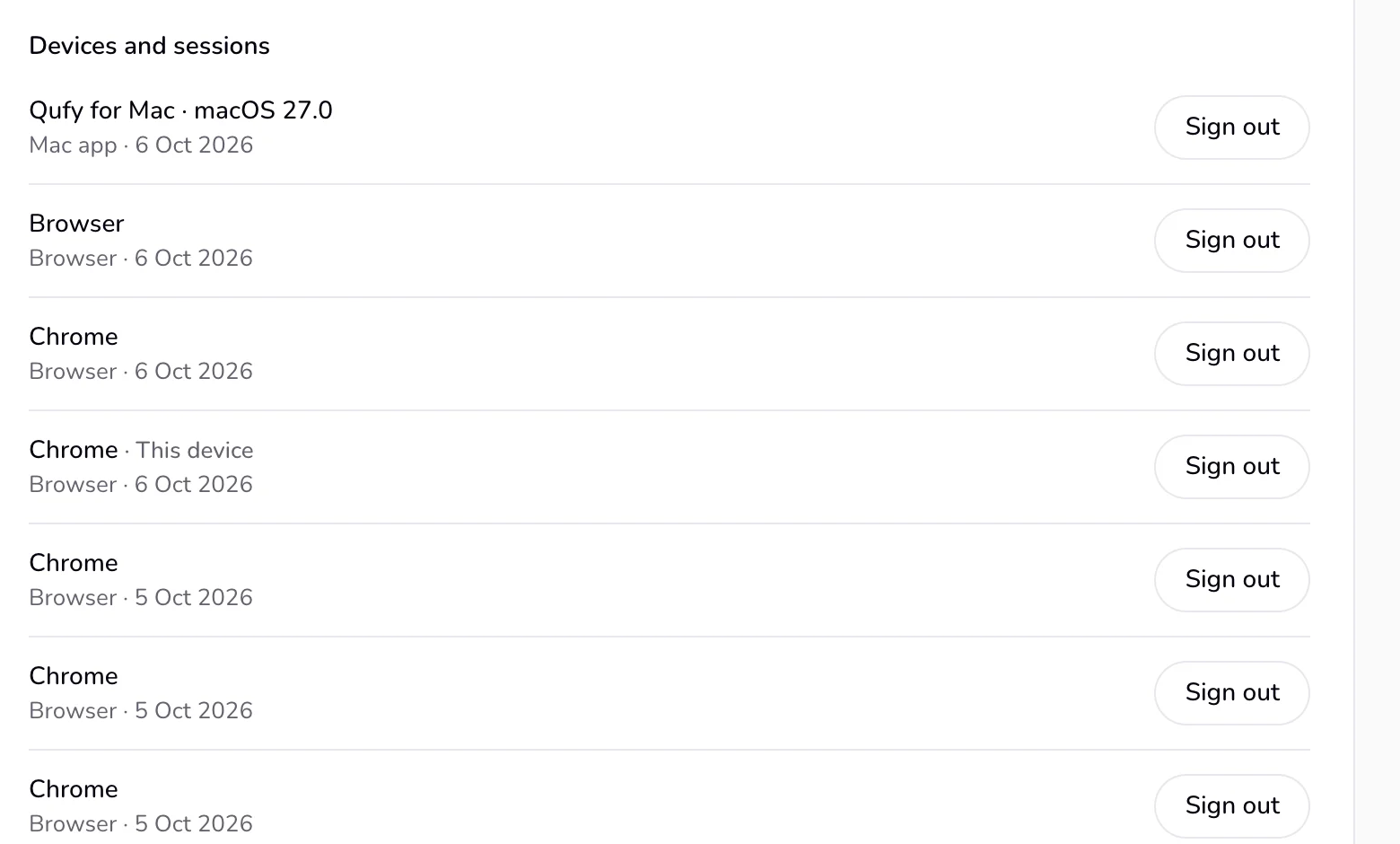
- 3
To sign out one device, press “Sign out” on its row.
- 4
To sign out everywhere except here, press “Sign out of all other devices”, then confirm with “Sign out of all other devices” in the question that opens.
Good to know
- Pressing “Sign out” on the row marked “This device” signs you out here and takes you to the home page.
- “Sign out of all other devices” also signs out the Mac app. On its next refresh the app shows that it is signed out; connect it again with a new code.
- Signing out of the website in a browser does not sign out the Mac app. The “Mac app” section of Settings lists only your Macs, each with its own “Sign out”.
- A row reads “Not seen yet” until that device has been active. Resetting your password also signs out every other device, the Mac app included.
Last updated 6 Oct 2026
Was this helpful?