Before you start
- The app never asks for your password. You confirm a code on the website, in a browser where you are signed in to the account you want to use.
Steps
- 1
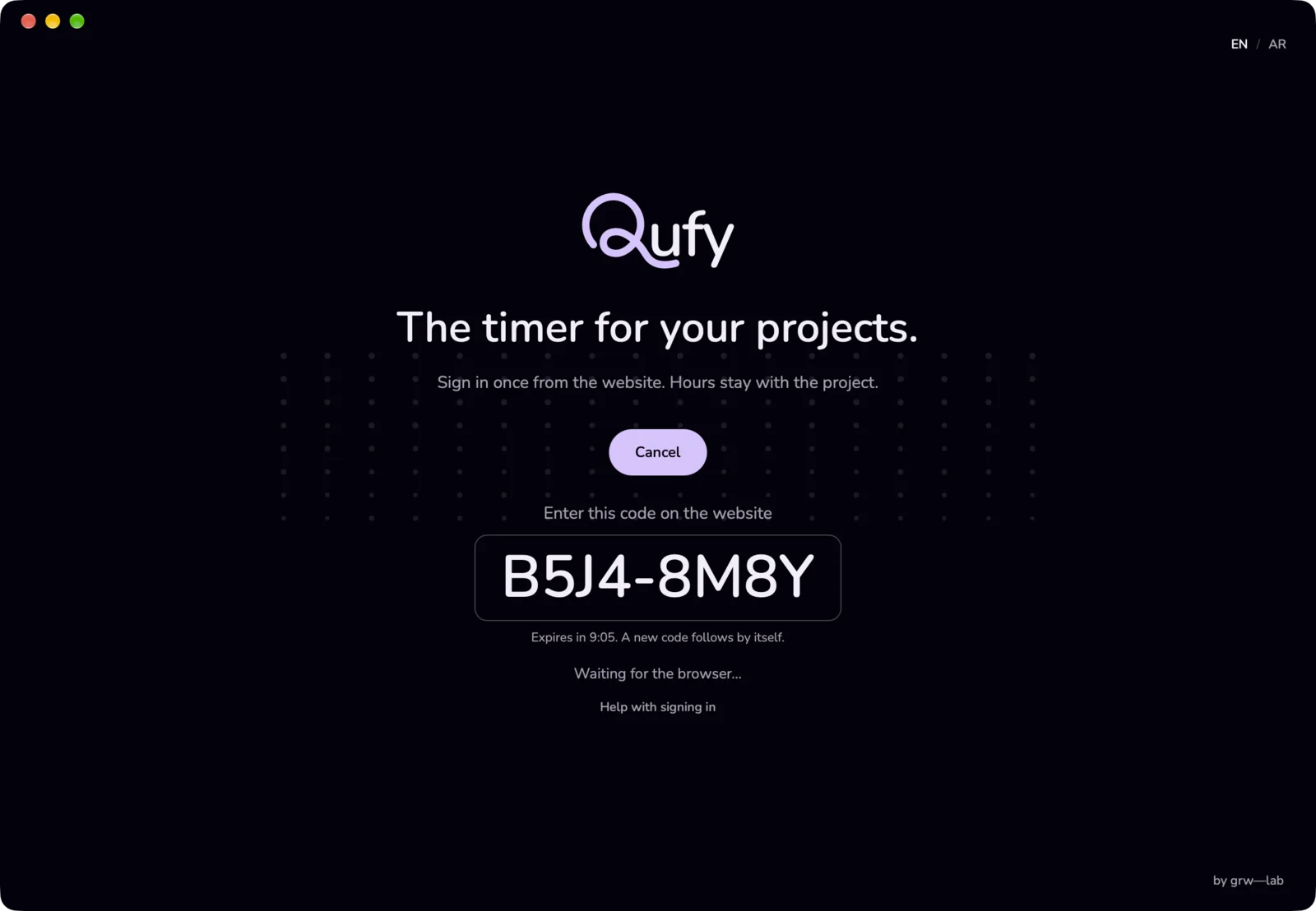
Open Qufy and press "Sign in" on the welcome screen. You can also press "Sign in" in the menu-bar panel, or right-click the Q and choose "Sign in".
- 2
Read the code under "Enter this code on the website". It looks like XXXX-XXXX.
- 3
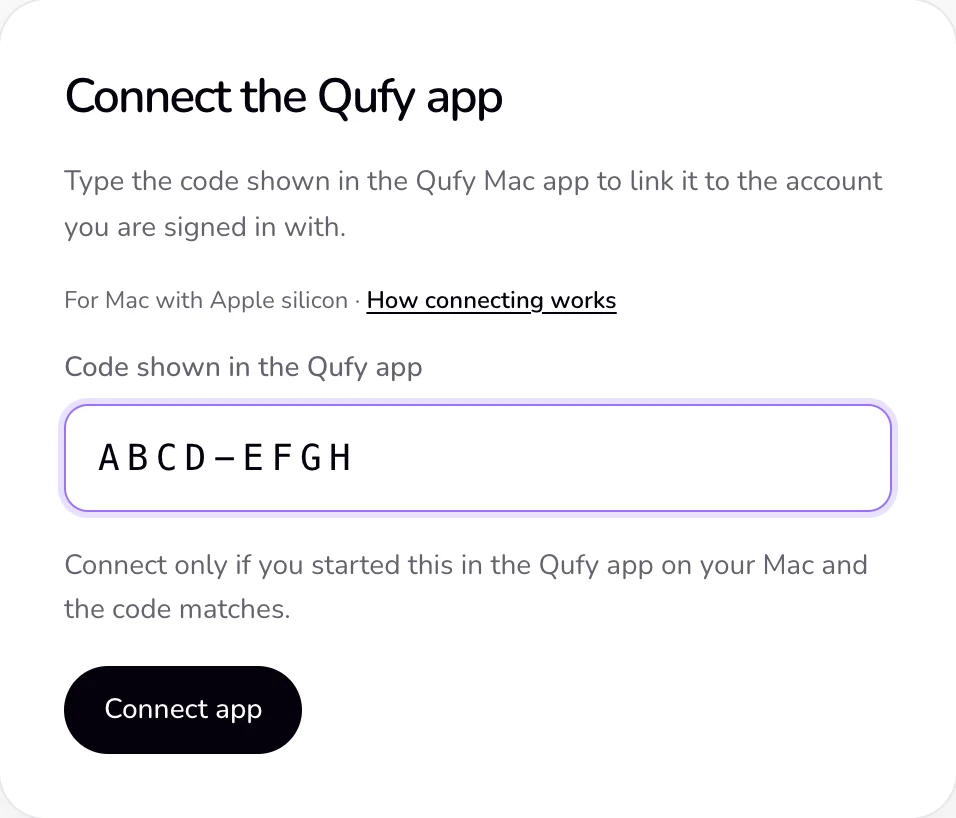
Look at your browser: Qufy opens the "Connect the Qufy app" page (/device) with the code already filled in.
- 4
If the page asks, press "Sign in to connect the app" and sign in. You come back to the same page afterwards.
- 5
Check that the code in "Code shown in the Qufy app" matches the code in the app.
- 6
Press "Connect app".
- 7
Wait for "The app is connected. You can close this page." Qufy comes to the front and opens the timer.
Good to know
- A code lasts 10 minutes and works once. It has 8 letters and digits, without 0, O, 1, I or L, so it is easy to read. The website accepts it in lowercase, with spaces, or with Arabic digits.
- While it waits, the app shows "Waiting for the browser…" and a "Cancel" button.
- The app shows how long the code has left, for example "Expires in 9:37. A new code follows by itself." When a code expires, the app makes a new one, up to 3 times (about 40 minutes in all). The browser does not open again, so type the new code on the /device page.
- Connect only if you started this in the Qufy app on your Mac and the code matches. Each connected Mac appears on the website in Settings, under "Mac app", as "Qufy for Mac", and in the "Devices and sessions" list under "Account".
- Signing out of the website in a browser does not sign out the Mac app.
If something goes wrong
- “This code expired. Start again in the Mac app.”
- The code is older than 10 minutes, or the app replaced or cancelled it. Type the code the app shows now, or press "Sign in" in the app for a new one.
- “This code was already used. Start again in the Mac app to connect another Mac.”
- Each code works once. If your Mac app is already connected, there is nothing more to do. To connect another Mac, press "Sign in" on that Mac for its own code.
- “We could not find that code. Check it against the Mac app, or start again there.”
- Compare each character with the code in the app, or press "Sign in" in the app for a new code.
- “Type the 8-character code shown in the app.”
- The field is empty or the code is incomplete. Type all 8 characters.
- “Too many tries. Wait 10 minutes, then try the code again.”
- Wait 10 minutes. If the code has expired by then, press "Sign in" in the app for a new one.
- “The code expired. Sign in again.”
- The app shows this when the code ran out before you confirmed it. Press "Sign in" for a new code.
- “The page was closed. Sign in again when you are ready.”
- You pressed "Cancel", or the app could not get a code (for example, with no internet). Check the connection, then press "Sign in".
Last updated 6 Oct 2026
Was this helpful?