Steps
- 1
Open the window: click the Q in the menu bar and press "Open Qufy", or open Qufy from Applications.
- 2
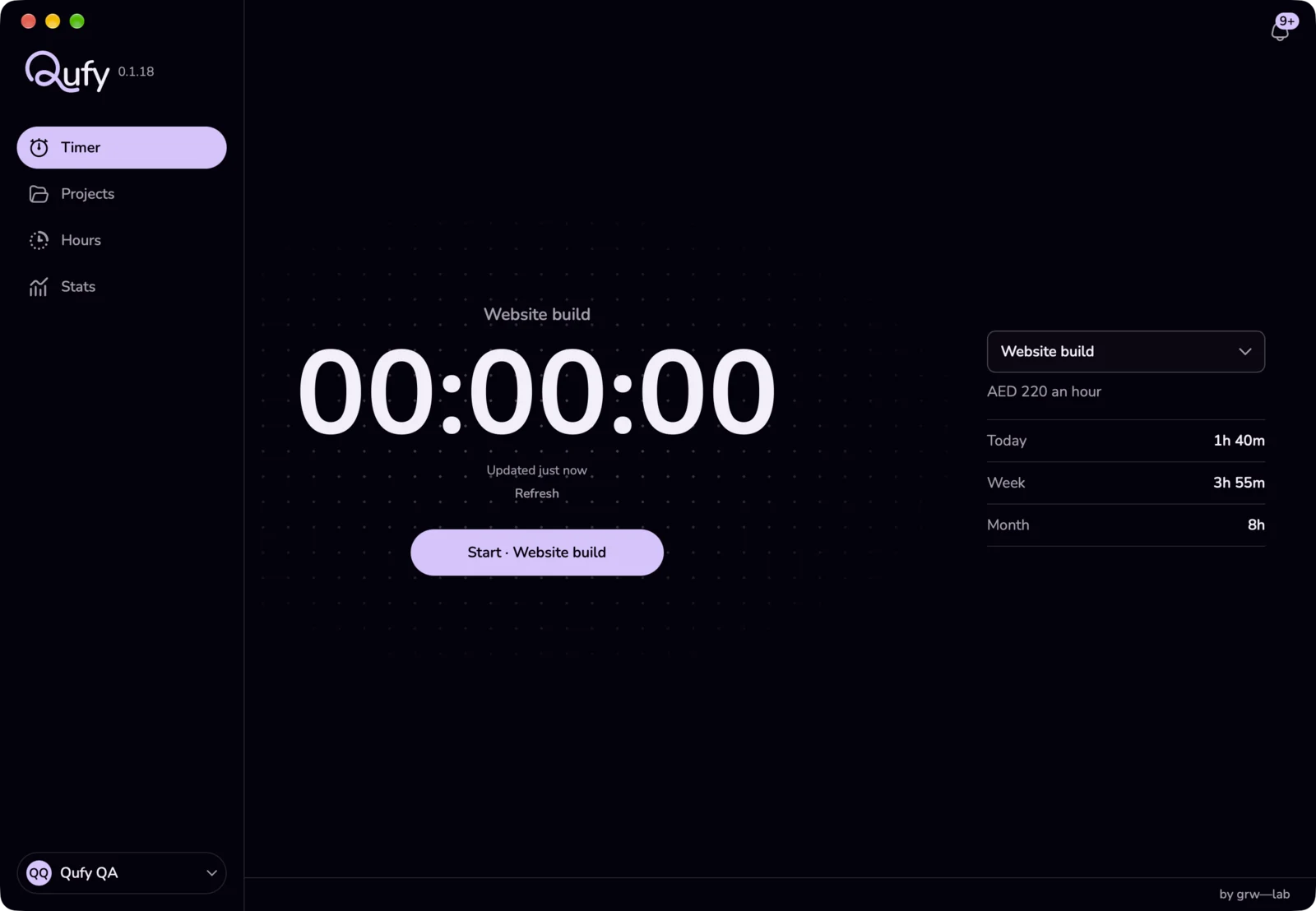
Use the sidebar to move between "Timer", "Projects", "Hours" and "Stats".
- 3
On any page except Timer, use the quick timer at the bottom of the sidebar: pick a project and press "Start timer".
- 4
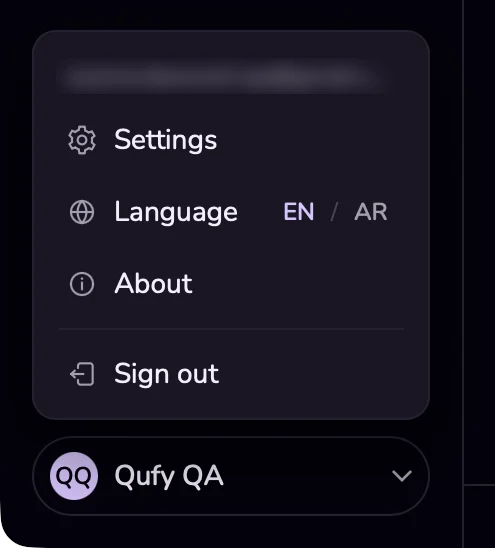
Press the button with your name at the bottom of the sidebar to see your email, "Settings", "Language" (EN / AR), "About" and "Sign out".
- 5
Press the bell to see "Notifications" from your clients. Each item opens on the website; "Mark all read" clears the count.
- 6
Press "Refresh" (or ⌘R) on the Timer page to load the latest data from your account.
Good to know
- Timer page: the large clock (00:00:00) and, while it runs, the money earned at the project's rate, with the note field above it. Beside the clock: the project menu, then what is still to invoice (press it to open Stats), the hourly rate, or "Choose a project", then the project's Today, Week and Month totals. Under the clock: "Start · {project}", or "Pause" and "Stop" while it runs, and "Updated just now".
- Projects page: each project keeps its own rate. Search, choose "Today", "Week" or "Month", or press "New project" to open a panel with "Project name", "Client", "Hourly rate" and "Currency" (EGP, SAR, AED or USD), then press "Create project".
- Each project row shows the client, the rate, the hours in the chosen period, and what is still "to invoice". It has one button, the next step: "Invoice hours" when there are unbilled hours, "Set a rate" when there is no rate, or "Start timer". The ⋯ menu holds "Start timer", "Invoice hours", "New quote" and "Edit".
- "Invoice hours" and "New quote" open the website with an invoice or a quote filled from the project's hours in the chosen period. Nothing is saved until you save or send it there. Stopping the timer never creates an invoice by itself.
- Hours and Stats have their own articles: see "Hours in the Mac app: add, edit, and delete sessions" and "Stats in the Mac app: your week at a glance".
- The bell shows: "Quote accepted", "Quote declined", "Contract signed", "Note from the client", "Reminder", and "Update". It checks for new items every 30 seconds.
- The window also refreshes by itself when you bring it to the front, when your Mac wakes, when the internet comes back, and every minute while it is visible.
- Escape closes open menus, panels and forms.
- Closing the window does not quit Qufy. The app keeps running in the menu bar, and a running timer keeps going. To quit, right-click the Q and choose "Quit Qufy".
Last updated 6 Oct 2026
Was this helpful?