Before you start
- Added time needs a project with an hourly rate. Only projects with a rate appear in the project list.
Steps
- 1
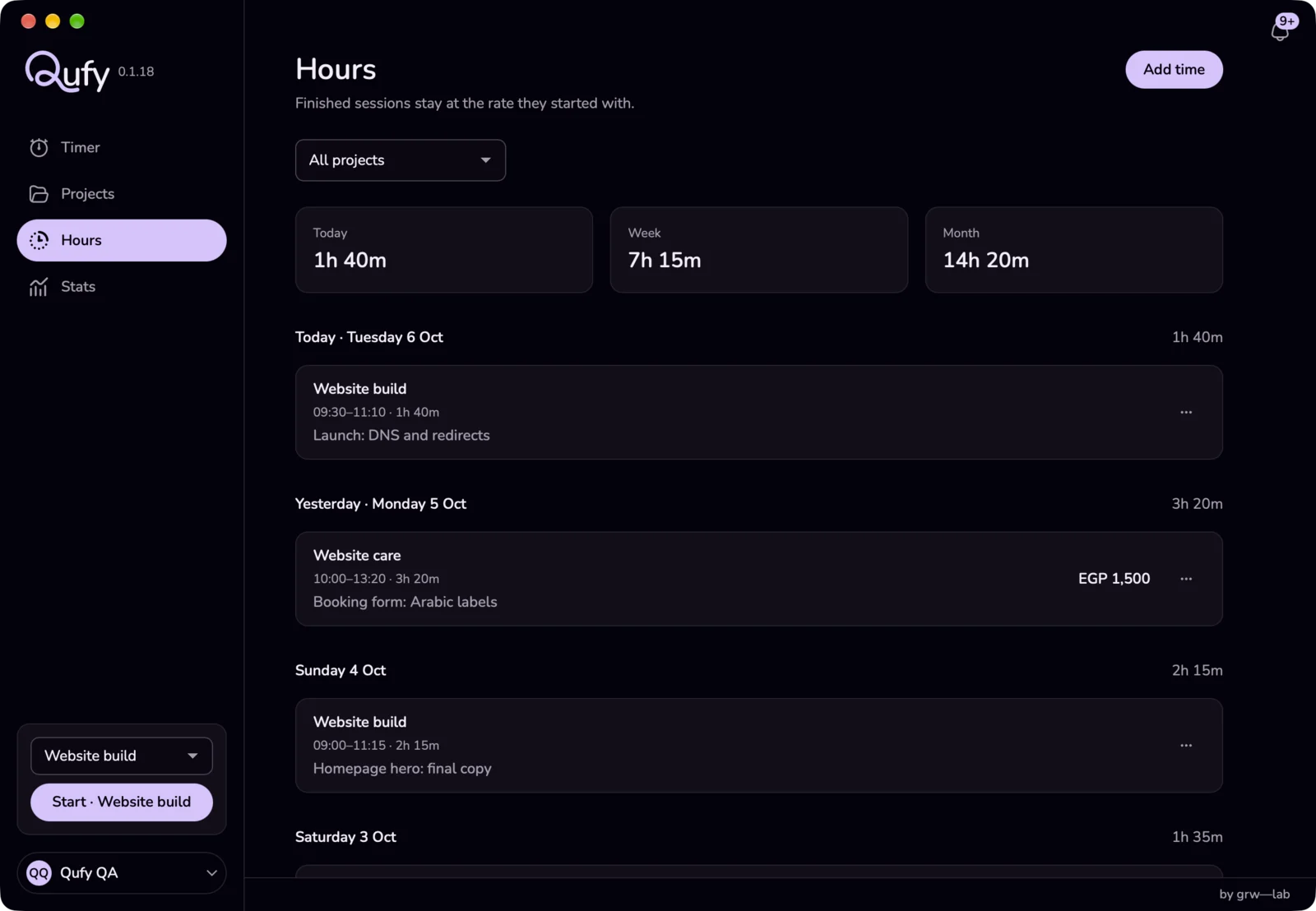
In the sidebar, choose “Hours”.
- 2
Press “Add time”. A panel opens on the side.
- 3
Choose the project in “Project”.
- 4
In “Date”, choose the day. The list starts with “Today” and “Yesterday” and goes back 60 days.
- 5
Type the start in “From” and the end in “To”. You can write 9, 930, 09:30, or 09.30, and Arabic digits work too.
- 6
Add a “Note” if you like (up to 200 characters), then press “Add time” at the bottom of the panel.
- 7
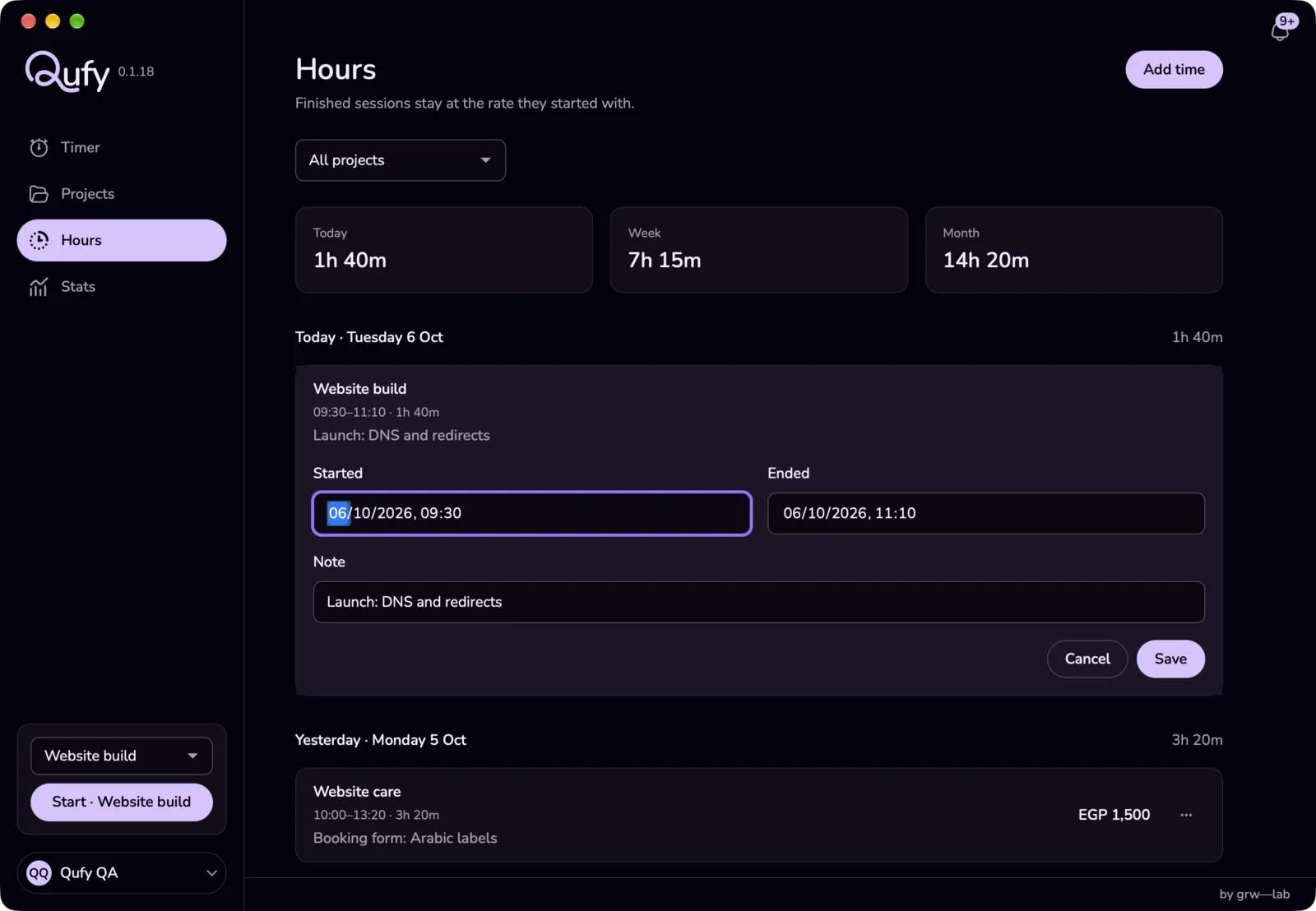
To fix a session, press the ⋯ button on its row and choose “Edit”. Change “Started”, “Ended”, or “Note”, then press “Save”. “Cancel” or the Escape key leaves it as it was.
- 8
To delete a session, press the ⋯ button on its row and choose “Delete”. Qufy asks “Delete this session?”; press “Delete” to confirm.
- 9
To see one project's sessions, choose it in the project menu above the totals. “All projects” shows every project again.
Good to know
- Sessions are grouped by day, newest first, with the day's total. A session already on an invoice shows “Invoiced”, and its value is shown unless the project has a fixed price.
- “From” and “To” are on the same day, so added time cannot run past midnight. For work that crossed midnight, add two sessions: one that ends at 23:59 and one that starts at 00:00 the next day.
- Every session follows the same rules: the end comes after the start, it lasts at least 1 minute and at most 24 hours, it is not in the future, and it does not overlap another session or the running timer.
- The project of a saved session cannot be changed in “Edit”. To put the time on another project, delete the session and add it again with the right project.
- The list shows the 12 most recent sessions (finished ones only, so 11 while a timer is running). Older sessions are still on your account: see and edit them on the website's Time page. Stats in the app counts every session.
- Time you add while offline waits on this Mac and syncs later. Edits and deletes need a connection: an edit made offline is not saved yet, even though the app says “Saved on this Mac. It will sync when you are back online.” Make edits when you are online, then check the row.
If something goes wrong
- “Write the time like 09:30.”
- Use hours and minutes, for example 9, 930, or 09:30, from 00:00 to 23:59.
- “That time overlaps another session. Pick another time.”
- Change the times so they do not cover another session or the running timer.
- “Make the session at least one minute.”
- Move the end at least one minute after the start.
- “Keep the session to 24 hours or less.”
- Shorten the session, or split it into two.
- “Pick a time that has already passed.”
- Sessions cannot end in the future. Choose an earlier time.
- “The end has to be after the start.”
- Check “From” and “To” (or “Started” and “Ended”). The app also shows this message when something else went wrong; if the times are right, refresh and try again.
- “Set an hourly rate before starting.”
- Give the project an hourly rate on the Projects page, then add the time.
- “That project is gone. Pick another one.”
- The project no longer exists. Choose another project.
Last updated 6 Oct 2026
Was this helpful?