Steps
- 1
Open “Time” in the sidebar.
- 2
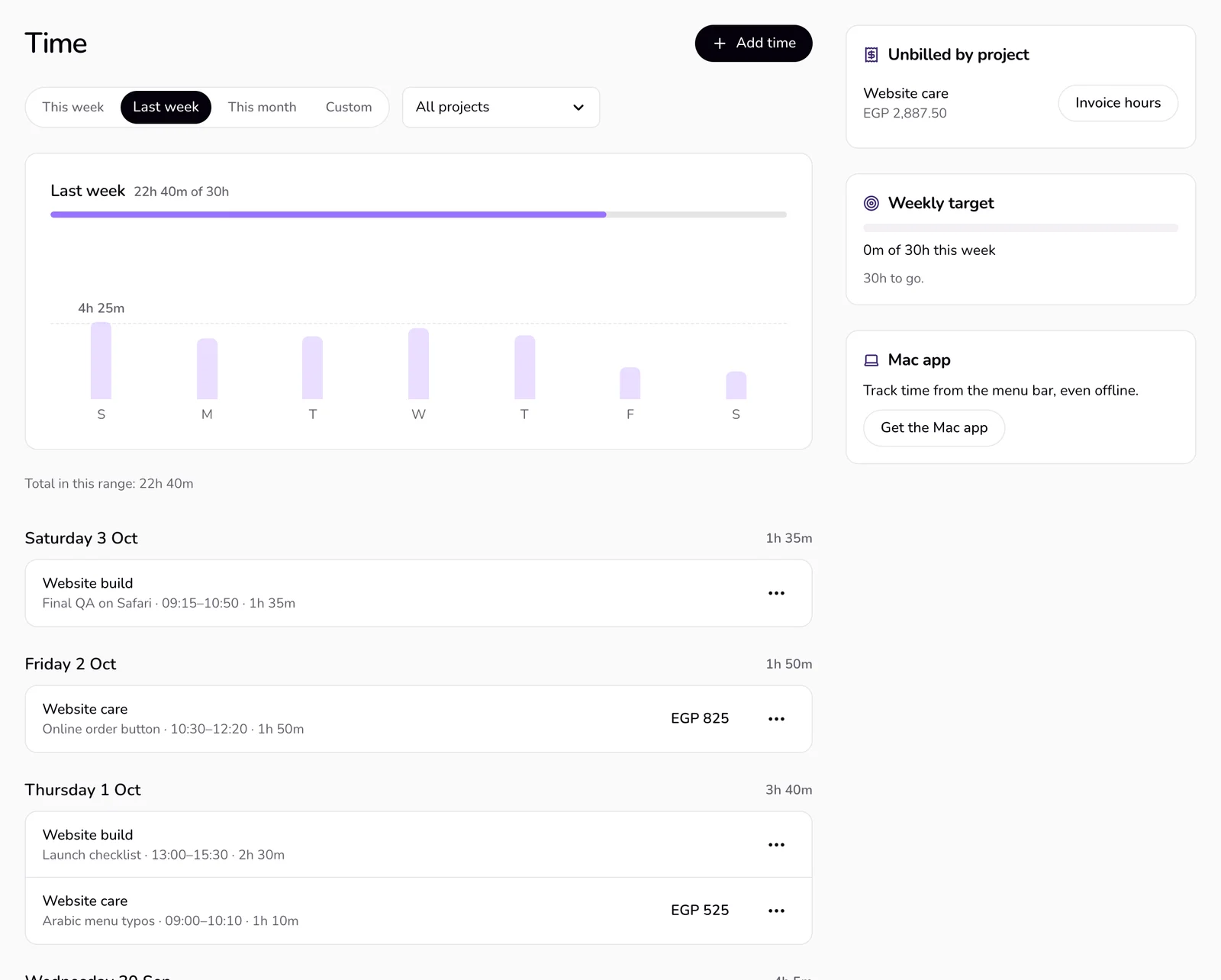
Pick a range at the top: “This week”, “Last week”, “This month”, or “Custom” (two dates). Next to it, “All projects” lets you show one project only.
- 3
Read the week chart: the week's total, the day bars, and your weekly target line when you set one. Under it, “Total in this range: {duration}” adds up the range you picked.
- 4
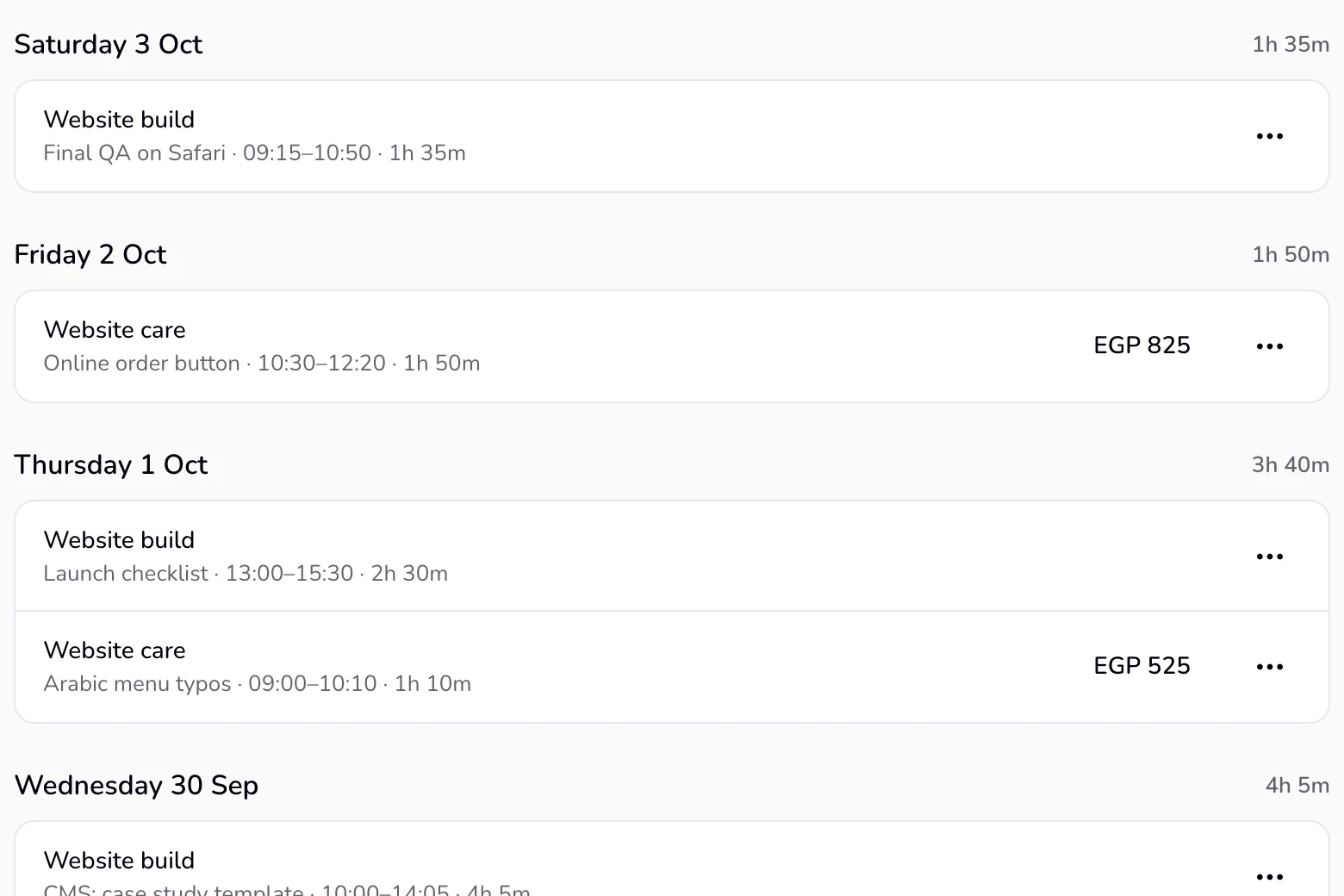
Scroll through the sessions. Each day has a header with its total; each row shows the project, the note, the time range, the duration, and the amount.
- 5
To invoice hours, press “Invoice hours” next to a project under “Unbilled by project” at the side. Qufy opens an invoice filled from that project's unbilled time; nothing is saved until you save or send it.
- 6
To change a session, press “⋯” on its row, choose “Edit”, change “Date”, “From”, “To” or “Note”, and press “Save”.
- 7
To delete a session, press “⋯”, choose “Delete”, then confirm “Delete this session?”.
Good to know
- The side of the page shows “Unbilled by project” (all finished, uninvoiced time on hourly projects; “All tracked time is invoiced.” when there is none), “Weekly target” (this week against your target, or “Set a weekly hours target”), and “Mac app” (paired, or “Get the Mac app”).
- The week starts on Sunday. The chart includes a timer that is running now; amounts count finished sessions only. On a fixed-price project, sessions show no amount: its hours are tracked for insight.
- Sessions come from the website, the Mac app, and imports. Sessions under a minute are hidden.
- Editing cannot change a session's project, and the times follow the same rules as “Add time”.
If something goes wrong
- “No time in this range”
- Pick another range or project, start the timer from the top bar, or press “Add time”.
Last updated 6 Oct 2026
Was this helpful?