Before you start
- You need at least one project with an hourly rate. Add the rate when you create the project, or later with “Edit” in the project's “⋯”.
Steps
- 1
Sign in and open any page in your workspace. The timer sits in the top bar.
- 2
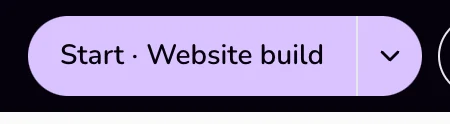
To time the project the button names, press “Start · {project}”. It names the project on your screen (on its page, or on a document linked to it), or else the last project you timed, as long as it has an hourly rate.
- 3
To time another project, press the arrow next to the button and choose it under “Projects”. The project on your screen is first, marked “On screen”. When the button reads “Start timer”, or “Start” on a phone, it opens the same list.
- 4
While it runs, the bar shows the project, the time, and buttons to pause and stop. If you like, type what you are working on in “What are you working on?”: beside the timer on a wide screen, or in the menu under the arrow.

- 5
Press pause to take a break. The bar shows “Paused”. Press it again (“Resume”) to carry on.
- 6
Press stop when you finish. The session is saved to the project.
Good to know
- The list under “Projects” shows up to six projects with an hourly rate, archived ones left out. Each session stores the project's rate at the moment it starts.
- On a phone, the running timer shows a dot and the time; press it for the project list, the note, “Pause”, and “Stop”.
- Paused time is not counted and not charged.
- A session with less than one minute of work is not saved. After you stop, you see “Under a minute is not saved.”
- One timer runs at a time, across the website and the Mac app. A timer started in the Mac app also shows in the top bar; the bar checks every 20 seconds and whenever you come back to the tab.
- Stop does not create an invoice. Finished hours wait on the Time page until you invoice them.
- A project page also has a “Time” card with its own “Start timer” and “Stop” buttons. It controls the same timer.
If something goes wrong
- “A timer is already running.”
- Another timer is running, in this browser or in the Mac app. Stop it first, or press the arrow and choose a project to move or switch the running session.
- “Add an hourly rate on a project first.”
- None of your projects has an hourly rate. Open a project, choose “Edit” under “⋯”, and add a rate.
- “Set an hourly rate before starting.”
- The project you chose has no hourly rate now. Add a rate on the project page, then start again.
- “Under a minute is not saved.”
- The session had less than one minute of work, so it was removed. Nothing else changed.
Last updated 6 Oct 2026
Was this helpful?