Steps
- 1
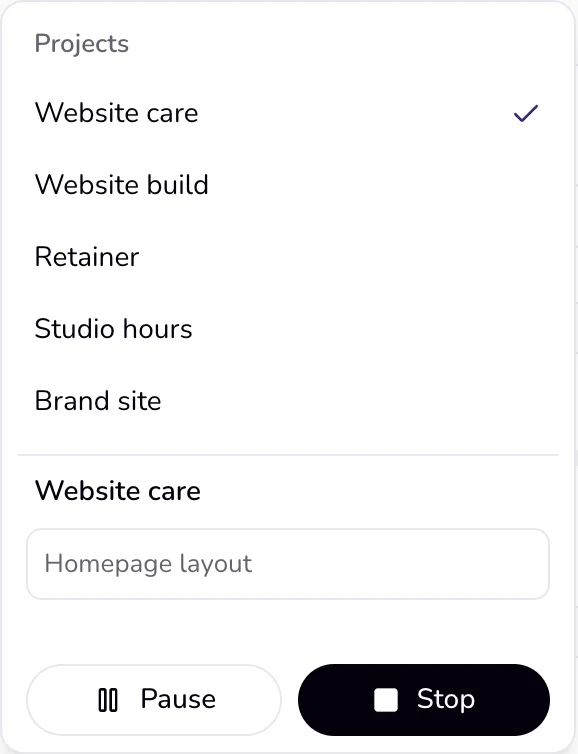
Start the timer, then press the arrow next to it. The menu shows the running project and the field “What are you working on?”. On a wide screen the same field also sits beside the timer.
- 2
Type a short note. It saves by itself a moment after you stop typing, and “Saved” shows under it. Enter saves at once; Esc puts back the saved note.
- 3
To change a note later, open “Time” in the sidebar, press “⋯” on the session, and choose “Edit”.
- 4
Change the “Note” field and press “Save”.
Good to know
- A note can be up to 200 characters, in the timer, in “Add time”, and when you edit a session.
- When you make an invoice from tracked hours, each note becomes a line description. Sessions with the same note on the same day become one line.
- A session without a note becomes a line named after the project and the date.
- Moving a running session to another project keeps its note. Switching after 5 minutes saves the old session with its note, and the new session starts with an empty note.
- On the Time page each session's note shows in its row, before the time range. The Mac app has the same note field, and a note written in one place shows in the other.
Last updated 6 Oct 2026
Was this helpful?