Steps
- 1
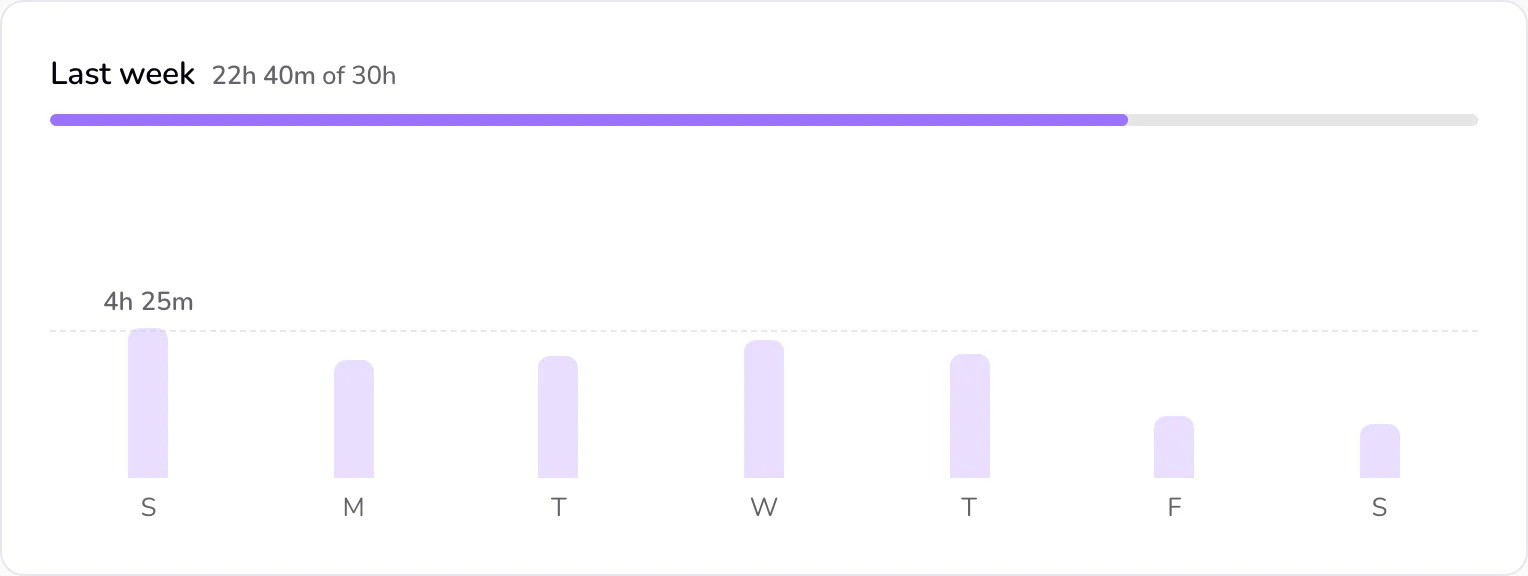
Open “Time” in the sidebar. The chart is at the top, under “This week”. Home shows the same chart once you have time this week, and each project page shows one for that project.
- 2
Read the top line: “This week” and the week's total. With a target it adds the target after the total, for example 12h of 30h, and a thin bar fills as you work.
- 3
Read the bars: each bar's height is that day's worked time. Today's bar is purple, and only today and the busiest day show their hours.
- 4
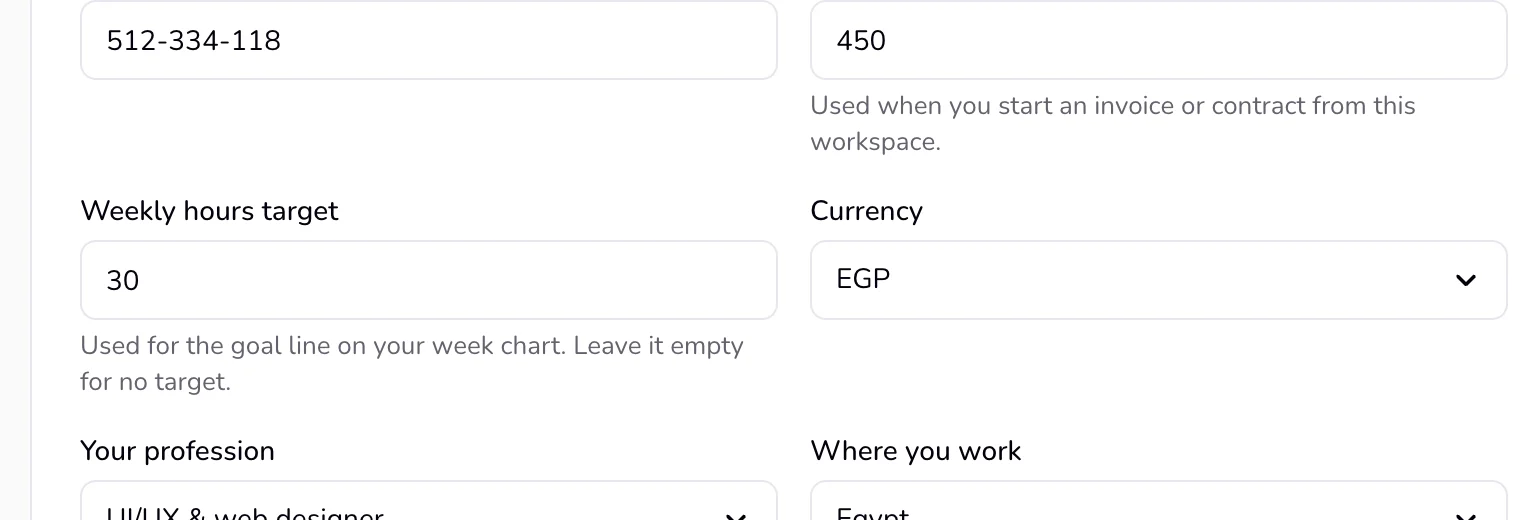
To add a goal line, open Settings and choose “Business” at the top (or press “Set a weekly hours target” at the side of the Time page). Enter your “Weekly hours target” (1 to 100) and press “Save changes”.
Good to know
- The chart shows seven days, Sunday first, for all projects together. In Arabic it reads from right to left. Days still ahead are faint, and days with no time show a short stub.
- With “Last week”, “This month”, or “Custom” on the Time page, the chart shows the last week of that range.
- The scale uses round values and is never shorter than one hour, so a short day looks short.
- Times are counted in whole minutes. A session counts on the day it started, in your local time, even if it ran past midnight. Paused time is left out, and a running timer counts up to now.
- The goal line sits at your target divided by seven, the daily share of the week. It shows on Home and on the Time page when all projects are shown. A project page shows that project's hours only, so it has no goal line.
- If the target is empty when you save your rate, Qufy fills it with the weekly hours from the rate page. It never replaces a target you already set. Clear the field to remove the goal line.
- The Mac app's Stats page uses the same target and draws the same goal line.
If something goes wrong
- “Use a number of hours from 1 to 100, or leave it empty.”
- Type a number of hours between 1 and 100, or clear the field for no target.
Last updated 6 Oct 2026
Was this helpful?