Steps
- 1
Click the Q in the menu bar. The panel opens below it, even over full-screen apps.
- 2
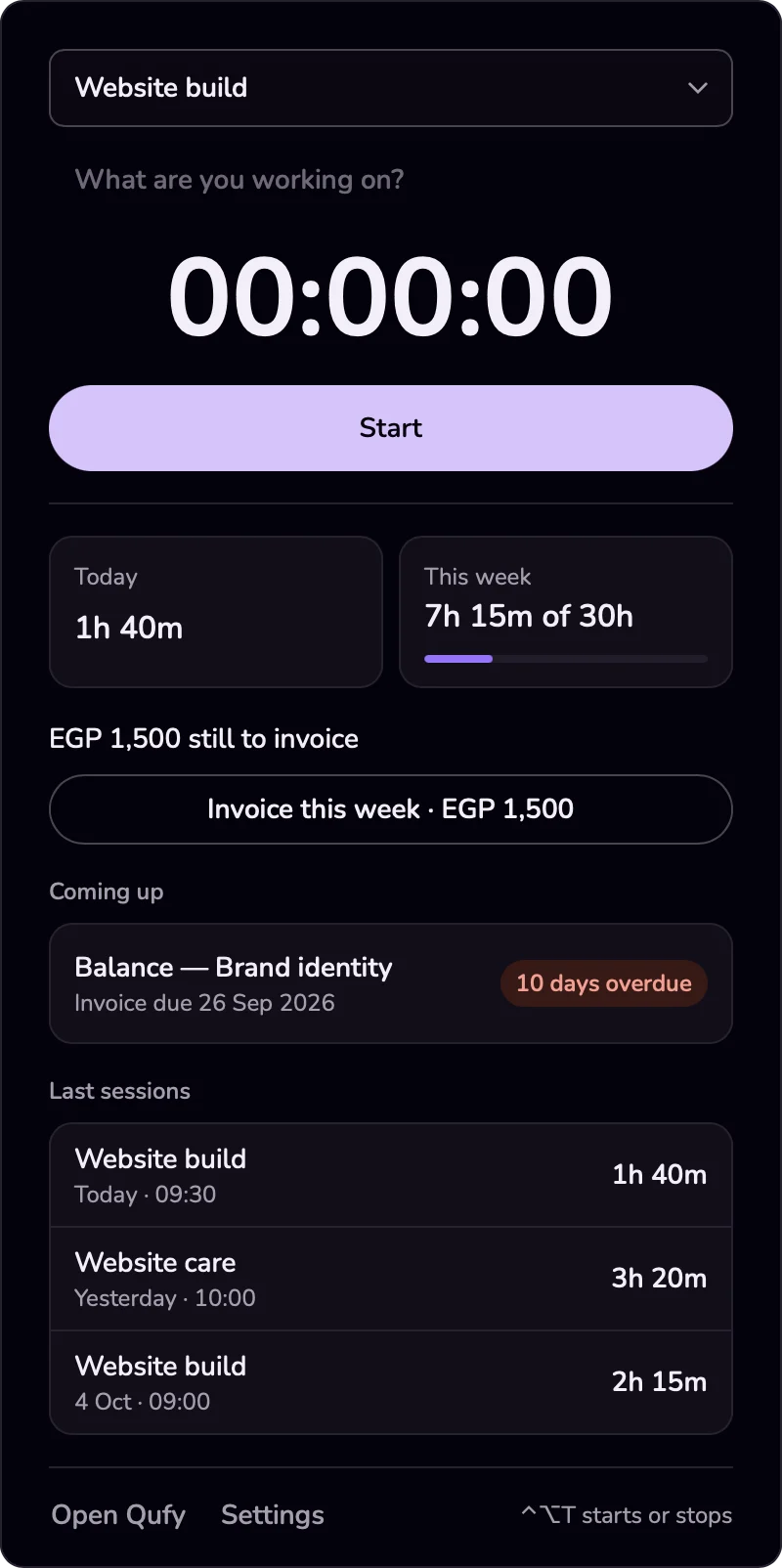
When nothing is running, click one of the recent projects to choose it, or press "Projects" to open the full list in the window.
- 3
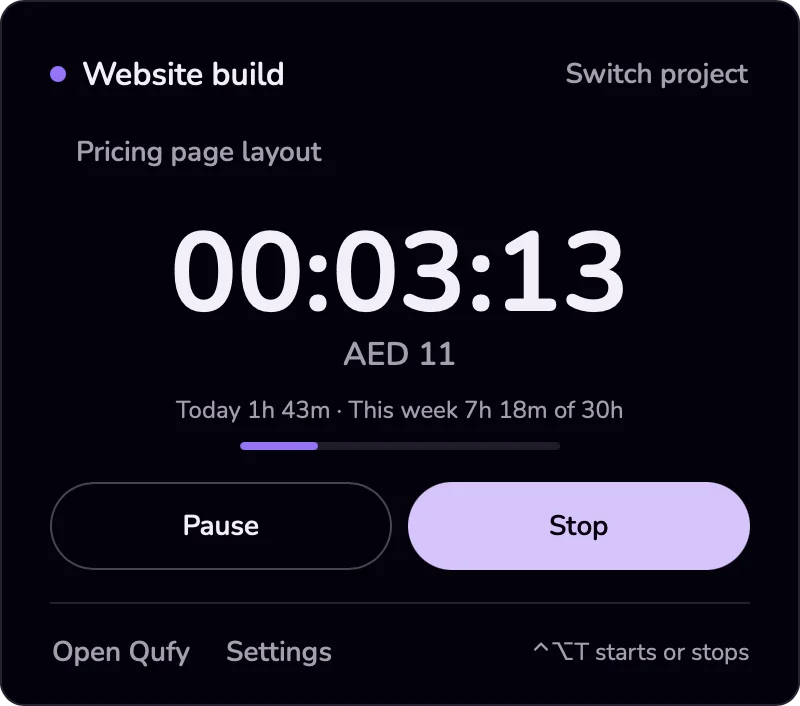
Press "Start" to start the timer on the project named under the button. While the timer runs, the same button reads "Stop".
- 4
Press "Pause" or "Resume" while the timer runs.
- 5
Press "Open Qufy" to open the main window.
- 6
Click the Q again, or anywhere outside the panel, to close it.
Good to know
- The panel shows the timer, the money earned, the note for the running session, and a project menu. "Today" and "This week" add up all your projects. With nothing running, it lists the 3 most recent projects with today's time, or "Nothing saved today yet".
- When hours this week are still waiting for an invoice, the panel shows "Invoice this week" with the amount. It opens an invoice filled from your hours on the website; nothing is saved until you save or send it there.
- When you are signed out, the main button reads "Sign in".
- The bottom line shows "⌃⌥T starts or stops", or how many actions are waiting to sync when you have been offline.
- Right-click the Q for a short menu: "Open Qufy"; "Start timer" or "Stop timer" with the project name (a paused timer counts as running); "Sync" (only when something is waiting); "Sign out"; "Open when the Mac starts" (a checkbox, off by default); and "Quit Qufy". When signed out, the menu has "Sign in" instead.
- While a timer runs or is paused, the menu bar can show the time and money next to the Q as h:mm · money, for example 0:12 · USD 4. There are no seconds, and it stays still while paused. A solid dot on the Q means running; a faded dot means paused.
- Choose what shows next to the Q in Settings, under "Menu bar": "While the timer runs" is "Icon only", "Timer", or "Timer and amount". "When the timer is stopped" can show "Unbilled hours this week" or "Unbilled amount this week" when the value is above zero. Clicking the Q always just opens the panel.
If something goes wrong
- “There is no time next to the Q.”
- Time shows only while a timer runs or is paused, and only when "While the timer runs" in Settings is "Timer" or "Timer and amount". Start the timer from the panel.
Last updated 6 Oct 2026
Was this helpful?