Steps
- 1
In the Mac app, press your name at the bottom of the sidebar and choose “Sign out”. You can also right-click the Q in the menu bar and choose “Sign out”.
- 2
To sign the Mac out from the website instead, go to Settings and choose “Mac app” in the bar at the top.
- 3
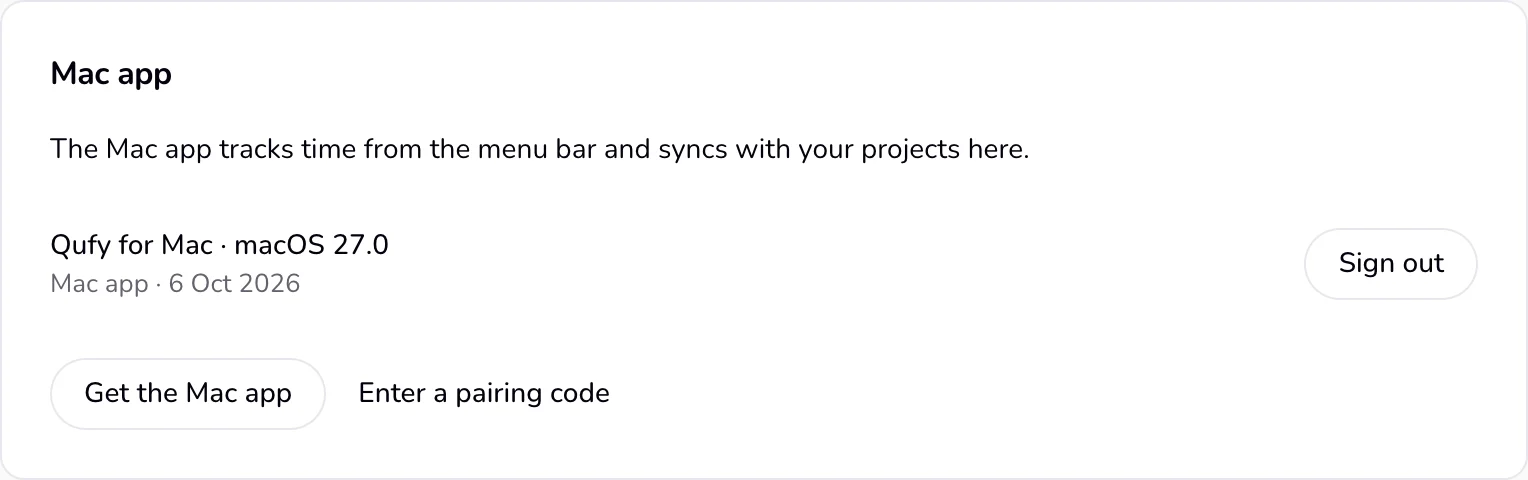
Find the row named “Qufy for Mac” with the macOS version after it. The line under it reads “Mac app” and the date it was last seen.
- 4
Press “Sign out” on that row. To sign out everything except this browser, choose “Account” in Settings and press “Sign out of all other devices” under “Devices and sessions”.
Good to know
- Signing out in the app ends the sign-in on Qufy's server, then removes it from your Mac's Keychain.
- If the Mac is offline when you sign out, the sign-in is removed only from this Mac and the Mac stays in the website's list. Sign it out there too.
- After you sign the Mac out from the website, the app shows “Signed out.” and “This Mac was signed out. Sign in again from the website.” on its next refresh.
- Signing out of the website in your browser does not sign out the Mac app.
- The Mac's sign-in lasts 30 days from when you connected it and is not extended. After that, connect the app again with a new code.
- The last-seen date on the website updates at most once an hour.
Last updated 6 Oct 2026
Was this helpful?