Before you start
- You need a Mac with Apple silicon and macOS 12 or later. Desktop widgets need macOS 15 or later; on older systems the app works and the widgets do not appear.
- Use the same Qufy account you use on the website. While Qufy is in beta, the download page opens for people who are signed in or have beta access.
Steps
- 1
On the website, open the Mac app page at /app.
- 2
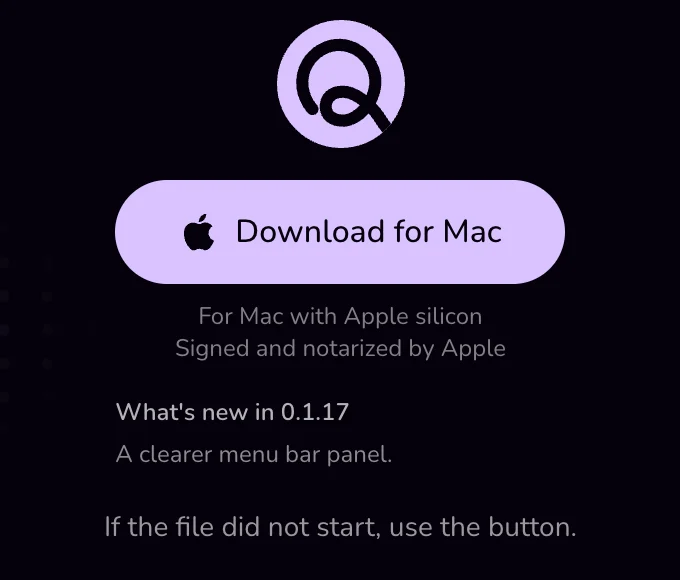
Wait a few seconds: the download starts on its own ("The download starts in 3…"). If it does not, press "Download for Mac".
- 3
Open the downloaded disk image (a file whose name starts with Qufy and ends in -mac.dmg) from your Downloads folder.
- 4
Drag the Qufy icon onto the Applications folder in the window that opens.
- 5
Open Qufy from Applications. macOS asks once whether to open an app downloaded from the internet; choose "Open".
- 6
Find the lavender Q in the menu bar at the top of the screen. That is where Qufy lives while it runs.
- 7
Sign in to the app with your Qufy account. See "Sign in to the Mac app with a code".
Good to know
- The disk image and the app are signed and notarized by Apple, so the one question on first open is the only warning you should see.
- Qufy is installed in your Applications folder. It keeps running in the menu bar. The Dock icon appears only while the main window is open; closing the window hides it again.
- To start Qufy when you sign in to your Mac, right-click the Q in the menu bar and tick "Open when the Mac starts". It is off by default.
- Updates are not installed for you. When a new version is ready, you download it and drag it to Applications again; your sign-in is kept. See "Update the Mac app".
- The Mac app is for Mac with Apple silicon only. On a phone or another computer, use the website.
If something goes wrong
- “If the file did not start, use the button.”
- Press "Download for Mac" on /app. Your browser may also ask you to allow the download.
- “The installer is not published yet.”
- There is no file to download at the moment. Try the page again later, and use the website in the meantime.
- “The widgets are missing from the widget gallery.”
- Widgets need macOS 15 or later. Open Qufy from the Applications folder at least once, then look again.
Last updated 6 Oct 2026
Was this helpful?