Steps
- 1
In the Mac app, press your name at the bottom of the sidebar and choose “Settings”.
- 2
Under “Updates”, leave “Check for updates automatically” on if you want Qufy to look for new versions by itself.
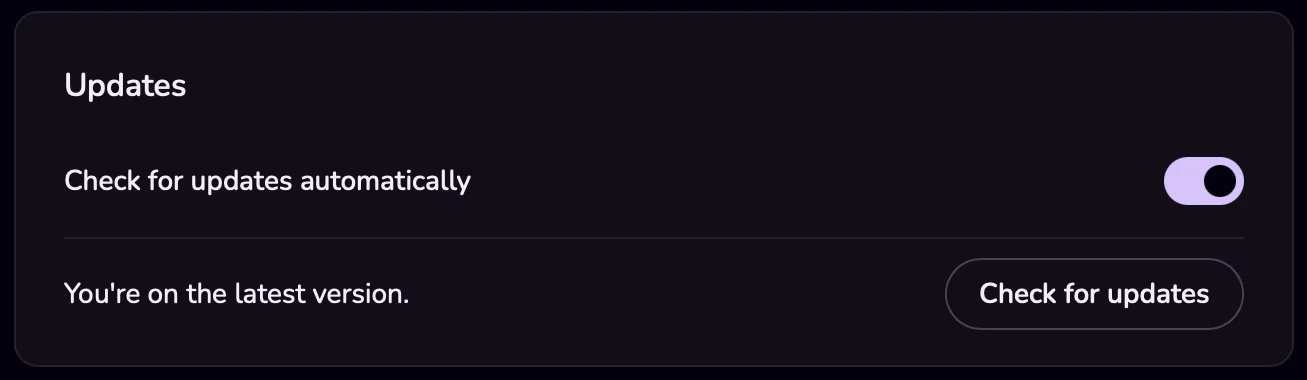
- 3
To check now, press “Check for updates”.
- 4
If you see “Version {latest} is ready.”, read the release notes under it, then press “Download”. The disk image downloads in your browser.
- 5
Quit Qufy: right-click the Q in the menu bar and choose “Quit Qufy”.
- 6
Open the disk image and drag Qufy onto Applications, replacing the older copy.
- 7
Open Qufy again. You are still signed in.
Good to know
- With the automatic check on, Qufy checks once each time its window loads, for example when Qufy starts. If the window is not in front, a notification says “Version {latest} is ready.”
- Qufy does not install updates by itself. You always download and drag the new version in.
- To see what changed before you update, open the Mac app page on the website (/app). It shows “What's new in {version}”.
- To see which version you have, open “About” from the name menu. It also lists what is new and has its own “Check for updates” button.
If something goes wrong
- “You're on the latest version.”
- Nothing to do. Your app is up to date.
- “Couldn't reach the update server. Try again later.”
- Check your internet connection and press “Check for updates” again, or download the latest version from /app on the website.
- “Update required.”
- This version of Qufy no longer works with the website, so the window and the panel show only this. Press “Update now”; the new version downloads in your browser. Then quit Qufy and replace it in Applications. Your timer and anything not yet synced are kept and sync after the update.
Last updated 6 Oct 2026
Was this helpful?