Steps
- 1
Open the link printed on the contract's signing record, or scan its QR code.
- 2
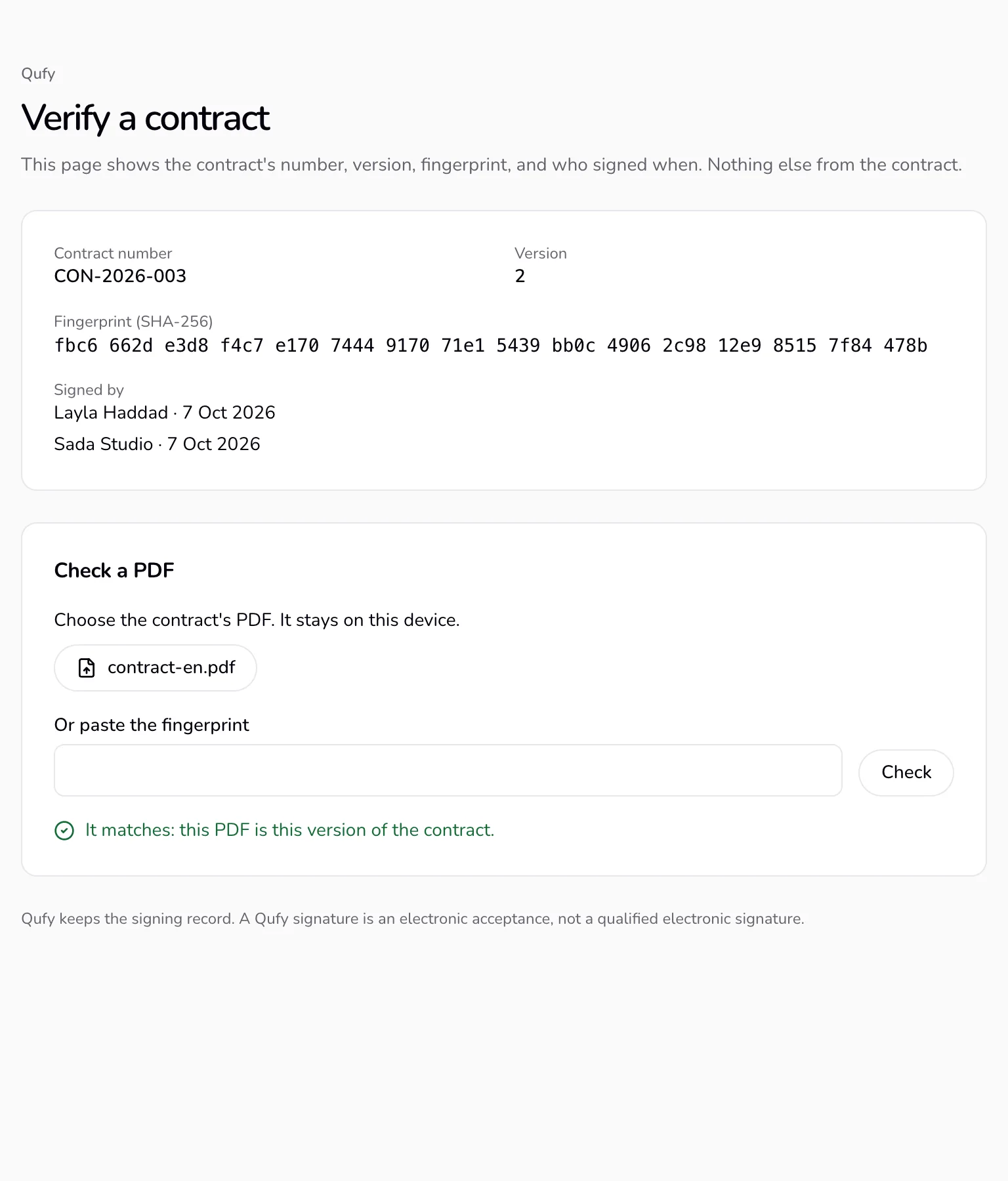
The page shows the contract number, the version, the fingerprint, and who signed and when. Nothing else from the contract.
- 3
Under “Check a PDF”, press “Choose PDF” and pick the contract's file, or paste the fingerprint and press “Check”. The page says whether it matches this version.
Good to know
- The PDF is read in your browser; the file is never uploaded.
- The fingerprint changes with any change to the contract's text, parties, dates, or fee, so a changed file does not match.
- Each version has its own link. An older version's page lists no signers once a newer version cleared them.
Last updated 7 Oct 2026
Was this helpful?