Steps
- 1
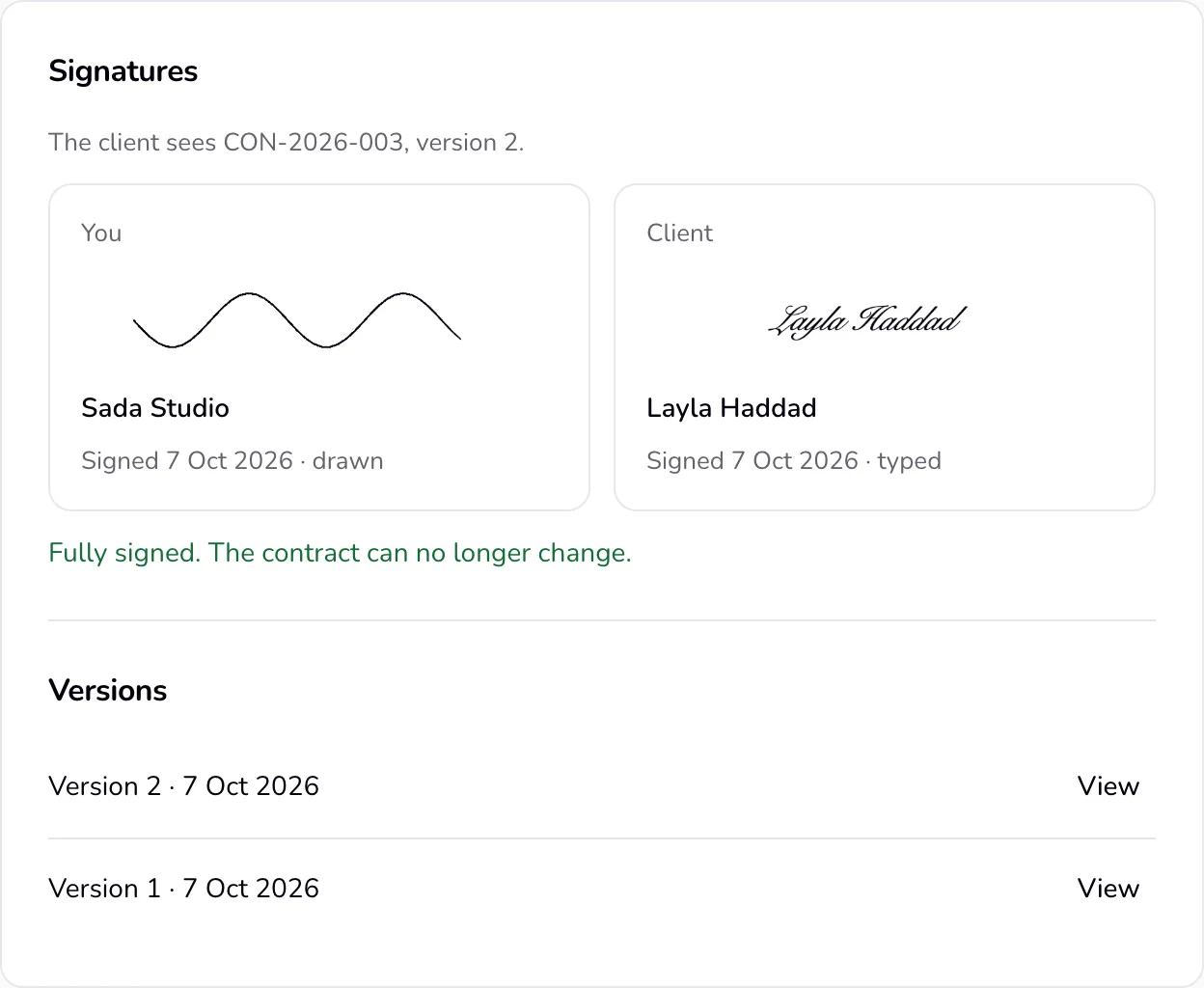
Save the contract. Under “Signatures”, press “Sign”, type your “Full name”, choose “Draw” or “Type”, tick the box, and press “Sign contract”. You can sign before you send it, or after the client.
- 2
The client signs on their link with “Sign contract”. Their page says whose signature is still missing.
- 3
The status follows: “Signed by you”, “Signed by client”, then “Fully signed” when both signatures are on the same version. When the client signs first, your next step is “Sign”; once fully signed, it is “Deposit invoice”.
- 4
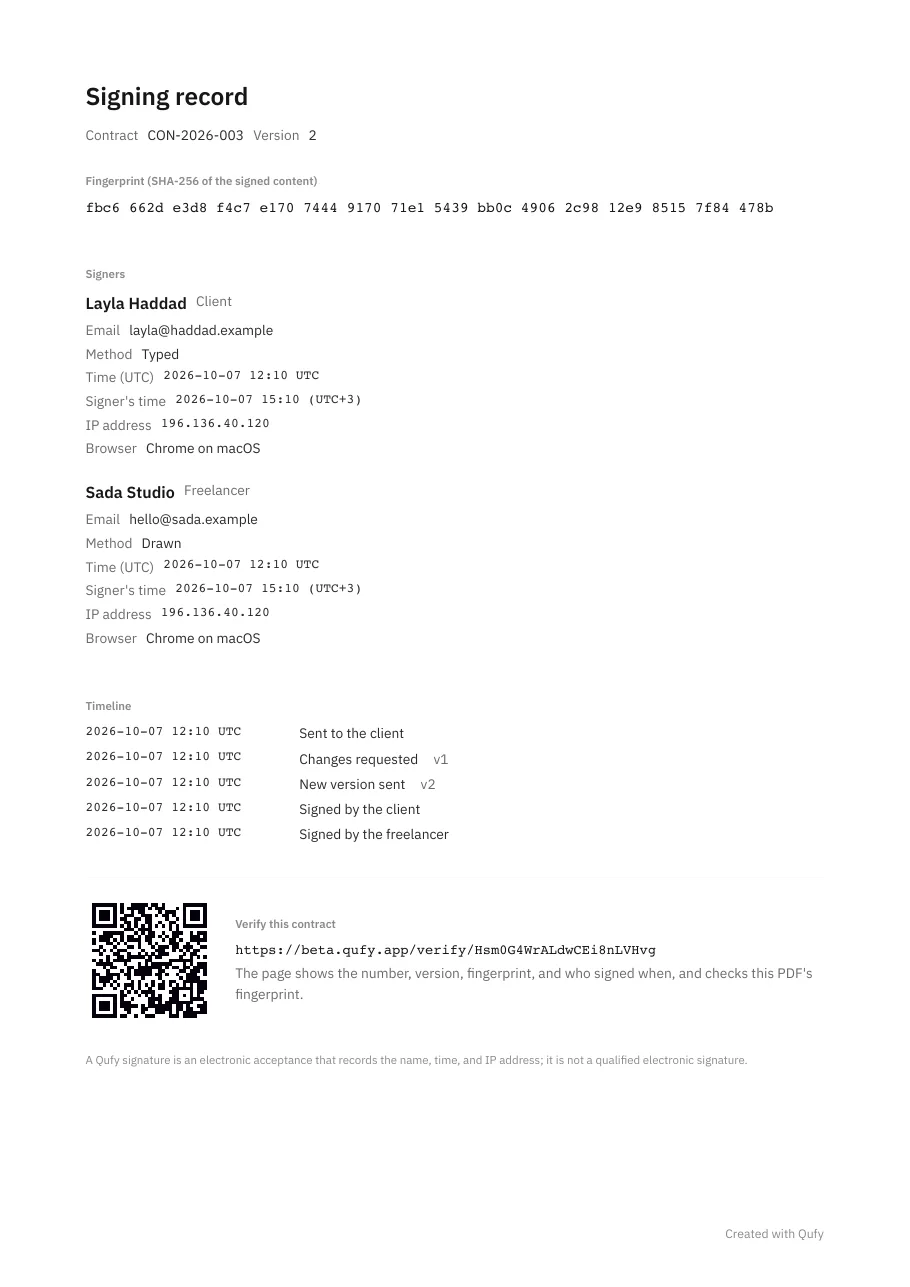
Download the PDF from “More”. It shows both signature blocks, and its last page is the signing record.
Good to know
- The signing record lists the contract number and version, the SHA-256 fingerprint of the signed content, each signer (name, email on the contract, drawn or typed, the time in UTC and on the signer's clock, IP address, browser), and the timeline: sent, opened, changes requested, new versions, signed.
- The client's “Save as PDF” has the same record without IP addresses.
- A fully signed contract is final: its text can no longer change, and nobody can sign it again.
- A Qufy signature is an electronic acceptance that records the name, time, and IP address. It is not a qualified electronic signature.
Last updated 7 Oct 2026
Was this helpful?