Steps
- 1
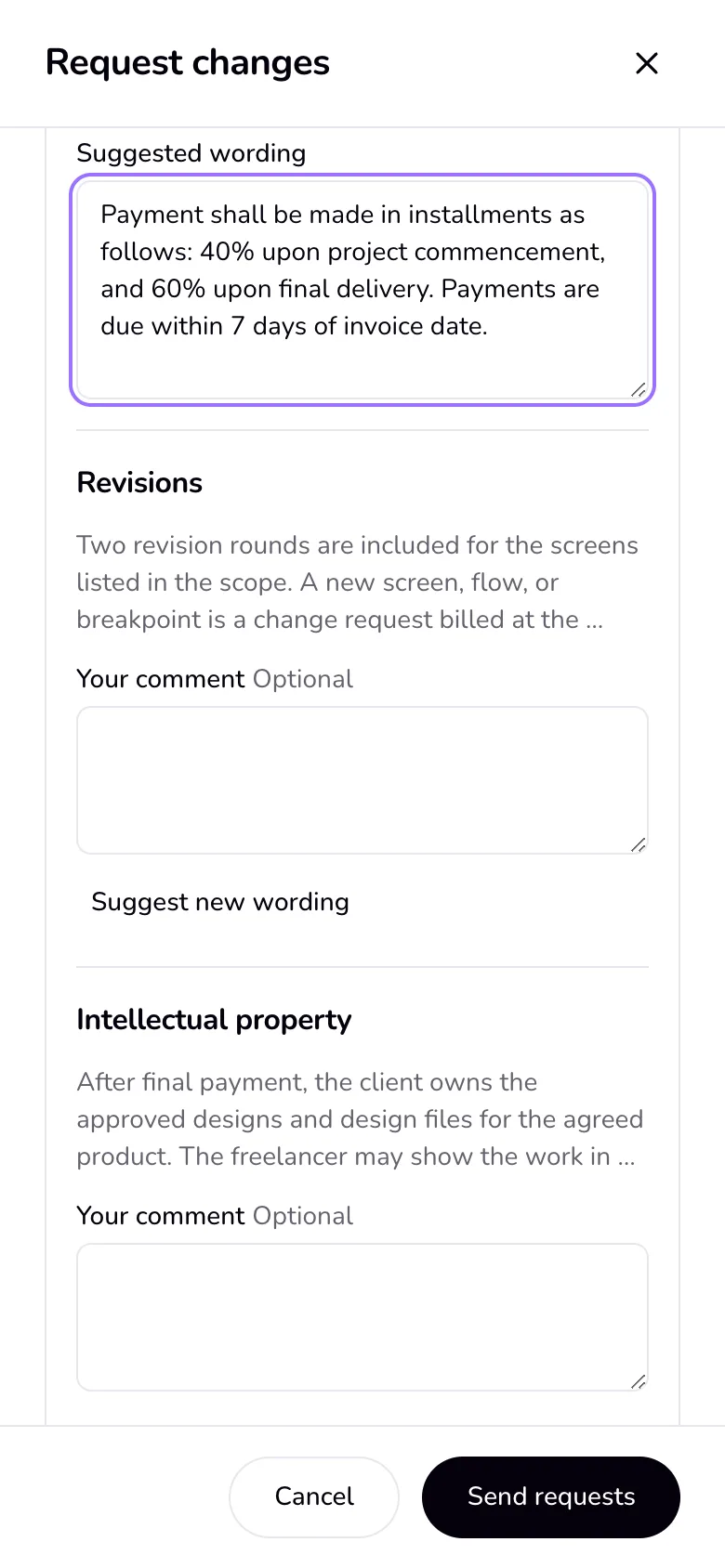
On the contract link, the client presses “Request changes” instead of signing. Next to the scope and each clause they write a comment, and with “Suggest new wording” the wording they want. They press “Send requests”.
- 2
You get a notification and an email, and the contract shows “Changes requested” in Documents and in Needs you on Home. Its button there is “Review changes”.
- 3
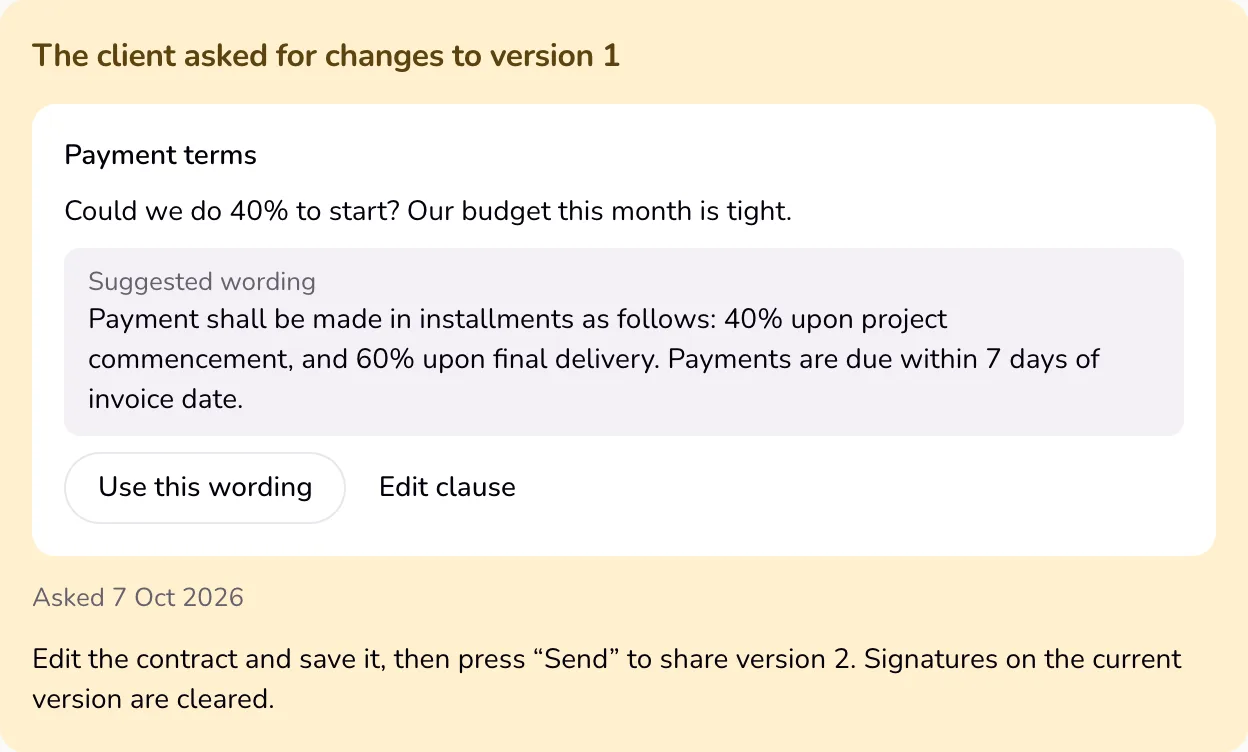
In the contract editor, each request sits at the top with the client's comment and suggested wording. Press “Use this wording” to put it in the clause, or “Edit clause” to write your own.
- 4
Press “Save”, then “Send” and “Update the client page”. The client's same link now shows the next version.
Good to know
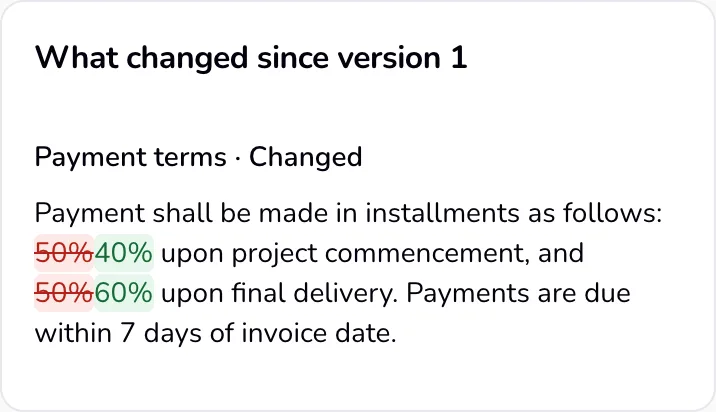
- Every version you send is kept, read-only. Under “Signatures” in the editor, “Versions” lists them; “View” opens one with what changed since the one before.
- The client always sees the latest version you sent, with the added words highlighted and the removed ones struck through. Saved changes you have not sent stay on your screen.
- A signature belongs to one version. A new version clears the signatures on the earlier one, and both pages say so; both sides sign the new version.
- A page left open on an old version cannot sign it: the client is shown the new version first.
Last updated 7 Oct 2026
Was this helpful?