Steps
- 1
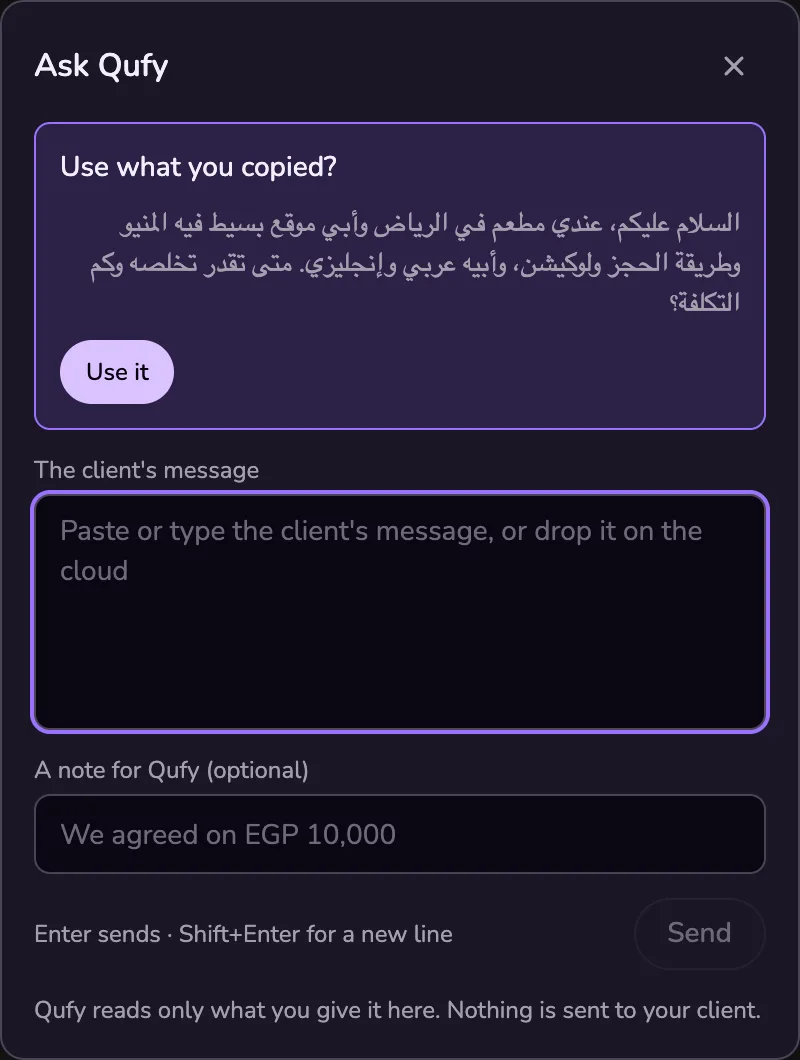
Click the cloud. Copy a client's message (from WhatsApp, email, anywhere), then click Qubi, the cloud on your desktop. Ask Qufy offers what you copied: “Use what you copied?” with a short preview. One tap uses it. Qufy looks at your clipboard only at that moment, because you clicked, and only offers text copied in the last two minutes.
- 2
Or use the shortcut. Select the message and press Control+Option+Q on a Mac, or Ctrl+Alt+Q on Windows. Qufy reads only the selected text. You can change the shortcut, or turn it off, in Settings → Ask Qufy.
- 3
Or drop it, or paste it. Drop text on the cloud, or paste or type it in Ask Qufy. Files come in a later version.
- 4
Add a note if you like: for example “We agreed on EGP 10,000”. Then press Send (or Enter).
- 5
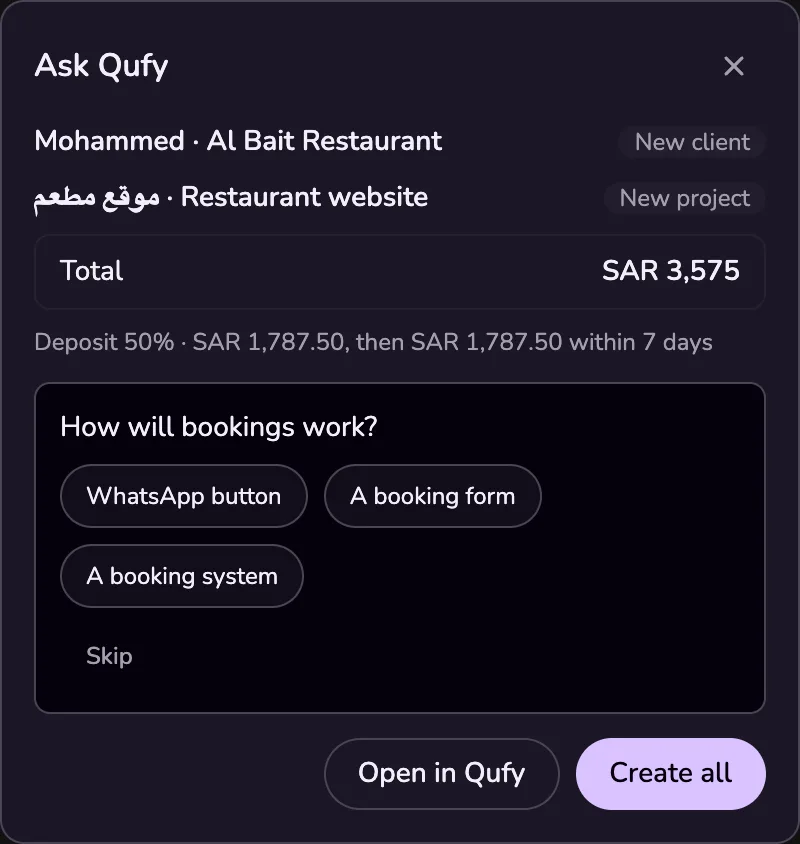
The plan. The cloud reads, then thinks. You see the client and the project, the total or each package's total, the deposit, and any questions, one at a time. Tap an answer and the plan updates. “Open in Qufy” opens the same plan on the website.
- 6
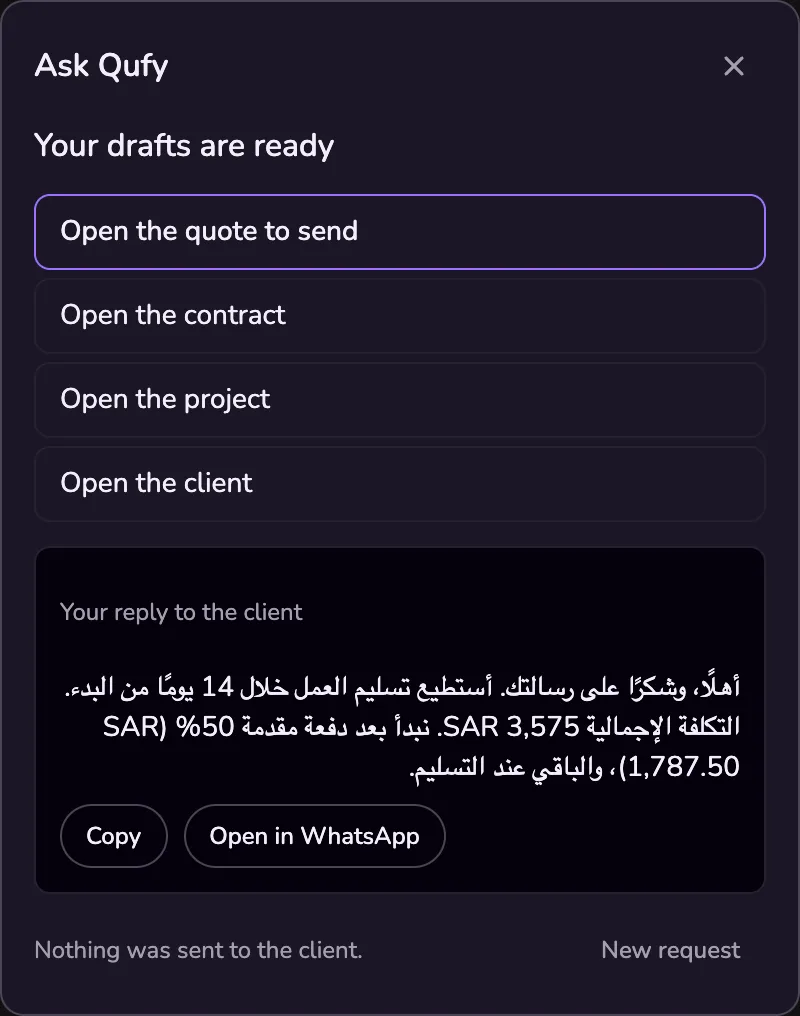
Create all. Qufy creates the quote, the contract, and (when it is new) the project and the client as drafts. Nothing is sent to your client: open the quote to send it yourself. When there is a ready reply for your client, copy it or open it in WhatsApp.
Good to know
- What Qufy reads, and when. Only what you give it: the text you select when you press the shortcut, what you copied when you click the cloud and choose to use it, or what you paste or drop. Up to 8,000 characters. The text is sent to Qufy's assistant to build the plan and is not kept on your computer. Ask Qufy never sends, deletes, or takes payment for anything.
- On a Mac, the first time you use the shortcut, macOS asks you to allow Qufy in System Settings → Privacy & Security → Accessibility. Qufy needs it only to read the text you select when you press the shortcut. Without it, Ask Qufy still works with the cloud, paste, and drop.
- Who has it. Ask Qufy is part of the Qufy Assistant, which every member has during the beta. If the assistant is switched off, a click on the cloud opens the timer panel.
Last updated 10 Oct 2026
Was this helpful?