Steps
- 1
Accept (quotes): the client presses “Accept quote”. The quote becomes Accepted, the project moves to Accepted, and the client sees “You accepted this quote on {date}.”
- 2
Decline (quotes): the client presses “Decline”, can add a “Reason”, and presses “Decline” again. The quote becomes Declined, and the client sees “You declined this quote on {date}.”
- 3
Sign (contracts only): the client types their “Full name”, draws or types a signature, ticks the box to agree, and presses “Sign contract”. The contract becomes Signed and the project moves to Contracted.
- 4
Comment: when comments are on, the client writes under “Ask a question” and presses “Send note”. You read and reply on the document page under “Conversation”.
- 5
“I've paid” (invoices only): the client presses “I've paid”, can add a “Reference (optional)”, and presses “I've paid” again. They see “You reported the payment on {date}. {name} will confirm it.”
- 6
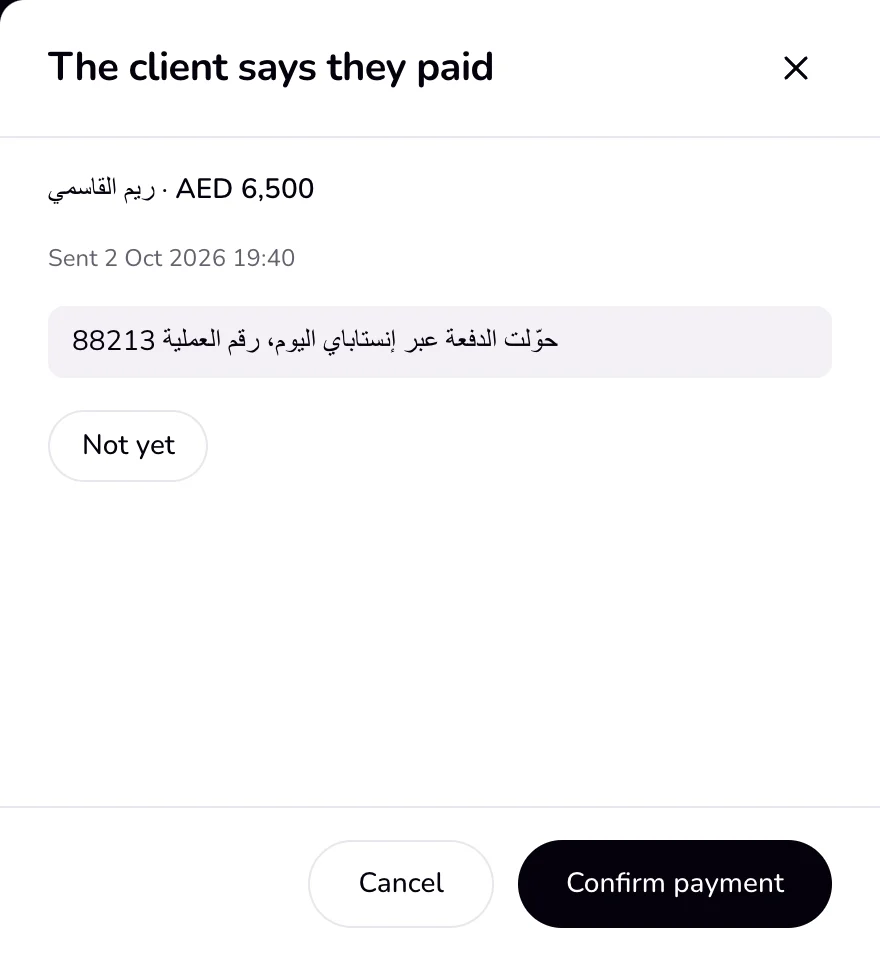
To record the payment, go to Home. In Needs you, the invoice's row says “Client says they paid”; press “Review payment”, read the client's reference, and press “Confirm payment”. Press “Not yet” if the money has not arrived.
Good to know
- Signed, declined, and paid are final. Nothing on the link can change them, so a client cannot undo a signature or a decline.
- When a contract is signed, Qufy keeps the typed name, the signature image, the IP address, the browser, and a copy of the contract as it was signed.
- “I've paid” does not mark the invoice paid. Only you do that, with “Confirm payment” or “Mark paid”.
- Comments are off by default. Turn on “Allow client comments” on the document, and “Also on each line or clause” for notes on single lines. Each note can be up to 1,200 characters, with up to 40 notes per document.
- You get a notice in the bell at the top and by email when a client accepts, declines, signs, comments, or says they paid. A decline reason is in that email.
If something goes wrong
- “Enter your full name to sign.”
- The client types their full name in the “Full name” field and presses “Sign contract” again. If the contract was already signed, it cannot be signed again.
- “Tick the box to agree before signing.”
- The client ticks the box under the signature and presses “Sign contract” again.
- “Could not send that note. Try again in a moment.”
- The client can send up to 8 notes an hour, and a document holds up to 40. Ask the client to wait, or reply to them directly.
Last updated 6 Oct 2026
Was this helpful?