Quotes and invoices open at an address with /q/, contracts at one with /c/. The client does not need a Qufy account to read, reply, sign, or say they paid. The page is made for a phone first and opens in the language of the document; the client can switch between English and العربية at the top.
Steps
- 1
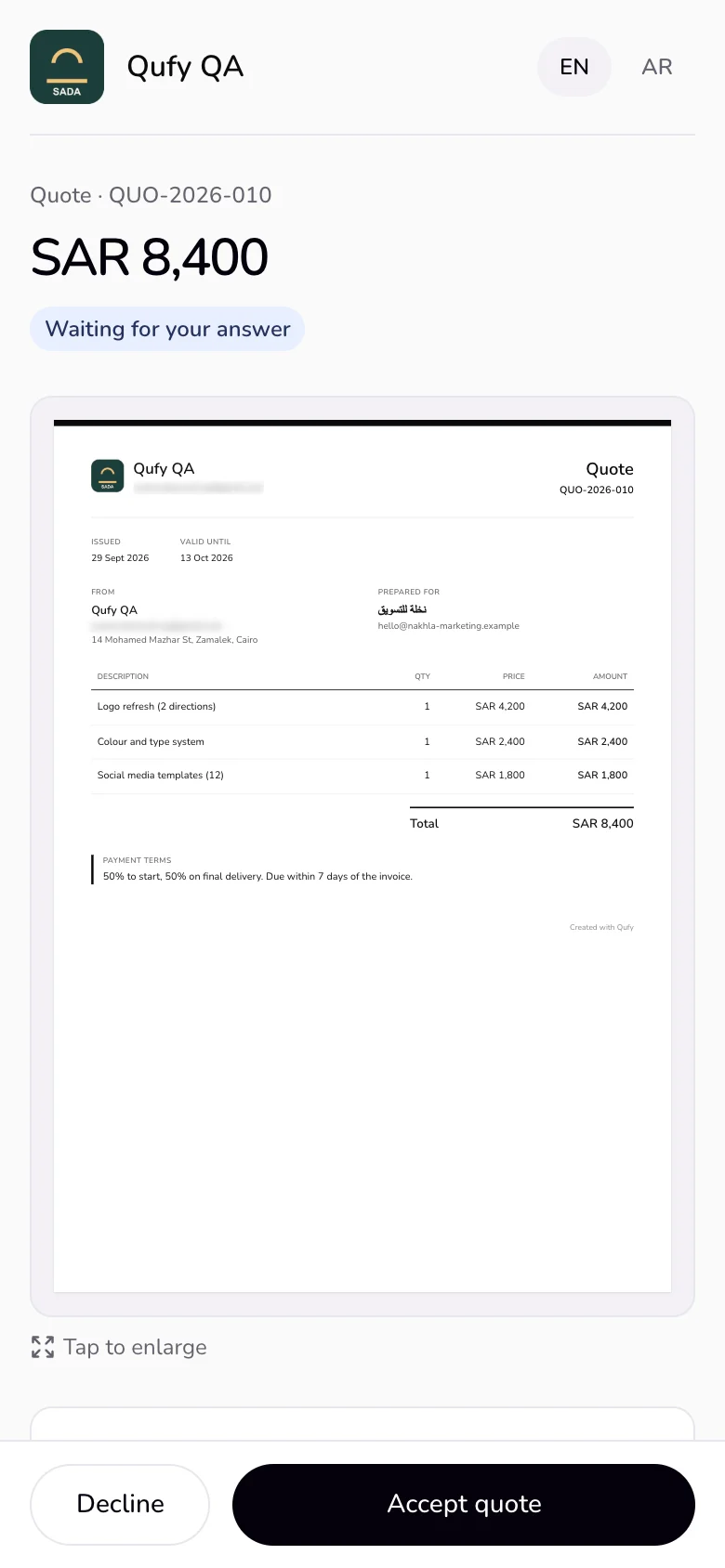
At the top: your logo and the name on your documents. Then the type and number, the total in large type, and where it stands for the client: “Waiting for your answer” (quote), “Waiting for your signature” (contract), “Due {date}”, “Waiting for payment”, or “Overdue since {date}” (invoice), or “Accepted”, “Signed”, “Paid”.
- 2
Below that, your message under “From {name}”, then the document itself as it looks on paper, fitted to the screen. “Tap to enlarge” opens it at full size. An invoice then shows “How to pay”, each method with a “Copy” button.
- 3
A bar stays at the bottom with the one answer the document needs: “Decline” and “Accept quote” on a quote, “Sign contract” on a contract, and “I've paid” on an invoice. Once it is done, the bar says so with the date, for example “You accepted this quote on {date}.”, and offers “Save as PDF”.
- 4
Under the document: “Ask a question” (when you allowed comments) and “History”: when you sent it, when the client opened it, and when they accepted, signed, or paid.
- 5
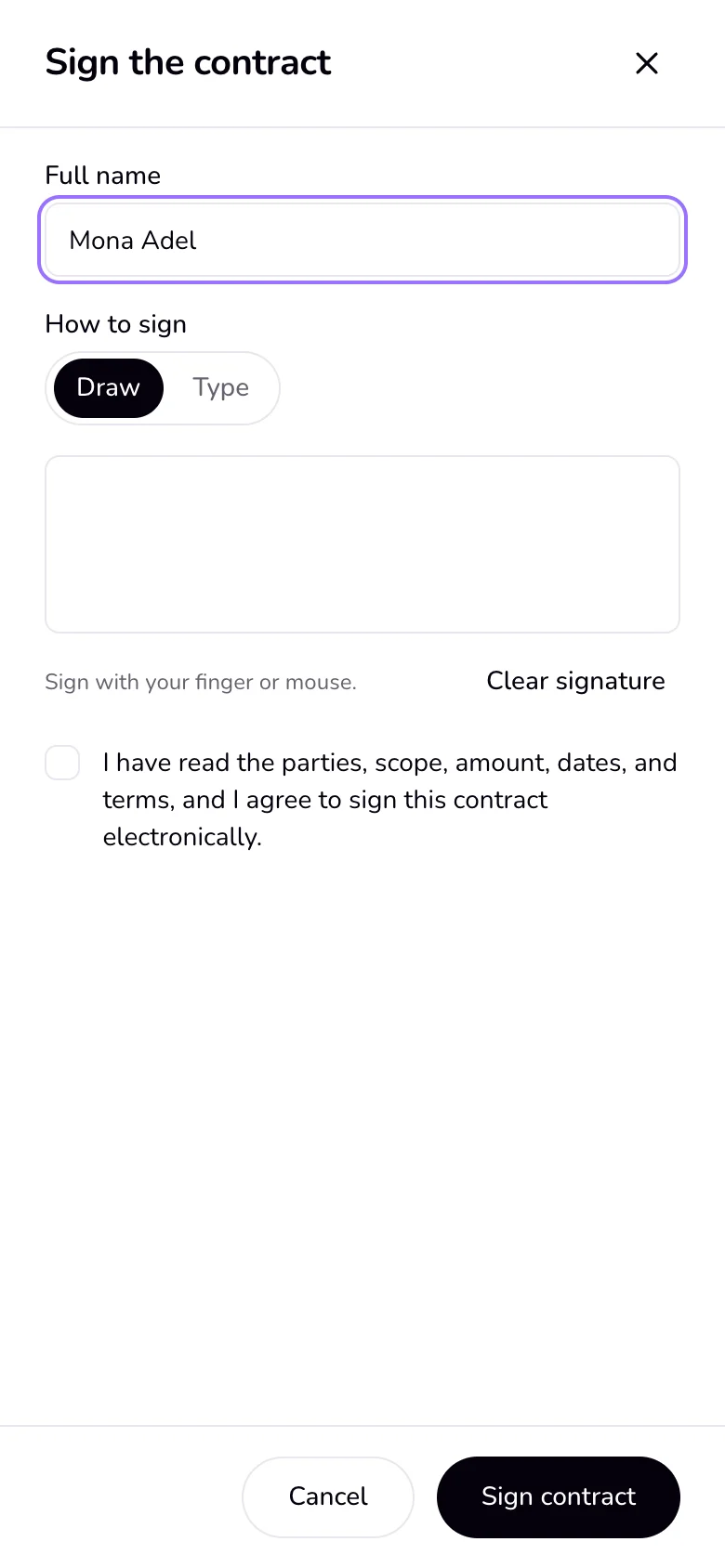
“Sign contract” opens “Sign the contract”: the “Full name”, “Draw” or “Type” the signature, and a box to tick that the client read and agrees. The page ends with “Contact {name}” (your email and WhatsApp, from Documents look), “This is a template only — not legal advice.” on contracts, and “Sent with Qufy”.
Good to know
- If you turned on “Allow client comments”, the page has “Ask a question”, and with “Also on each line or clause” the client can choose the line or clause under “About”.
- A bilingual document shows its labels in both languages on the paper, for example “Total” next to «الإجمالي».
- The client sees the version you last published with “Update the client page”, not edits you have not published.
- Your contact buttons show only what you added in Settings, Documents look: “Email on the PDF” (or your own email) and “Phone” for WhatsApp.
If something goes wrong
- “This link isn't available. It may have expired or been turned off. Ask the sender for a new link.”
- The link is older than 14 days, was turned off, or the document was deleted. Send the client a new link.
Last updated 6 Oct 2026
Was this helpful?