Steps
- 1
On a quote or an invoice, go to “Document” in the “Client and project” card and open “Quote language” (or “Invoice language”).
- 2
Choose “Bilingual / ثنائي اللغة”. The other choices are English and العربية.
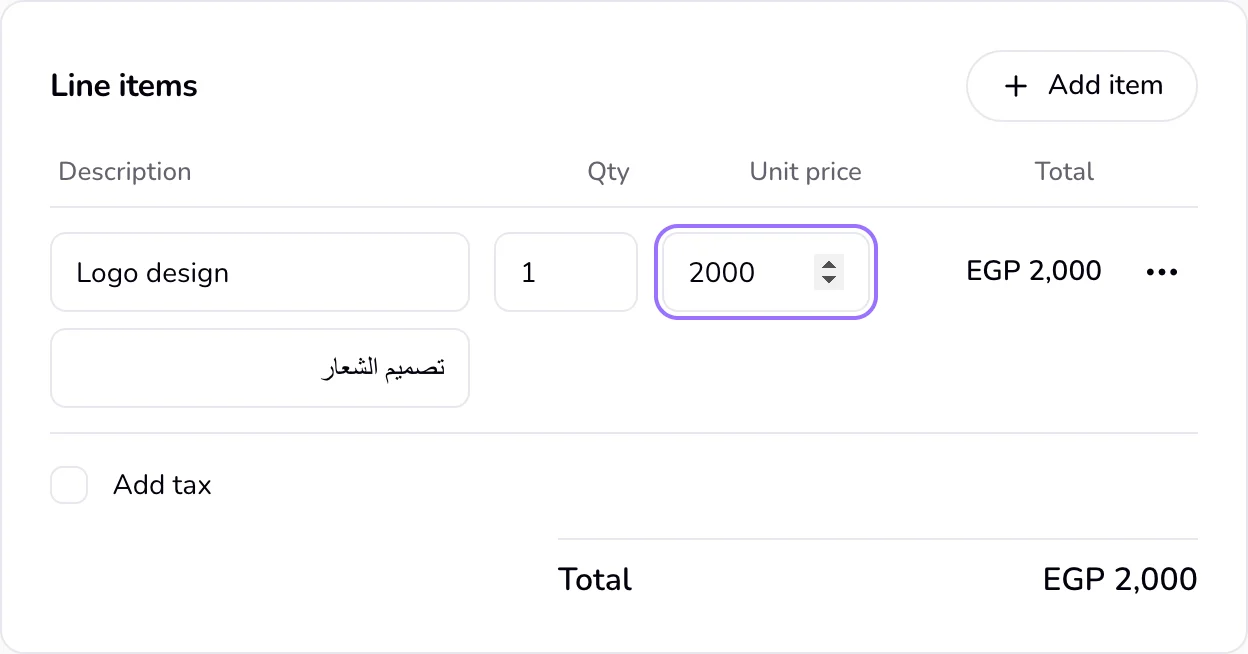
- 3
Under each line's description, fill in the second-language field. With the site in English it reads “Arabic description”.
- 4
If you use payment terms, fill in “Arabic payment terms” in “Terms and payment” too. In the “Notes” card, fill in “Arabic notes”.
- 5
On a contract, go to “Contract clauses” and choose “Bilingual / ثنائي اللغة” in “Clause language”.
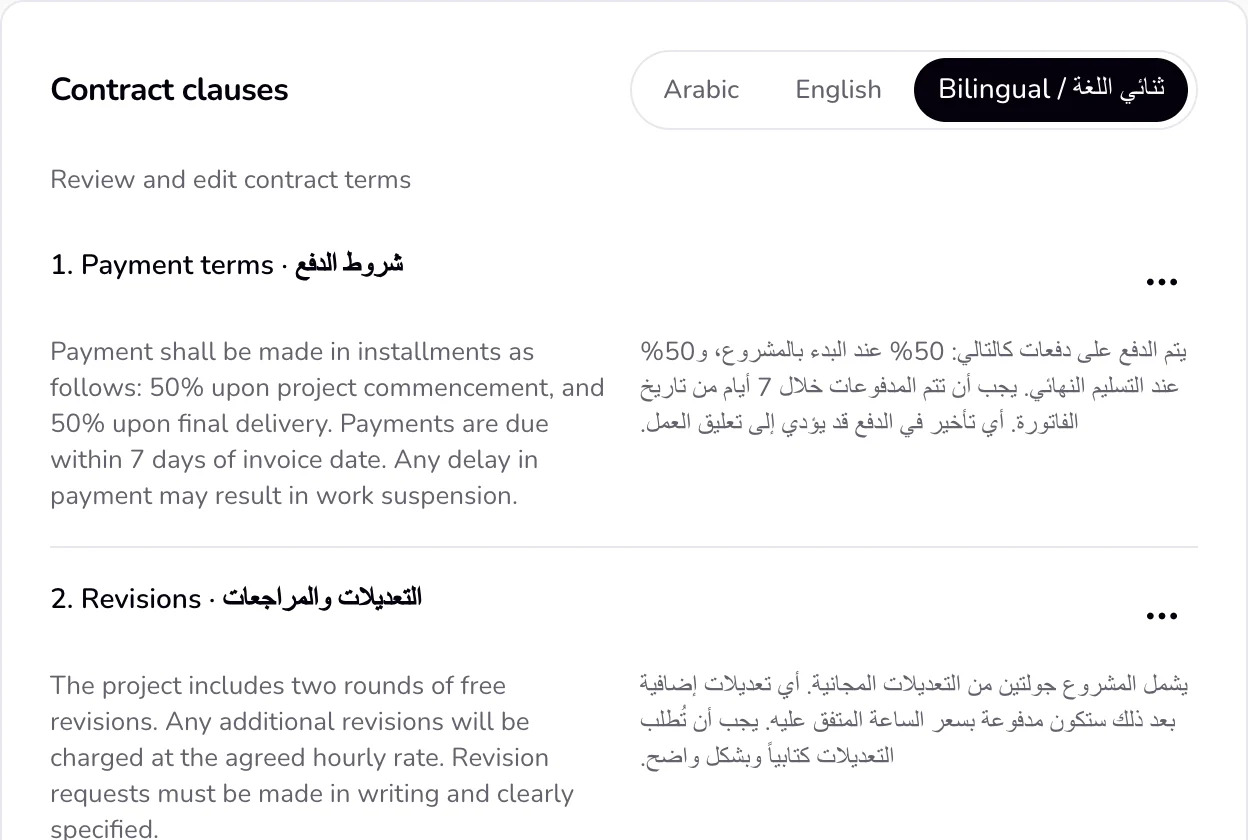
- 6
Choose “Edit clause” in each clause's “More” menu and check the Arabic and English title and text.
Good to know
- A new document starts in the language of the site.
- The second-language fields show only when you choose Bilingual. On a single-language document they are not used.
- On the paper preview, the client page, and the PDF of a bilingual quote or invoice, labels show both languages side by side, for example Total · الإجمالي. Each line, the payment terms, and the notes show both texts.
- On the client page of a bilingual contract, each clause shows the Arabic text, then the English text. A single-language contract shows only that language, or the other one where a clause is empty.
- Every contract pack has Arabic and English text, and “Tighten” writes both. The assistant never writes a new clause: it suggests clauses from the clause library only.
If something goes wrong
- “One language is missing on the client page.”
- Fill in the second-language field for that line, the payment terms, or the notes. Then press “Send” and, in the panel, “Update the client page” so the client sees the new text on the same link.
Last updated 6 Oct 2026
Was this helpful?