Steps
- 1
Fill in the quote or invoice: your name, the client, and at least one priced line.
- 2
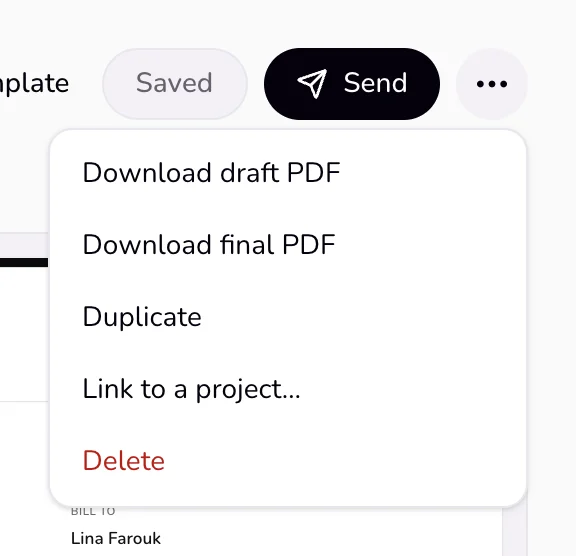
Open the “More” menu (⋯) at the top. Before the first send it offers “Download draft PDF” and “Download final PDF”; the final one gives the document its number. After the send it offers “Download PDF”. The file is named after the document number.
- 3
For a contract, choose “Download contract PDF” in the same menu.
- 4
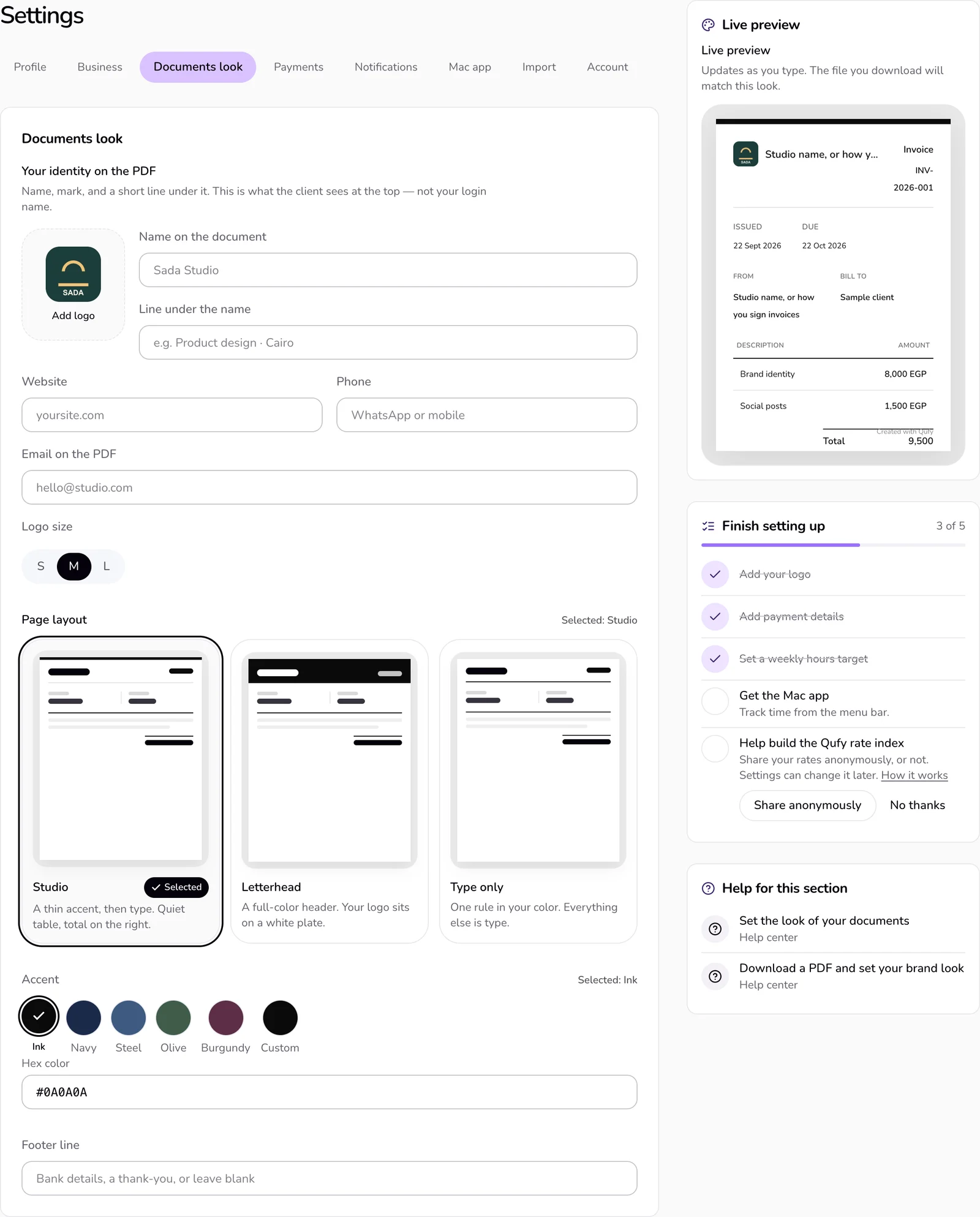
To change how your documents look, open “Settings”, then “Documents look” in the bar of sections at the top.
- 5
Set your logo, the “Name on the document”, the “Page layout”, and the “Accent”, then press “Save look”. The button shows once you change something.
Good to know
- The PDF is built in your browser. You can download it without an account; then “Download PDF” is the button at the top.
- The paper preview beside the editor uses the same look, so what you see is what the PDF shows.
- A contract PDF is named with both names, for example contract-Sara-Nile Studio.pdf.
- Your client's page has a “Save as PDF” button, so the client can keep a copy.
- One look serves all your quotes, invoices, and contracts, including the PDF your client saves from their page.
- The logo can be PNG, JPEG, or WebP, up to 1.5 MB. Every option is explained in the Documents look article.
- The PDF uses the document's language, including Bilingual.
If something goes wrong
- “Could not build the PDF. Try again.”
- This shows when the PDF fails. Choose the download again. If it keeps failing, reload the page and try once more.
- “Add your name, the client, and at least one priced line to send.”
- The download choices stay greyed out until the form is complete. Fill in your name and email, the client name, a description on every line, and a price on at least one line.
Last updated 6 Oct 2026
Was this helpful?