Steps
- 1
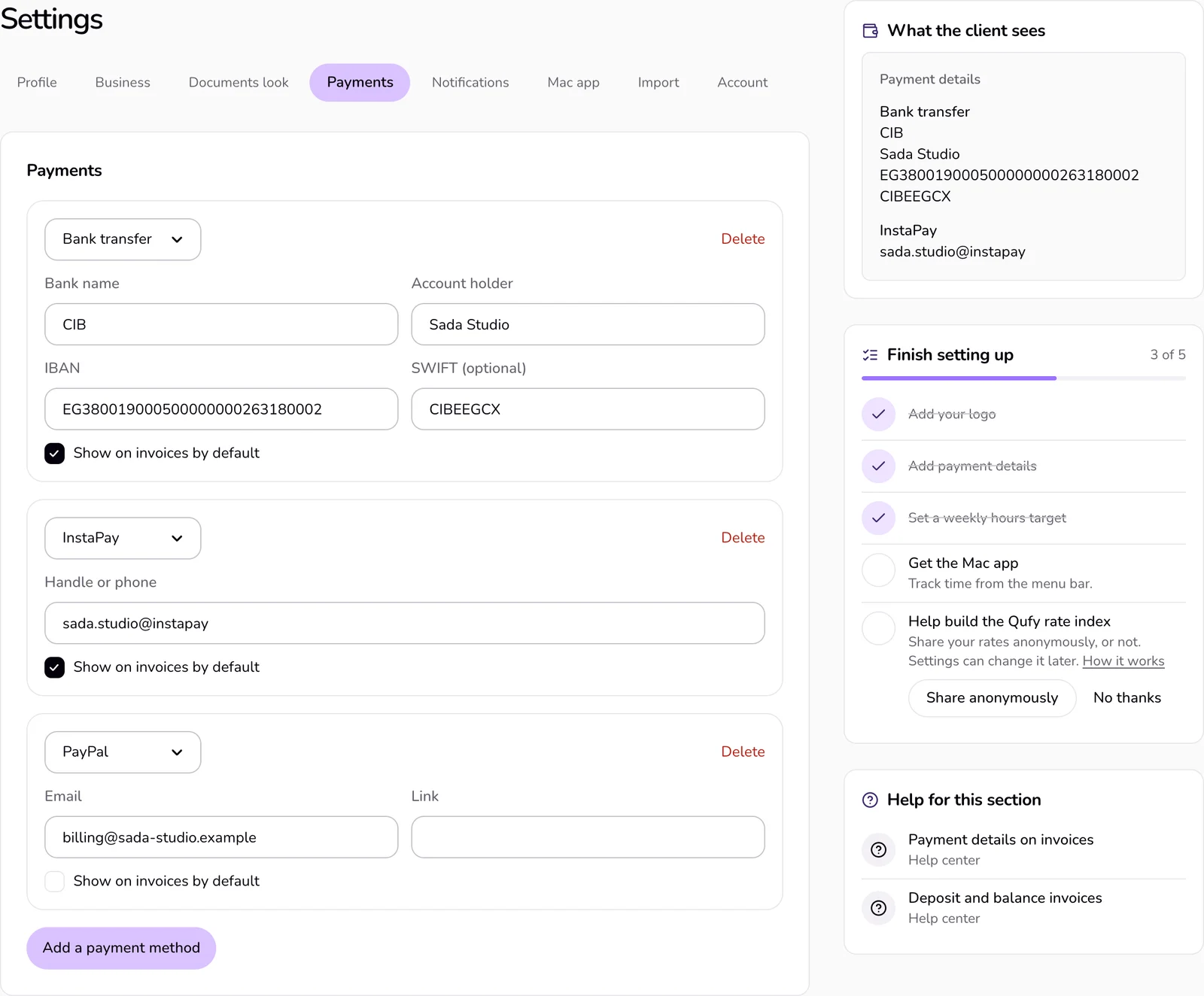
Open “Settings” and choose “Payments” in the bar of sections at the top.
- 2
Press “Add a payment method”.
- 3
Choose the “Payment type” and fill in its fields.
- 4
Leave “Show on invoices by default” ticked if new invoices should include it, or untick it.
- 5
Press “Save changes” in the bar that appears at the end of the section.
- 6
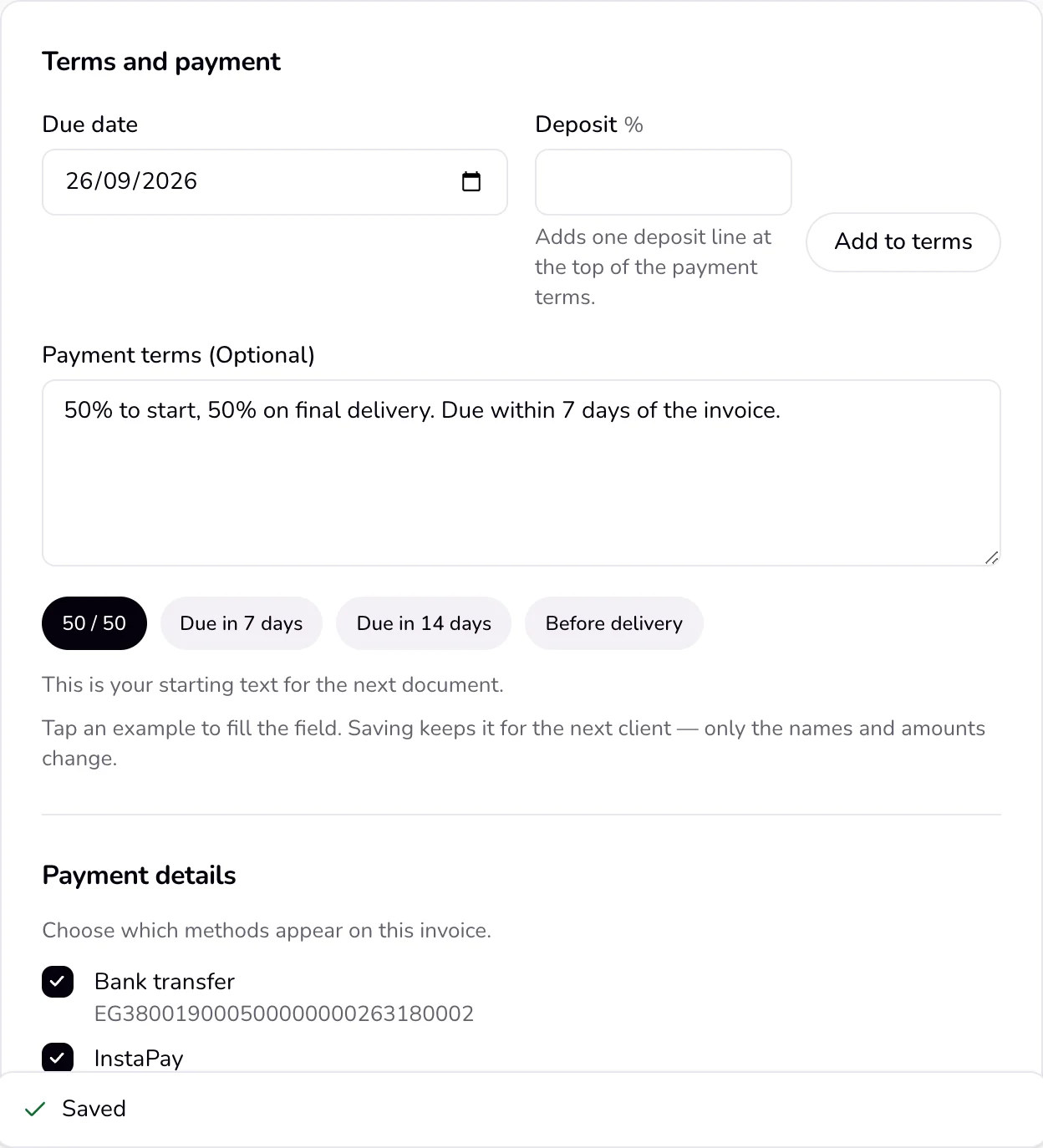
On an invoice, under “Payment details”, tick the details this invoice should show (“Choose which methods appear on this invoice.”).
Good to know
- Types and their fields: Bank transfer (Bank name, Account holder, IBAN, SWIFT (optional)); InstaPay (Handle or phone); Mobile wallet (Provider, Number); PayPal (Email, Link); Wise (Email, Link); Other (Label, Details).
- You can save up to 12. A method with no details, or an exact copy of another, is not kept. “Delete” on a method removes it.
- Beside the section, “What the client sees” shows the details new invoices will carry.
- Only invoices show payment details. Quotes and contracts do not.
- On the client page they are under “How to pay”, each with a “Copy” button so the client can copy an IBAN or number in one tap.
- Qufy never takes the payment. The client pays you directly, can then press “I've paid”, and you confirm it.
- If nothing is saved yet, the invoice shows a link, “Add payment methods in Settings first.” It opens Settings, Payments.
- If you change the chosen details after sending, press “Send”, then “Update the client page”, so the client sees them.
Last updated 6 Oct 2026
Was this helpful?