Before you start
- You need to be signed in. “Send” works once the document has your name, your email, the client name, and at least one priced line. Until then the bar at the bottom says “Add your name, the client, and at least one priced line to send.” A contract needs both names, a short scope, and an amount: “Add both names, a short scope, and an amount to send.”
- To send by email from Qufy, confirm your own email first. The client's “Email” under “To (client)” fills the “Client email” field in the send panel, and you can also type it there.
Steps
- 1
Open the quote, invoice, or contract and fill it in.
- 2
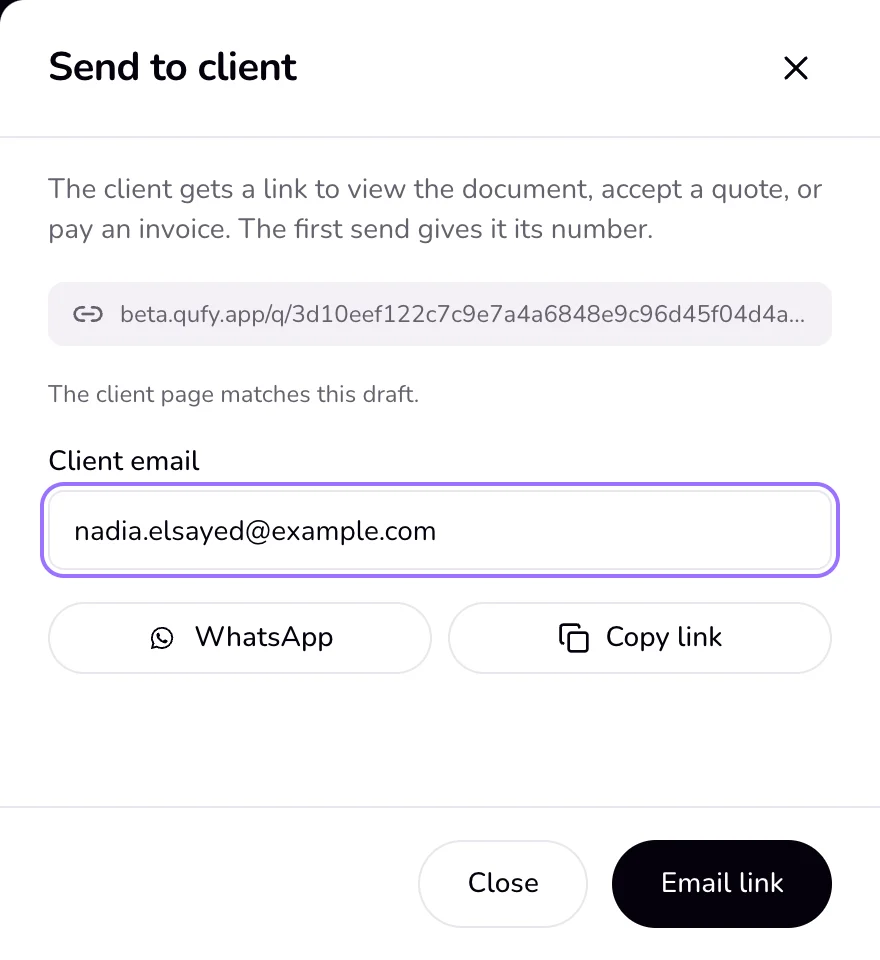
Press “Send” at the top of the page. The “Send to client” panel opens on the side.
- 3
Choose how to send it: “Email link” sends it to the “Client email” from Qufy, “WhatsApp” opens WhatsApp with your message and the link, and “Copy link” copies it. The first one you press saves the document and makes the link.
- 4
Read the line at the end of the panel to see what happened, for example “Link copied” or “Sent to {email}.”
Good to know
- Making a link sets the document to Sent right away, even before the client opens it. The first send also gives a quote or invoice its number.
- A link lasts 14 days. After that, or after you turn it off, the client sees “This link isn't available”.
- Pressing “Email link” again sends the same link again. It does not make a new link or change the status.
- Edits after sending stay on your screen. The send panel then says “Edits stay on this screen until you update the client page. The live link does not change while you try things.” Press “Update the client page” in the panel to publish them. The link stays the same: “Client page updated. Same link.” When nothing is waiting, the panel says “The client page matches this draft.”
- Limits: up to 10 emails an hour, and your own message is cut at 1,000 characters.
- You can also send a saved draft from Documents without opening it: “Send” on its row (or “Send to client” in its ⋯ menu) makes the link and copies it, and opens WhatsApp when the client has a WhatsApp number.
If something goes wrong
- “Confirm your email to send links from Qufy by email. Copy link and WhatsApp work now.”
- Press “Send the confirmation email” under the message in the send panel and open the email. Until then, use “Copy link” or WhatsApp.
- “Check the client email address.”
- Correct the client's email and press “Email link” again.
- “The email did not go out. Copy the link and send it yourself.”
- The link still works. Press “Copy link” and send it on WhatsApp or from your own email.
- “Too many emails in an hour. Try again later or copy the link.”
- Wait up to an hour, or copy the link and send it yourself.
Last updated 6 Oct 2026
Was this helpful?