Before you start
- Templates are kept in your account, so you need to be signed in.
Steps
- 1
Open the quote, invoice, or contract you want to reuse. In the editor, open “More” and choose “Save as template”. On “Documents”, the same item is in a row's “More” menu.
- 2
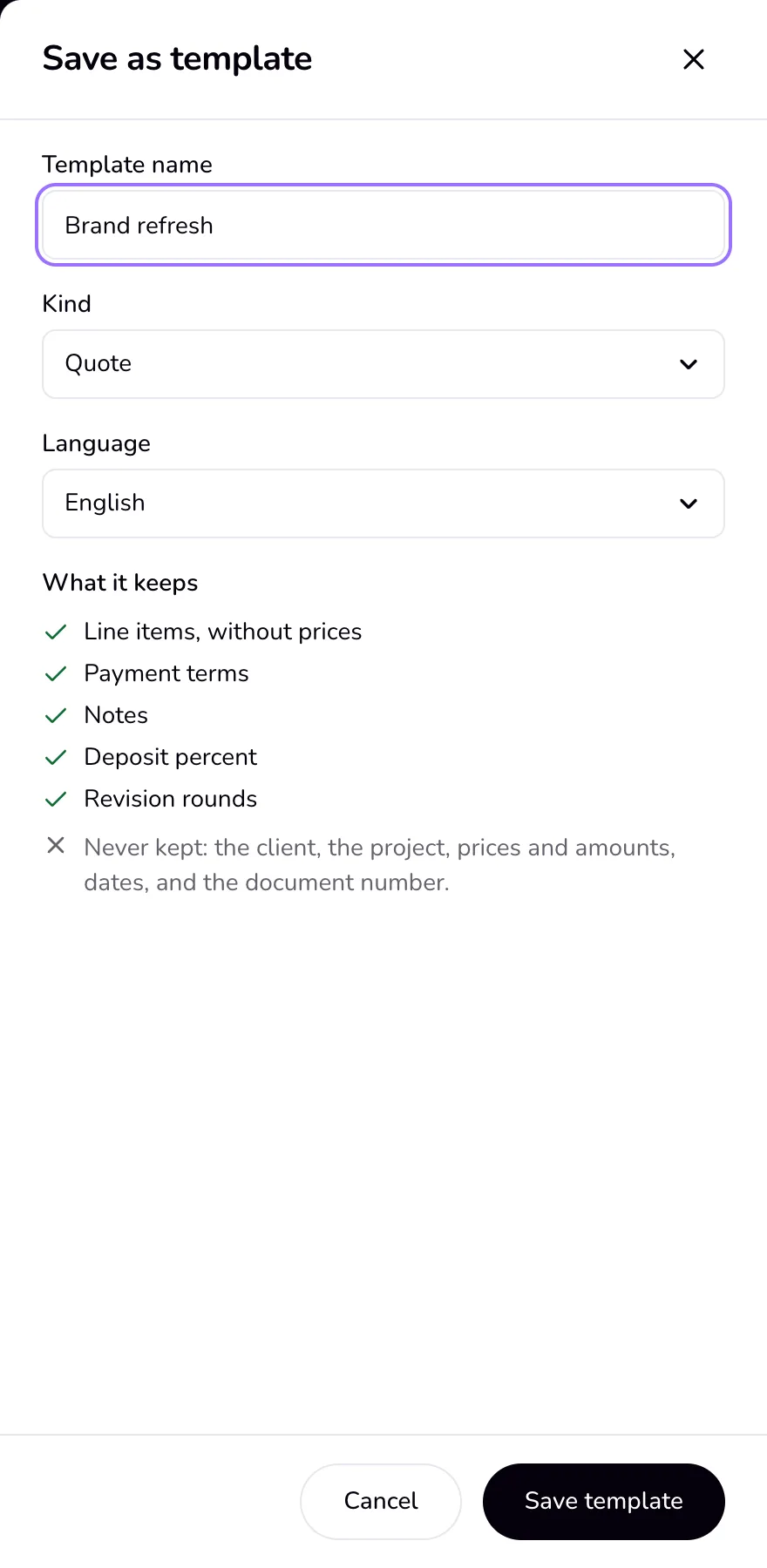
Check the “Template name”, the “Kind”, and the “Language”. The list under “What it keeps” shows what is saved. Press “Save template”.
- 3
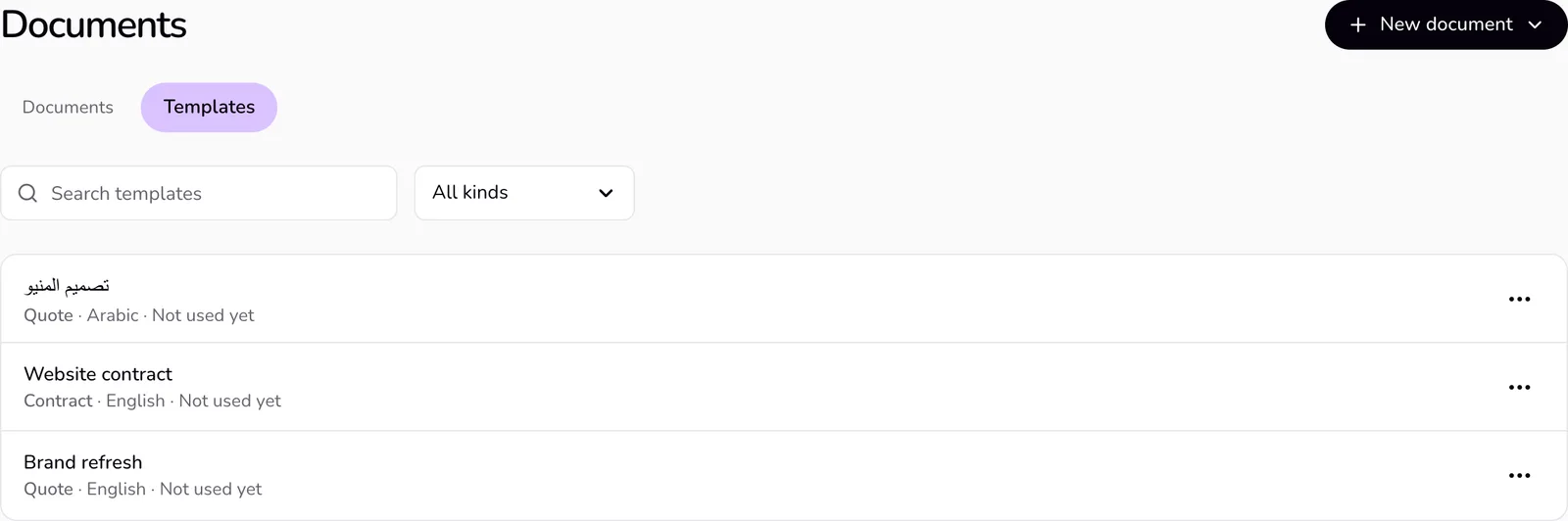
Open “Documents”, then “Templates”. Each row shows the kind, the language, when it was last used, and how many times.
- 4
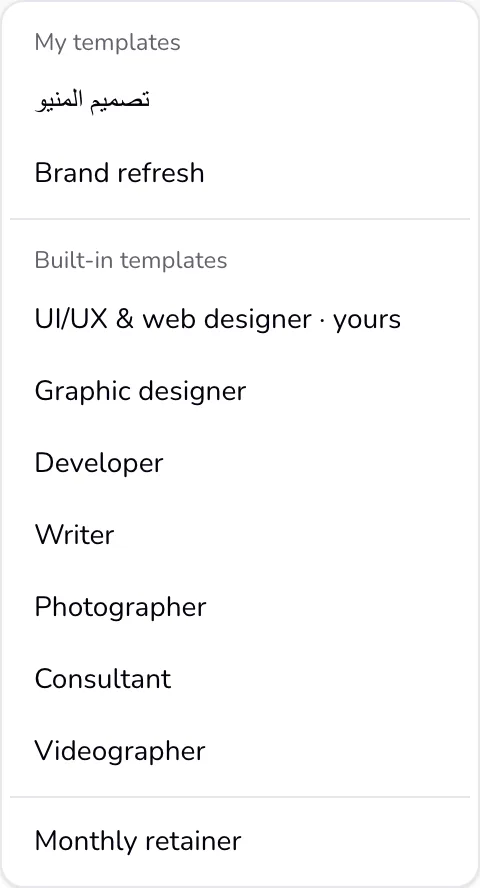
To start a new document, press a template's row, or “Use” in its “More” menu. In the editors, “Start from a template” lists “My templates” first, then your profession's pack and the other built-in templates.
- 5
Pick the client as usual; the client picker fills the client's details. Nothing is saved until you press “Save” or “Send”.
Good to know
- A quote or invoice template keeps the line items without prices, the payment terms, the notes, the deposit percent, and the revision rounds. A contract template keeps every clause, in both languages.
- A template never keeps the client, the project, prices and amounts, dates, or the document number. The client's name, company, email, phone, tax ID, and address are also taken out of the text it keeps.
- “Rename”, “Duplicate”, and “Delete” are in a template's “More” menu. Delete asks first; documents made from the template stay as they are.
- A quote template can fill an invoice and the reverse: the lines and terms fill the form, and the document keeps its own kind.
Last updated 7 Oct 2026
Was this helpful?