Steps
- 1
Send the document with “Send”. Sending makes its client link.
- 2
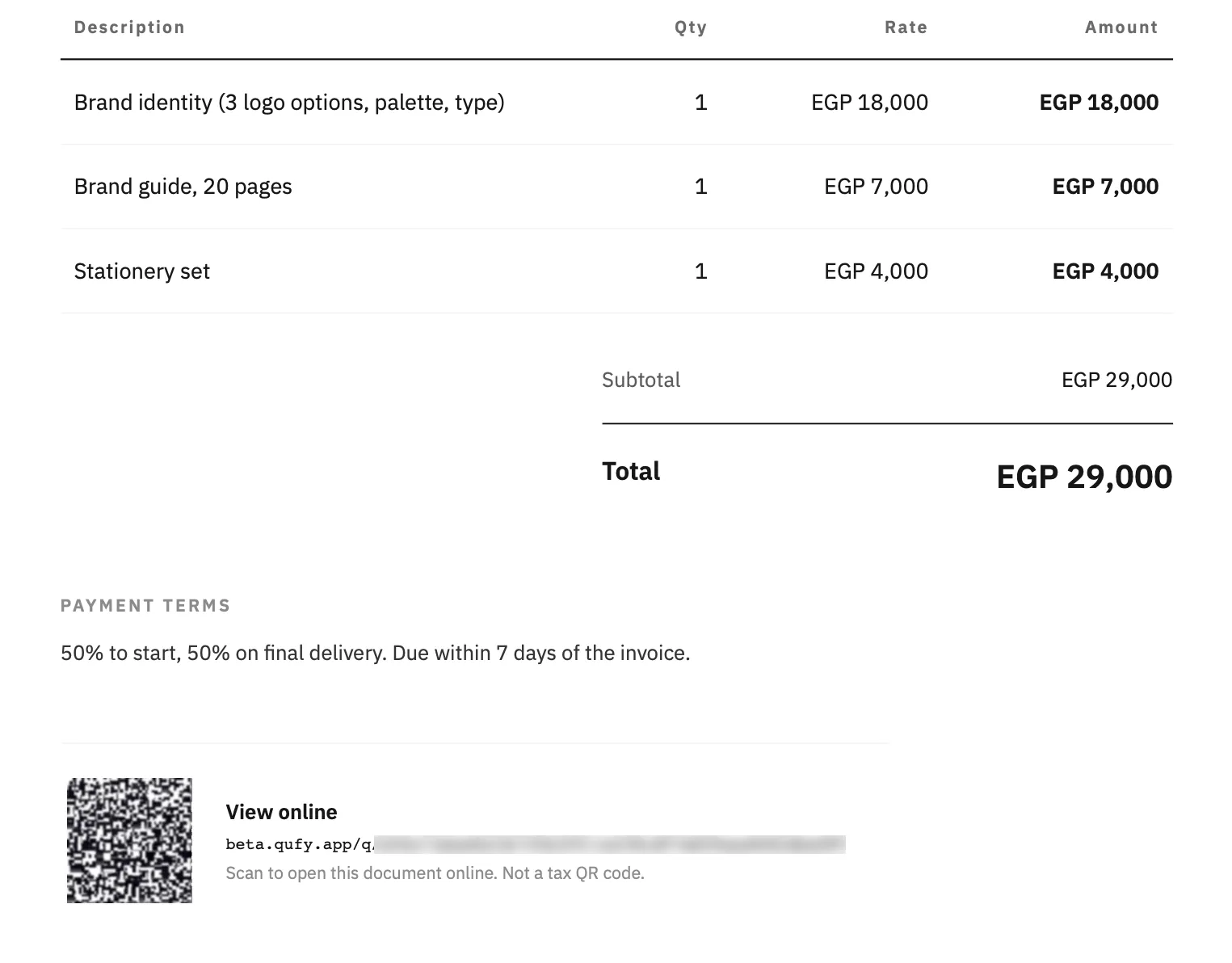
Download the PDF. Under the notes it shows “View online”, the QR, and the link. The preview in the editor shows the same block.
- 3
Your client scans the QR with a phone camera and lands on the client page, where they can accept, sign, comment, or download their own copy.
Good to know
- There is no QR while the document has no working link: a draft, a document never sent, a link older than 14 days, or a link you turned off. A PDF you made earlier keeps its QR, but the page then says “This link isn't available”.
- It is not a tax QR. Qufy does not make ZATCA e-invoices, so the QR sits under the notes, away from the totals, with its own label.
- A signed contract's signing record keeps its own QR, “Verify this contract”, which opens the verify page, not the client page.
- The free tools without an account have no client link, so their PDFs have no QR.
Last updated 8 Oct 2026
Was this helpful?