Steps
- 1
Open “Documents” in the sidebar.
- 2
Press “⋯” on the document's row.
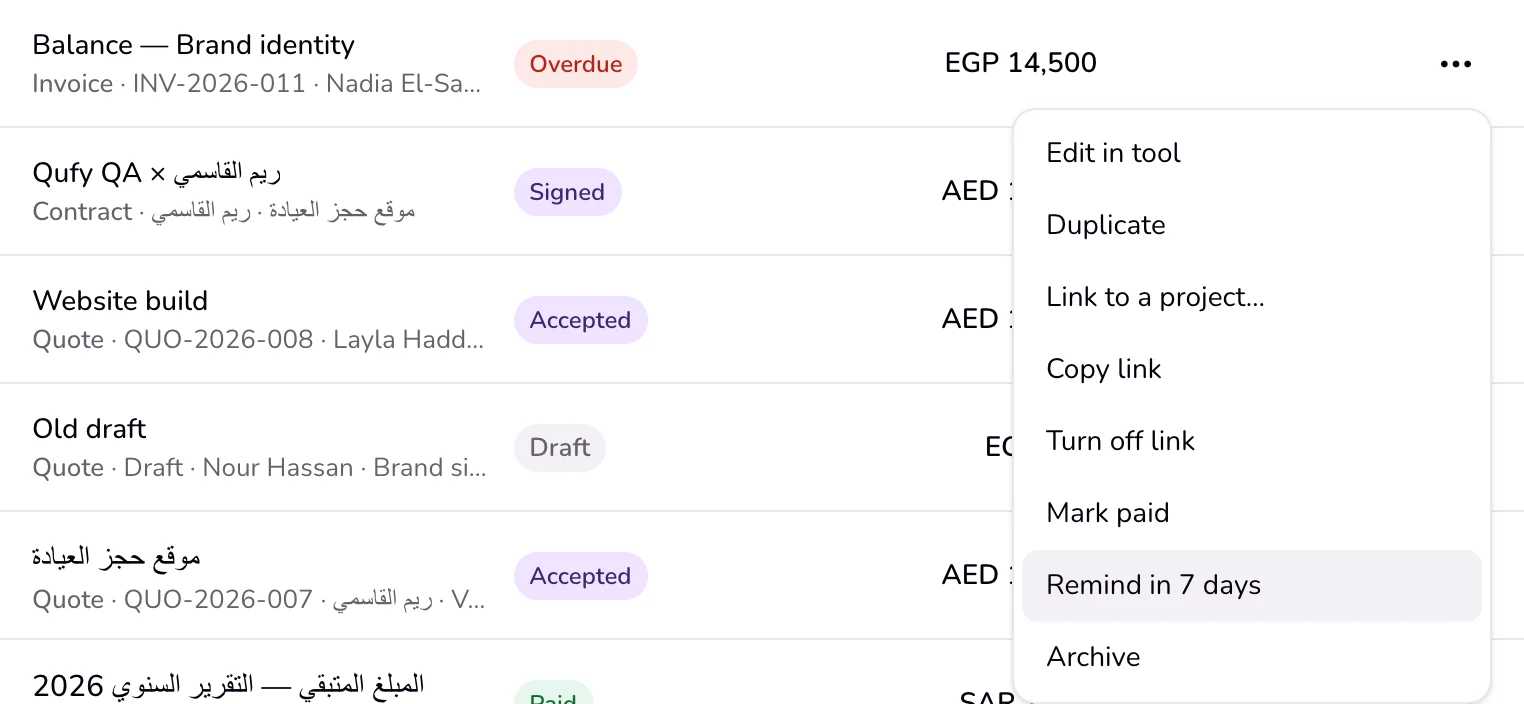
- 3
For a draft or declined document, choose “Delete”, read “Delete this document?” and “The saved copy is removed. Any client page link for it will stop working.”, and press “Delete”.
- 4
For a sent, accepted, signed, or paid document, choose “Archive”. It happens at once, with no question.
- 5
To see archived documents, choose “Archived” at the top of Documents.
Good to know
- The menu never offers both: a document that was sent, accepted, signed, or paid has “Archive” and no “Delete”. The same choice is at the top of a document's own page.
- Archived documents are hidden from the other views, and left out of Needs you, the money totals, and the project steps.
- There is no way to unarchive a document today. Archived documents stay readable under “Archived”.
- Archiving does not turn off the client link. Choose “Turn off link” in the same menu first if the client should not open it any more.
- In Needs you, “Delete” in the “⋯” of an old draft asks the same question before it deletes.
- A project is archived with “Archive” in its “⋯” (in Projects or on its page) and comes back with “Unarchive”; archived projects are under “Archived” in Projects. “Delete” is there only while nothing on the project has been sent. It asks “Delete this project?” and keeps the documents: “Documents stay. They just won’t be linked to this project.”
- A client can be deleted from their “⋯” only while they have no documents. It asks “Remove this client?” first, and their projects stay.
Last updated 6 Oct 2026
Was this helpful?