Steps
- 1
Open the link from the email or message. It opens in your browser, with no sign-in.
- 2
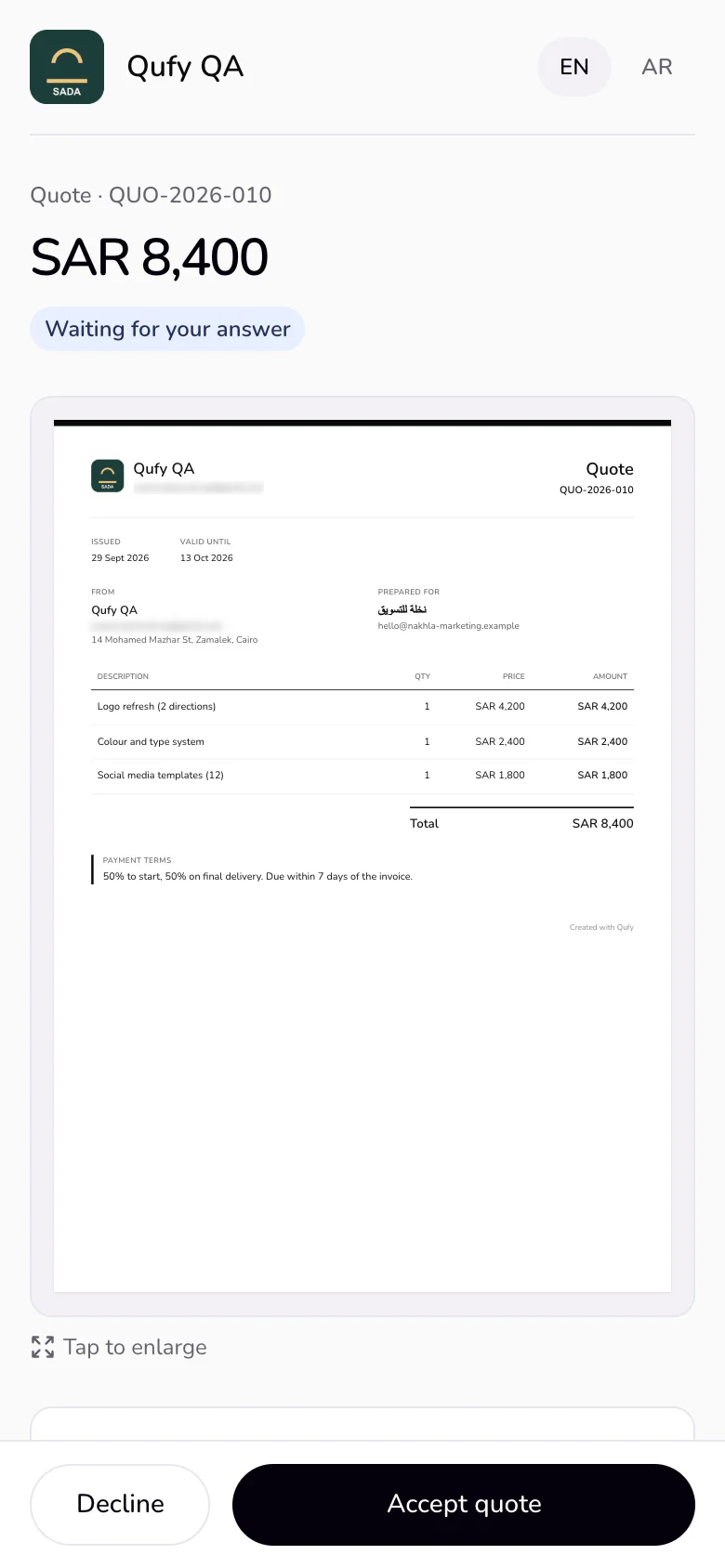
Read the top: who it is from, the document's type and number, the total, and where it stands, such as “Waiting for your answer”, “Waiting for your signature”, or the due date.
- 3
Read the document below. Press “Tap to enlarge” to see it at full size, and “Save as PDF” to keep a copy.
- 4
A quote: press “Accept quote”, or press “Decline”, add a reason if you like, and confirm with “Decline”.
- 5
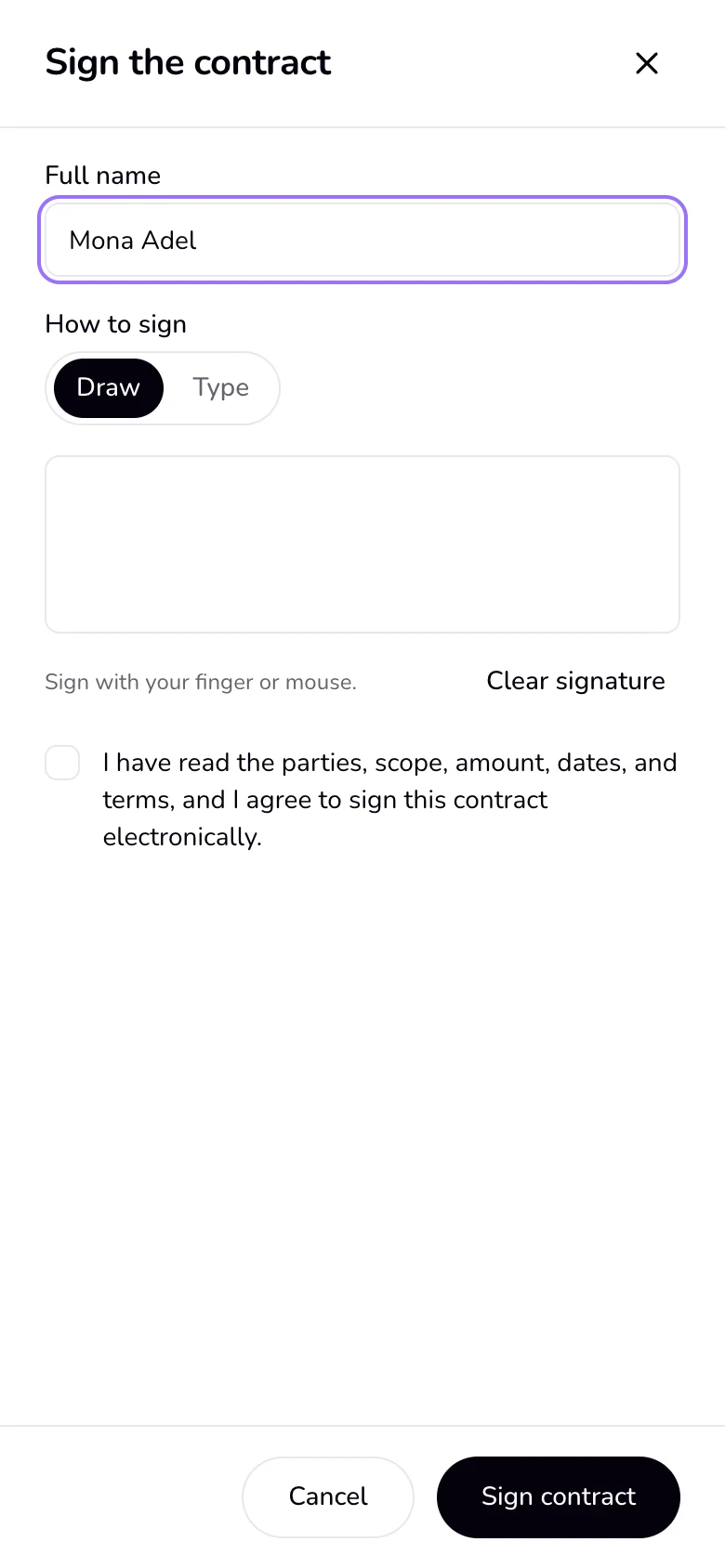
A contract: press “Sign contract”, choose “Draw” or “Type”, sign, tick the box that you have read and agree, and confirm.
- 6
An invoice: pay with one of the methods under “How to pay” (each has “Copy”), then press “I've paid”, add a reference if you have one, and confirm. The sender confirms the payment on their side.
- 7
To ask something, write under “Ask a question” and press “Send note”. The sender gets it by email and answers on the same page.
Good to know
- After you answer, the bar at the bottom says what you did and when, for example “You accepted this quote on 5 Oct 2026.”, and keeps “Save as PDF”.
- “History” lists when the document was sent and opened, and when it was accepted, signed, or paid.
- “Ask a question” appears only when the sender allowed questions on this document.
- Qufy does not take payments. You pay the sender directly, with the details on the invoice.
If something goes wrong
- “This link isn't available”
- The link expired or the sender turned it off. Ask the sender for a new link.
- “Tick the box to agree before signing.”
- Tick the box that you have read the contract and agree to sign it electronically, then sign again.
Last updated 6 Oct 2026
Was this helpful?