A client counts as a duplicate when its email matches one you have, or its name matches with case and extra spaces ignored. A project counts as a duplicate when it has the same name under the same client.
Steps
- 1
Fill in the client or project as usual, then press “Create client” or “Create project”.
- 2
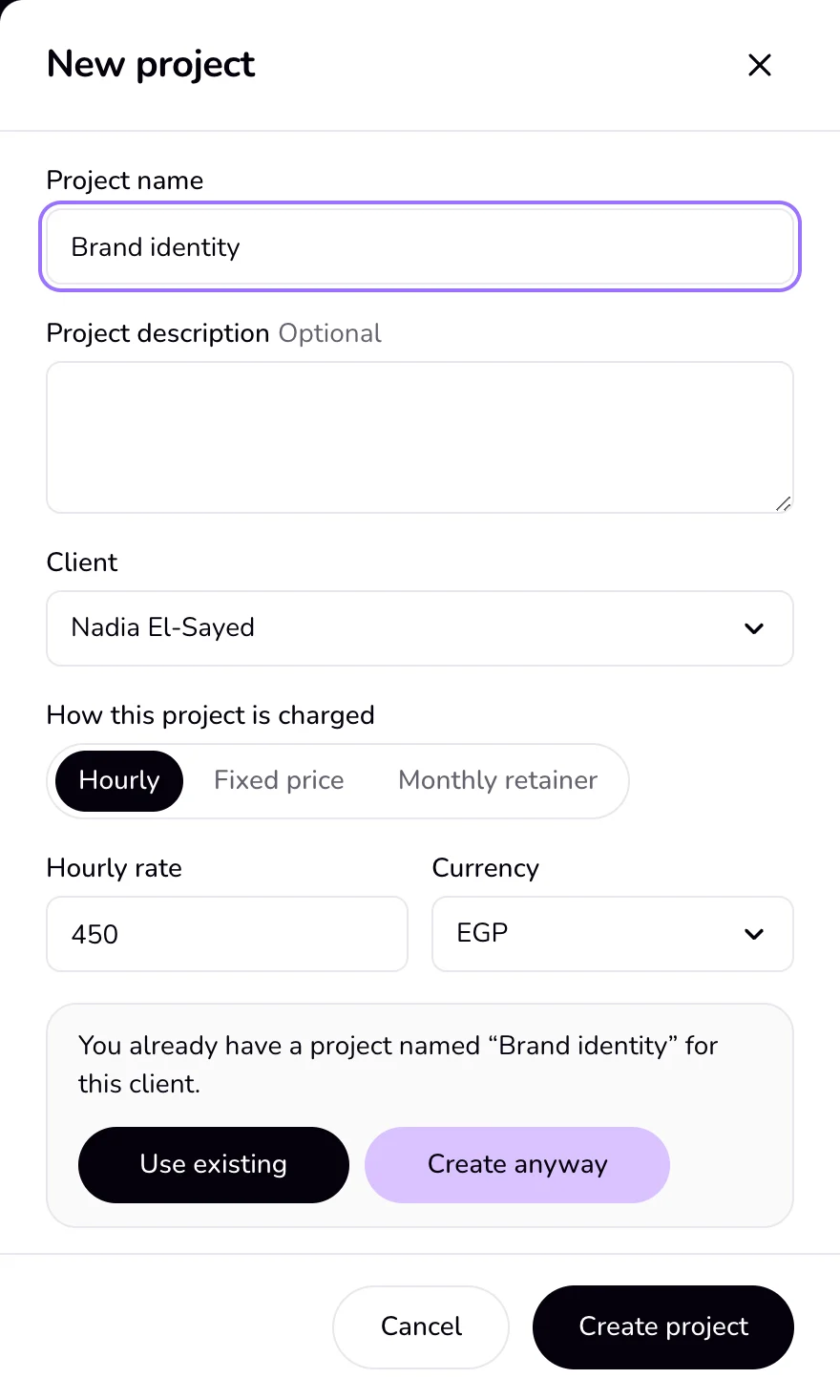
If it matches, a question appears at the bottom of the panel saying the client is already in your client list, or that you already have a project with that name for this client.
- 3
Press “Use existing” to keep the one you have, or “Create anyway” to add a second one.
Good to know
- In the New project panel, “Use existing” on a client question picks the existing client for the project. On a project question it closes the panel without creating anything.
- Renaming a project, or moving it to another client, asks the same question when that client already has a project with that name.
- Editing a client is stricter: a change that would match another client is refused with “This client is already in your list.”, and there is no “Create anyway”.
- A CSV import finds duplicates the same way and lets you choose “Use existing” or “Create anyway” for each one in its preview.
If something goes wrong
- “This client is already in your list.”
- Another client already has this email or name. Change it, or keep working with the existing client.
Last updated 6 Oct 2026
Was this helpful?