Before you start
- Widgets need macOS 15 or later. Open Qufy from the Applications folder at least once and sign in.
Steps
- 1
Right-click an empty part of the desktop and choose "Edit Widgets".
- 2
Search for "Qufy" in the widget gallery. It is described as "The timer for your projects."
- 3
Choose a size: Small, Medium, Large or Extra Large.
- 4
Drag the widget onto the desktop, then click "Done".
Good to know
- Small: the project, the timer, and one button: "Start", "Stop", or "Open Qufy" when signed out.
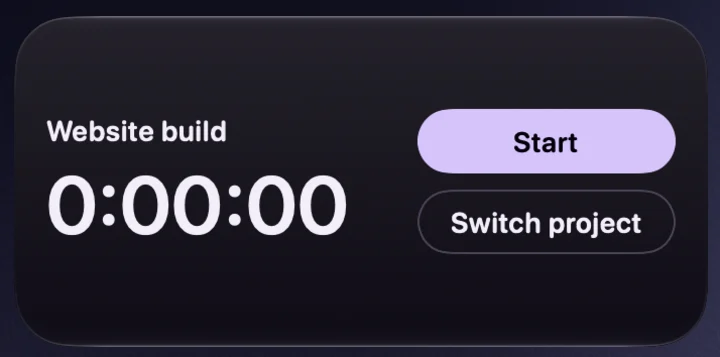
- Medium: the timer, plus the money earned while it runs, and a column of buttons. Running: "Pause" (or "Resume"), "Stop" and "Switch project". Idle: "Start" and "Switch project".
- Large: the project and timer with "Today" and "This week" beside them, then the week chart, "Last sessions" (3), "This week by project" (top 3), and one row of buttons.
- Extra Large: a large timer with the money and totals on one side, the week chart and "This week by project" on the other, and the last sessions and buttons below.
- If you set a weekly hours target on the website, "This week" reads like 7h of 30h, with a thin bar under it.
- Tapping the timer area opens Qufy. The buttons work only while Qufy is running. If Qufy was closed, the first tap may only open Qufy; tap again.
- "Switch project" opens the project list in the Qufy window. See "Switch or move the project while the timer runs".
- After you stop from a widget, it shows "Session saved" or "Under a minute, not saved" for a few seconds.
- Updates: Qufy sends new data to the widget on every change. While the timer runs, the time ticks every second and the money and totals update every minute. When idle, the widget refreshes about every 15 minutes, and macOS may refresh it less often.
- When another app is in front, macOS dims or tints desktop widgets. The Qufy widget then switches to the system's grey levels and an outlined Start or Stop button, so it stays readable.
If something goes wrong
- “Sign in on the website”
- The widget shows this, with "Open Qufy and sign in from the website.", when the app is signed out. Open Qufy and sign in with a code.
- “Qufy is not in the widget gallery.”
- Check that your Mac has macOS 15 or later, and open Qufy from the Applications folder once.
- “A widget button does nothing.”
- Qufy must be running. If it was closed, the first tap opens it; tap the button again.
Last updated 6 Oct 2026
Was this helpful?