Steps
- 1
Open “Settings” and choose “Notifications” in the bar of sections.
- 2
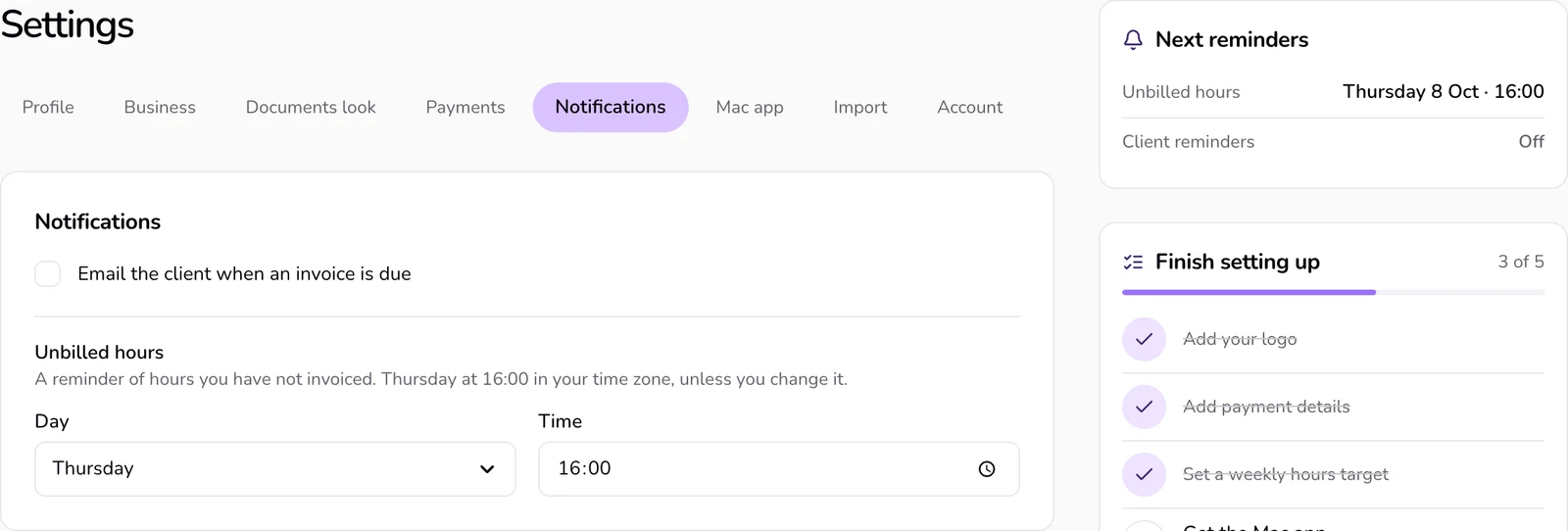
Tick “Email the client when an invoice is due” to send client reminder emails, or untick it to stop them.
- 3
Under “Unbilled hours”, choose a “Day”, from Sunday to Saturday, or “Off”.
- 4
Set the “Time”.
- 5
Press “Save changes” in the bar that appears at the end of the section.
Good to know
- Client reminders are off until you turn them on. Each is one message from you, with the amount and the link. They go out for invoices only, on the due date, and only when the client has an email. The client can stop them from the email.
- The unbilled hours reminder is set to Thursday at 16:00 until you change it. Saving also stores your browser's time zone. The “Time” field is greyed out while the day is “Off”.
- Beside the section, “Next reminders” shows when the unbilled hours reminder comes next and the next client reminder date.
- The unbilled hours reminder arrives as a notification from the Mac app, “Hours still to invoice”. The website does not send an email for it, so without the Mac app it does not reach you.
- The Mac app has its own switch for this reminder. Turning it off there sets the day here to “Off”.
If something goes wrong
- “Could not complete that. Check your details and try again.”
- The settings were not saved. Check your connection and press “Save changes” again.
Last updated 6 Oct 2026
Was this helpful?