Steps
- 1
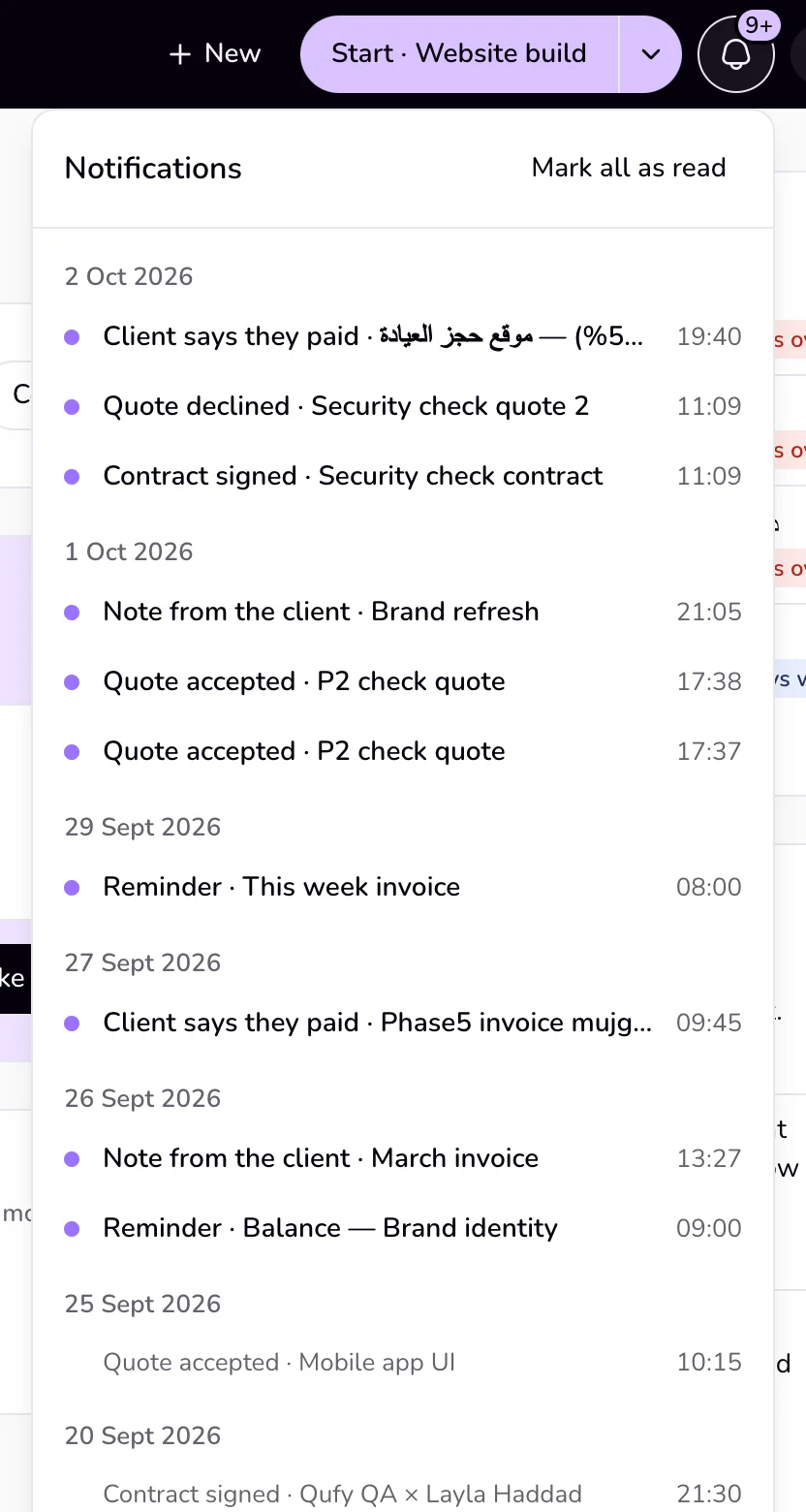
Look at the bell in the top bar. A number on it counts the notifications you have not read.
- 2
Press the bell to open “Notifications”. Unread ones are marked, and each row says what happened and on which document.
- 3
Press a notification to open its document. Opening it marks it as read.
- 4
To clear the count without opening each one, press “Mark all as read”.
Good to know
- The kinds are “Quote accepted”, “Quote declined”, “Contract signed”, “Note from the client” (a question or comment on your link), “Client says they paid” (the client pressed “I've paid”), and “Reminder” (an invoice of yours reached its due-date reminder).
- While Qufy is open, a new notification also appears for a few seconds in the corner with “Open” and “Dismiss”, with a short sound. If the tab is in the background and your browser allows notifications for Qufy, the browser shows it too.
- When a client says they paid, the invoice also shows “Review payment” on Home: confirm it there to mark the invoice paid.
- Which emails you get is set in Settings, under “Notifications”.
Last updated 6 Oct 2026
Was this helpful?