Steps
- 1
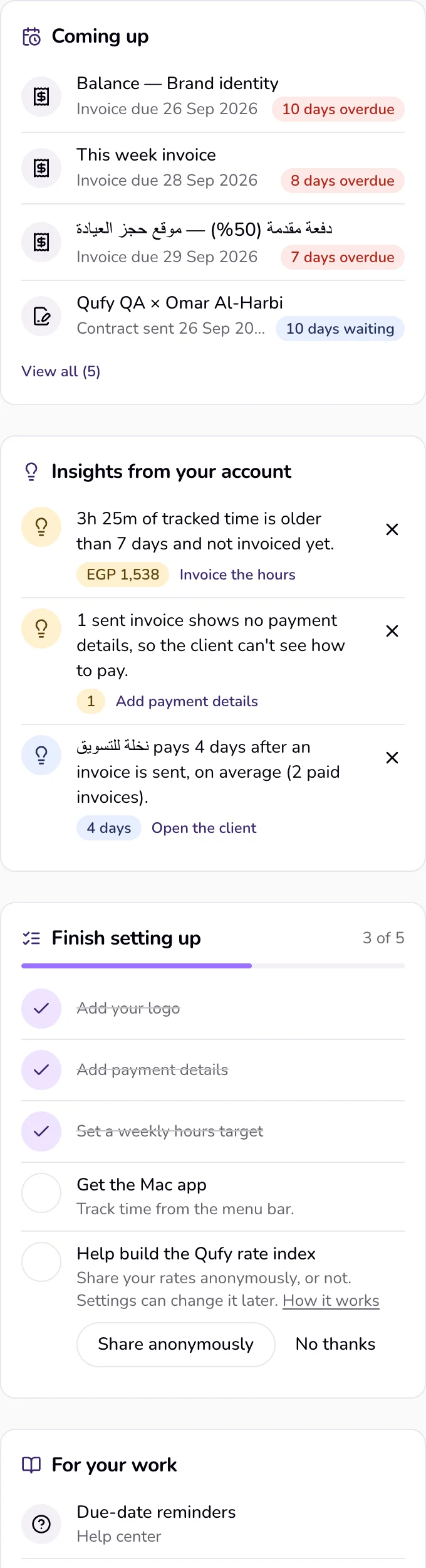
Open Home. On a wide screen the cards sit in a column beside the page; on a phone or a narrow window they come after the page's own content.
- 2
Read “Coming up”: what has a date in the next 14 days, such as an invoice due, a deposit, a quote that expires, a contract not signed yet, a reminder email, or a retainer invoice. A chip shows how close it is, for example “Today”, “Tomorrow”, or how many days overdue. Press a row to open it.
- 3
Read “Insights from your account”: at most three short findings from your own numbers, for example unbilled time getting old, a client who pays slowly, or a project over its budget. Each has a link to act on it.
- 4
To hide an insight, press the × next to it (“Hide for 30 days”). The next one moves up.
- 5
Use “Finish setting up” to complete your office: it shows “Your office is N% ready” and lists only what is left, such as “Set your rate”, “Add your business name”, “Add your logo”, “Add payment details”, “Save your first template” (optional), “Get the Mac app” (optional), “Set a weekly hours target”, and the rate index question (“Share anonymously” or “No thanks”). Each item opens its step.
- 6
Open a link under “For your work”: three help articles or blog posts picked from what you did last and your profession. “What's new” lists the latest changes on the website and in the Mac app; “See all” opens the full list.
- 7
When a card has more rows than it shows, press “View all” to see them, and “Show fewer” to fold them again.
Good to know
- Each page shows at most four cards and leaves out empty ones. Home: Coming up, Insights, Finish setting up, For your work, and What's new. Documents: Coming up, Insights, For your work. Projects: Coming up, Insights, and “Pipeline”. Clients: “Top clients this year”, “Slow payers”, For your work. Settings: a card for the open section, Finish setting up, and “Help for this section”.
- “Finish setting up” stays hidden while the Get started card is still on Home, and disappears once every step is done (the Mac app is optional).
- Insights are worked out from your own data with fixed rules, never written by AI. A hidden insight comes back after 30 days if it still applies.
- The weekly hours reminder appears under Coming up on Home only when it is on in Settings and the Mac app is paired, because it arrives as a Mac app notification.
Last updated 6 Oct 2026
Was this helpful?