Steps
- 1
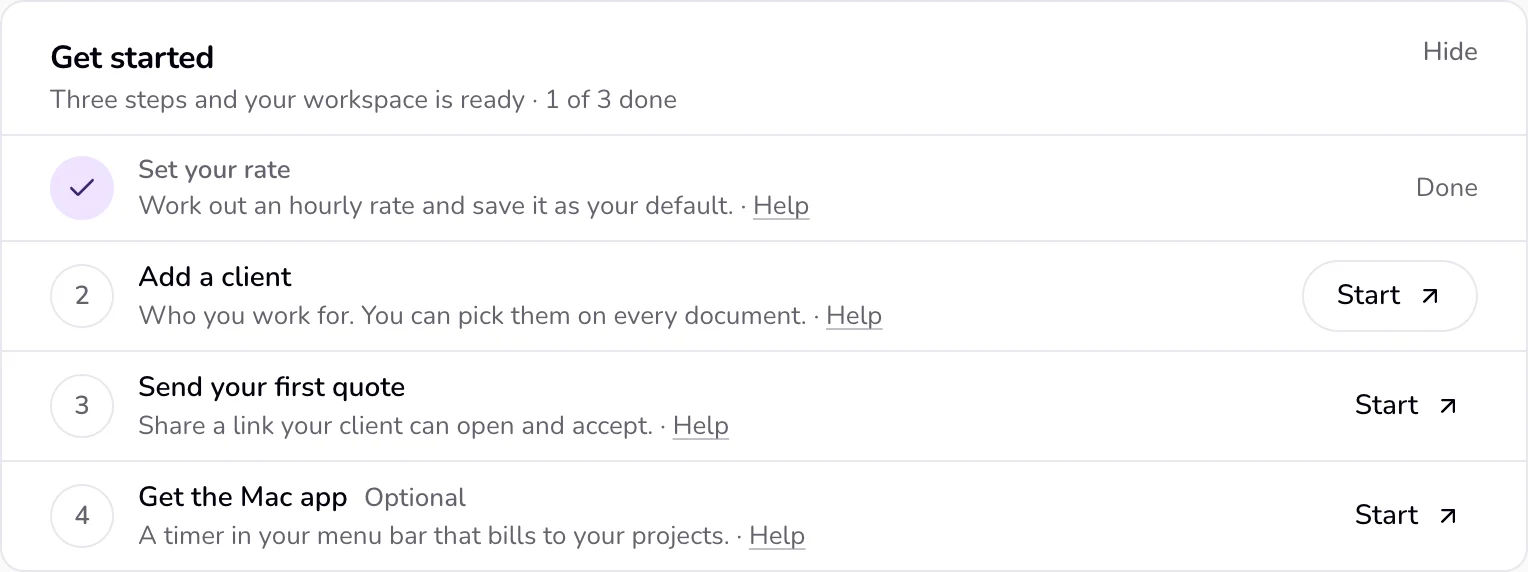
Sign in and open Home. The “Get started” card sits under the box “Turn a client message into a quote”.
- 2
Step 1, “Set your rate”: press “Start” to open the rate calculator, then save a default hourly rate. If you charge only by monthly retainer, this step reads “Set your monthly retainer” and opens a new retainer project.
- 3
Step 2, “Add a client”: press “Start”; the Clients page opens with the new client panel. Add one client.
- 4
Step 3, “Send your first quote”: press “Start” to open a new quote, then send it as a link.
- 5
Step 4, “Get the Mac app” (Optional): press “Start” to open the download page, then connect the app to your account.
Good to know
- Each step ticks itself off from your real data. Step 1: your default hourly rate is above 0 (saved from the calculator, or in Settings under Business), or, for “Set your monthly retainer”, a project with a monthly retainer exists. Step 2: you have at least one client. Step 3: a quote has a client link, or any quote is no longer a draft. Step 4: the Mac app is signed in to your account.
- A finished step shows “Done”. The line under the title counts the required steps, for example “1 of 3 done”. Each step also has a “Help” link to its article.
- The card disappears by itself once steps 1 to 3 are done. The Mac app step is optional and does not keep it open. After that, “Finish setting up” in the column beside Home shows “Your office is N% ready” and lists what is left: what you do, where you work, your rate, your business name and logo, payment details, a saved template (optional), the Mac app (optional), a weekly hours target, and your rate index answer.
- “Hide” hides the card in this browser only, for a year. Another browser or device still shows it.
- While the card is showing and nothing needs you, the “Needs you” section stays hidden. Hiding the card brings it back.
Last updated 6 Oct 2026
Was this helpful?