Steps
- 1
On Home, paste the client's message into the “Paste a client message” box of the card “Turn a client message into a quote”. To see how it works first, press one of the examples under “Try an example:”.
- 2
Press “Make a quote”. The quote page opens with your text already in the “Paste a WhatsApp or email” card at the top of the form. Press “Open the assistant” on that card to see it.
- 3
If you opened the quote another way (“New”, then “New quote”), press “Open the assistant” on that card and paste the message into it.
- 4
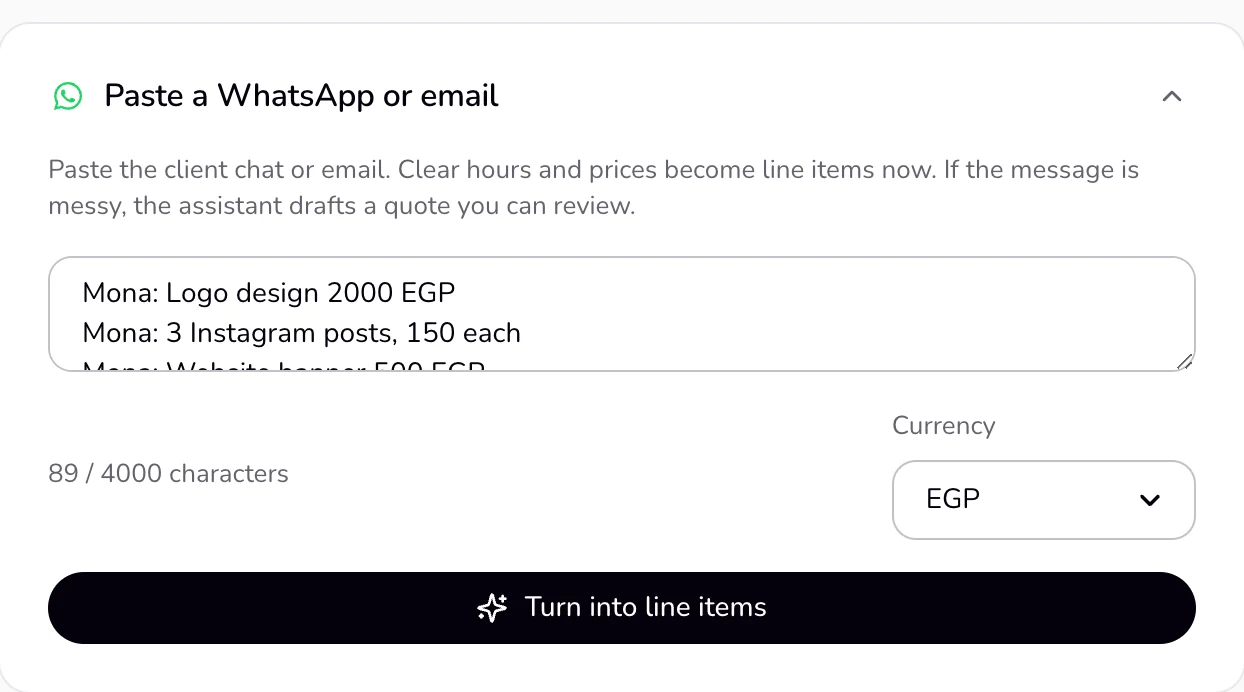
Check the “Currency” menu under the text box.
- 5
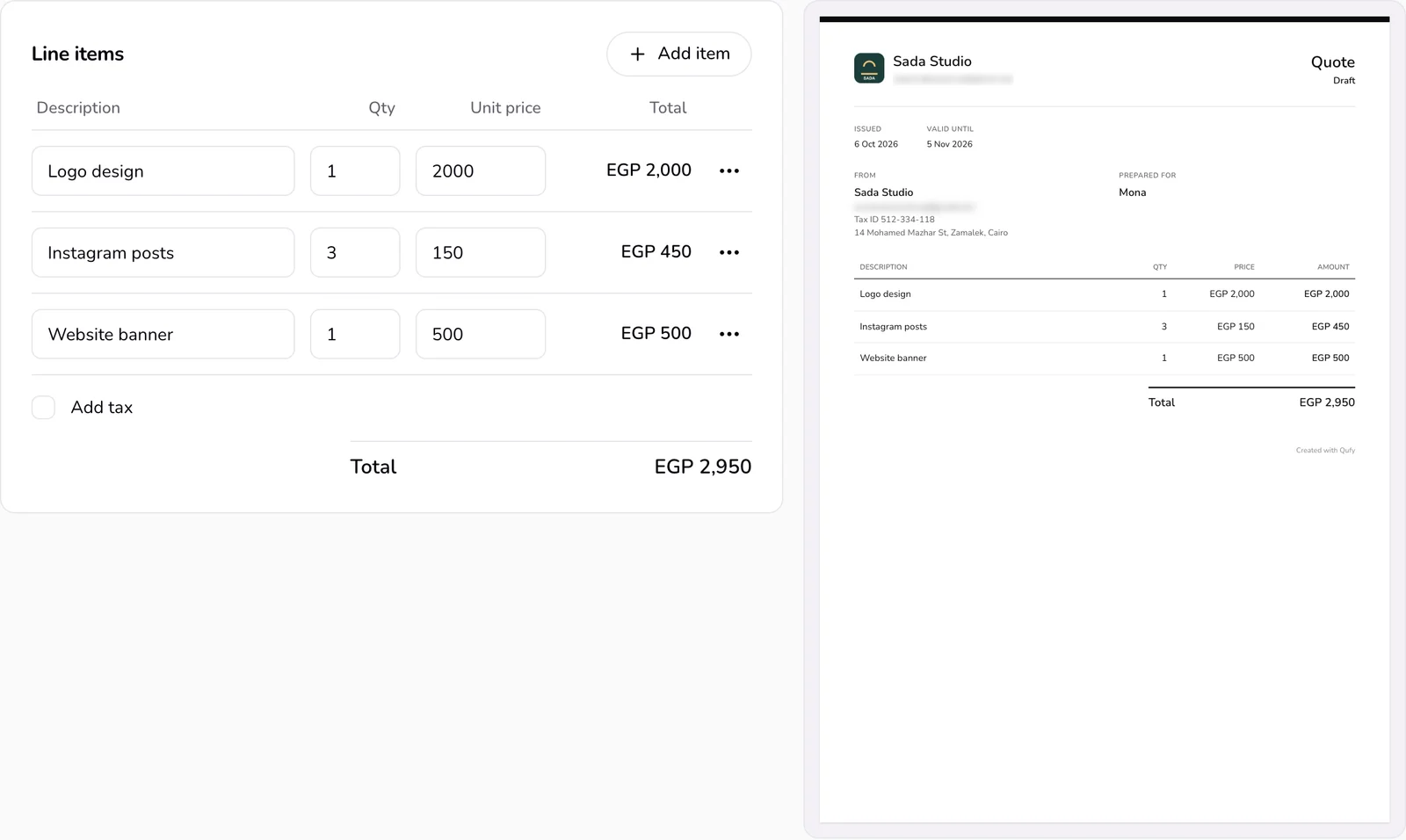
Press “Turn into line items”. The lines appear in “Line items”, and the paper preview at the side shows the quote as the client will see it.
- 6
Read every line, price, and the client name before you press “Send”.
Good to know
- The box takes up to 4,000 characters.
- Qufy reads the message in your browser first, with no AI. It understands hours (“3h”, “3 hours”, “3 ساعة”), prices per hour (“per hour”, “/h”, “للساعة”), quantities (“3 posts 150 each”, “للواحد”), and amounts with $, USD, EGP, SAR, AED, جنيه, ريال, درهم, or دولار. “k” or “ألف” means thousands. A number with no currency counts as a price only when it is 20 or more. Arabic-Indic digits are read too.
- Hours with no price use your hourly rate (your default rate, the project's rate, or the one from the rate page), and the line reads like “Design (3h)”.
- Qufy also picks up the client name from a chat line such as “Alex: …”, an email address, and the currency. The name and email fill the client's fields in “Client and project” only when they are empty. The new lines replace the lines already on the page.
- The examples on Home follow your profession (Settings, then “Business”), so a developer sees developer briefs.
- Only when the browser finds no hours or prices does the text go to the Qufy assistant (AI). You then see a suggested scope, line items, and a message to the client. Press “Apply to this quote” to use them, or “Apply to this form” on an invoice.
- The assistant has a daily limit, which resets each day. Messages read in the browser do not count toward it.
If something goes wrong
- “Could not find hours or prices. Add a number, or try again with a fuller message.”
- Add hours or a price to the text, for example “Logo 2,000 EGP”, and press “Turn into line items” again. You can also add lines yourself with “Add item”.
- “Could not read the message. Check the numbers and try again.”
- The assistant could not answer, or today's assistant limit is used up. Write clear hours or prices in the text so the browser can read it, or fill in the lines by hand.
- “A line shows a price of 0.”
- The message had hours but no price, and no hourly rate was set. Type the price in “Unit price”, or save a default hourly rate in Settings.
Last updated 6 Oct 2026
Was this helpful?