Steps
- 1
Open the rate calculator at /rate, or press “Start” next to “Set your rate” on Home.
- 2
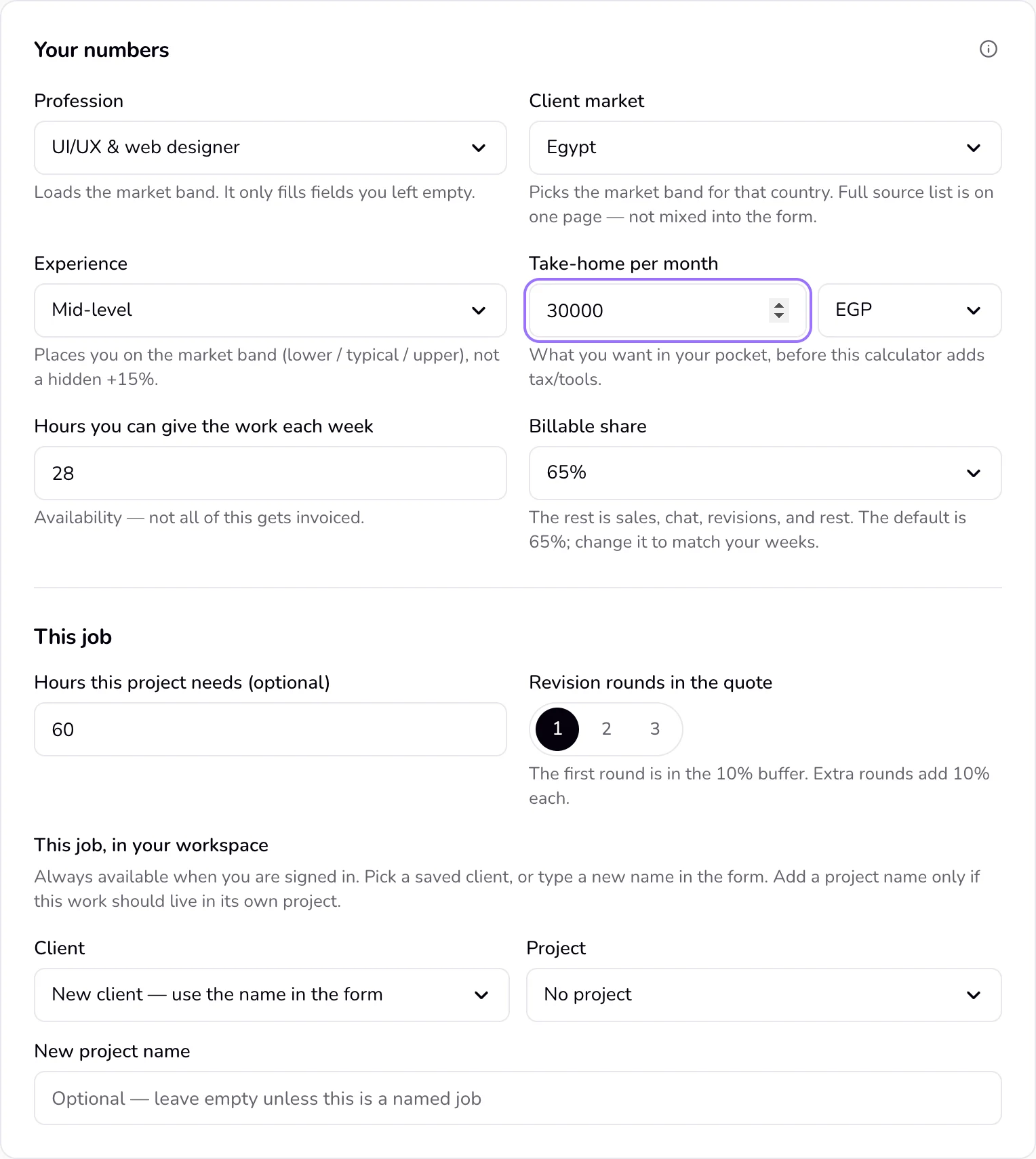
Optional: in “Your numbers”, choose your “Profession”. This loads the market band (in “Market band”, beside the form or under it on a phone) and fills in typical hours and a take-home only where you left them empty. You can change them.
- 3
Choose the “Client market”: Egypt, Saudi Arabia, UAE, or International / U.S.
- 4
Choose your “Experience”: Junior, Mid-level, or Senior.
- 5
Enter your “Take-home per month” and pick its currency: EGP, SAR, AED, or USD.
- 6
Enter “Hours you can give the work each week”.
- 7
Optional: set “Billable share”, and under “This job” enter “Hours this project needs (optional)” and choose the “Revision rounds in the quote” to price one job.
- 8
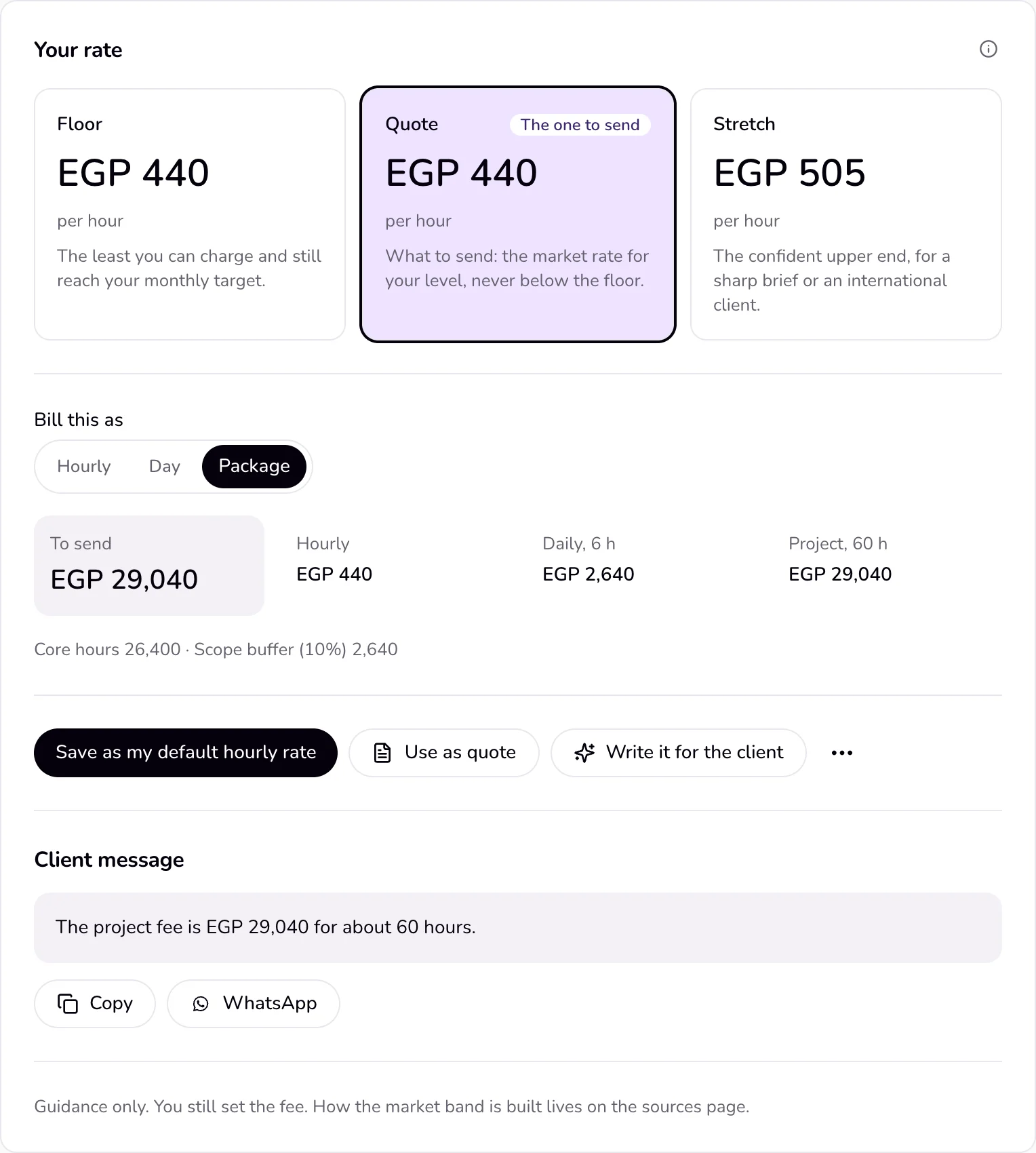
“Your rate” shows three tiers: “Floor”, “Quote” (marked “The one to send”), and “Stretch”. Tap one to use it in the client message and when you carry the rate onward.
- 9
Under the tiers, choose “Bill this as”: Hourly, Day, or Package (the default). “To send” shows the amount, with the hourly, daily, and project amounts beside it.
- 10
“Write it for the client” writes the client message. Under “Client message”, press “Copy” or “WhatsApp”.
- 11
Signed in? Press “Save as my default hourly rate”. Not signed in? “Create a free account” explains how to join the beta.
- 12
Press “Use as quote”, or choose “Use in invoice” or “Use in contract” from “⋯” (“More ways to use this rate”), to open that document with the rate filled in.
Good to know
- “Floor” is the least you can charge and still reach your monthly target. “Quote” is what to send: the market rate for your level, never below the floor. “Stretch” is the confident upper end, about 30% above the quote and within the market, for a sharp brief or an international client.
- “To send” is the amount for the chosen way of charging. When the client market uses another currency, it also shows that amount at the live exchange rate, with its date.
- Signed in, “Your weekly target” beside the form shows your weekly hours target, with “Change in Settings”. With no target yet, saving your rate sets it to the weekly hours you entered.
- “Write it for the client” asks the assistant for a fresh client message. It sends the calculated rates and the client name, not your take-home target. If the assistant is not available, you get a plain written message instead.
- “Save as my default hourly rate” appears only when you are signed in. It saves the tier you tapped and its currency to your profile and shows “Saved to your profile”. If you opened the calculator from a project, it also sets that project’s hourly rate.
- Your inputs are kept as a draft in this browser for 30 days. When you come back you see “Your draft was restored on this device.”
- The result is guidance only. You still set the fee.
If something goes wrong
- “Pick a profession to load a market band.”
- Choose a “Profession” in “Your numbers”. Without one, the quote is your floor plus 15%.
Last updated 6 Oct 2026
Was this helpful?