Steps
- 1
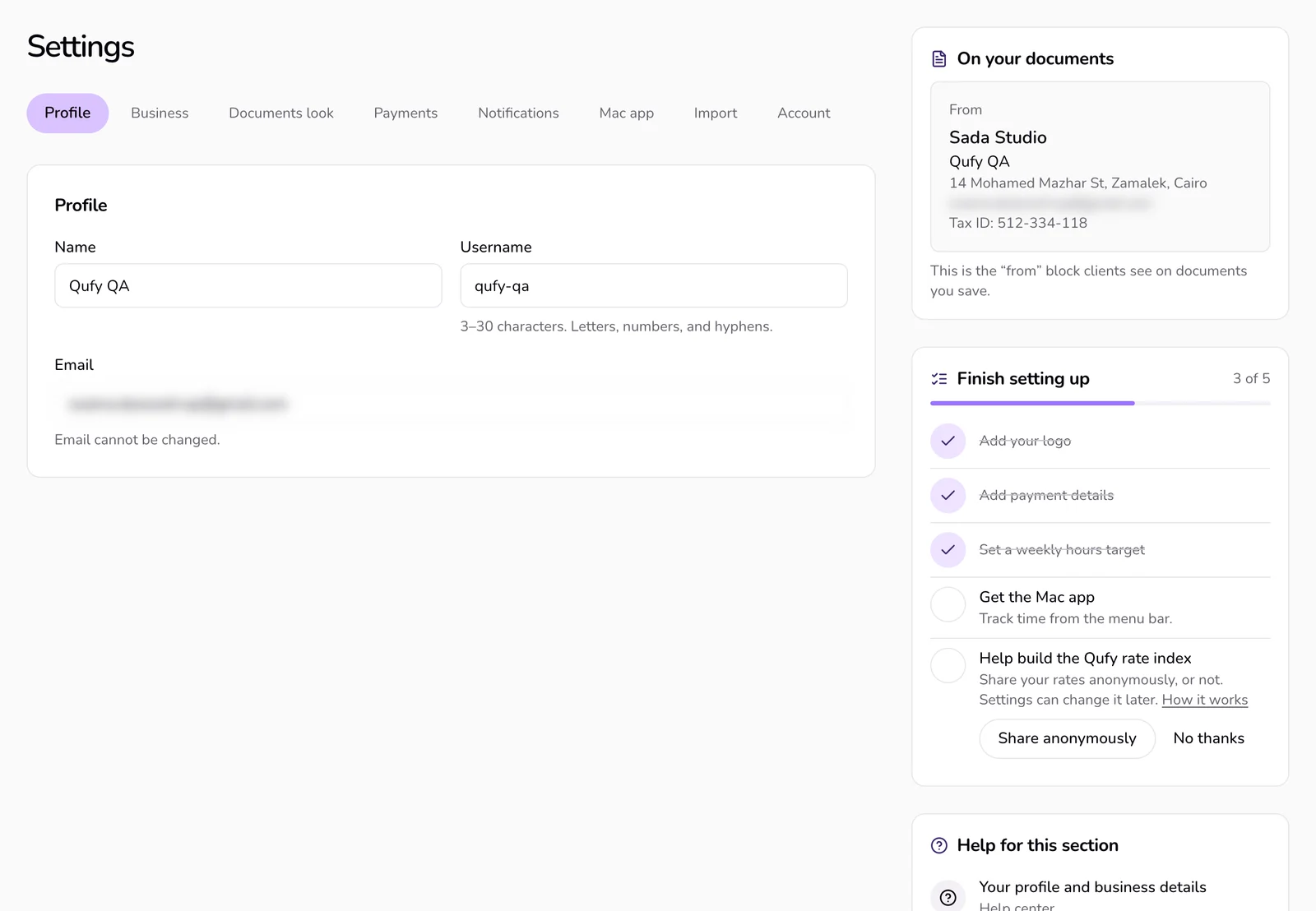
Open “Settings” in the sidebar. It opens on “Profile”, the first section in the bar at the top.
- 2
Change “Name” or “Username”, then press “Save changes” in the bar that appears at the end of the section.
- 3
Choose “Business” in the bar of sections.
- 4
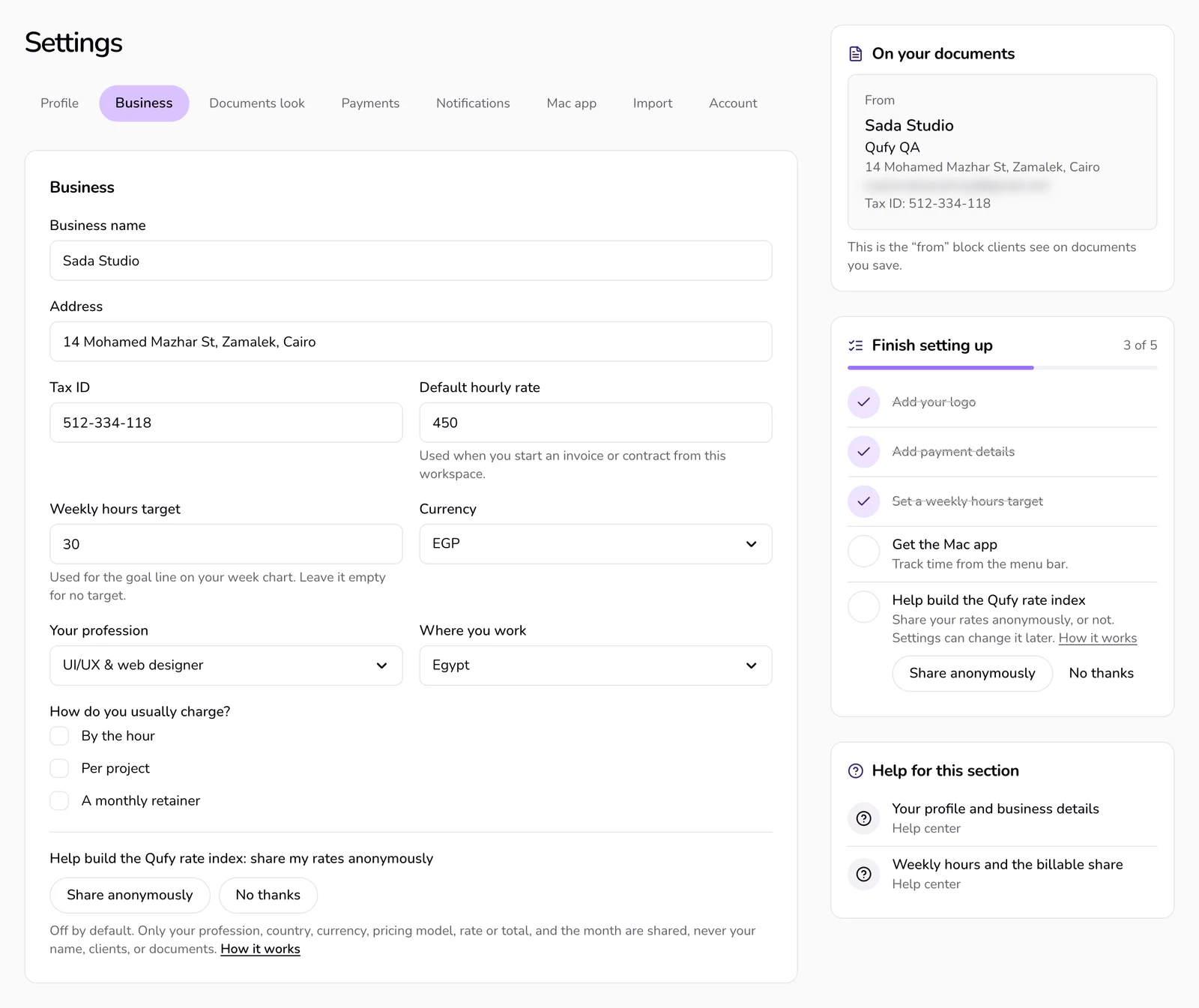
Fill “Business name”, “Address” and “Tax ID”. “On your documents” beside them shows the “from” block clients see, as you type.
- 5
Set “Default hourly rate” and choose the “Currency”: EGP, SAR, AED or USD.
- 6
Optionally, enter a “Weekly hours target” from 1 to 100. It adds a goal line to your week chart. Leave it empty for no target.
- 7
Choose “Your profession” and “Where you work”, and tick how you charge under “How do you usually charge?”. These are the answers from the setup questions; they choose the examples and templates Qufy shows you.
- 8
Press “Save changes”.
Good to know
- Your email is shown on the Profile section but cannot be changed: “Email cannot be changed.”
- A username has 3 to 30 characters: letters, numbers and hyphens. It must be unique. Your name and @username appear on documents and in the workspace.
- The default hourly rate is used when you start an invoice or contract from the workspace. “Save as my default hourly rate” on the rate page fills it too.
- At the end of Business is the question “Help build the Qufy rate index: share my rates anonymously”, answered with “Share anonymously” or “No thanks”, and a “How it works” link. Nothing is shared until you choose “Share anonymously”. Saving a rate on the rate page also fills an empty profession.
- Saving your rate on the rate page fills an empty weekly hours target with the hours you entered there. It never replaces a target you already set.
- “Save changes” and “Discard” appear only after you change something. After saving you see “Saved”.
- The name at the top of your PDFs can differ from these details. Set it in the “Documents look” section.
If something goes wrong
- “That username is taken. Try …”
- Press the suggested name, or type another one.
- “Pick a unique username with letters, numbers, and hyphens.”
- Remove spaces and other symbols, and keep it between 3 and 30 characters.
- “Use a number of hours from 1 to 100, or leave it empty.”
- Correct “Weekly hours target”, or clear it for no target, then press “Save changes”.
- “Could not complete that. Check your details and try again.”
- The save did not go through. Check your connection and press “Save changes” again.
Last updated 6 Oct 2026
Was this helpful?