Steps
- 1
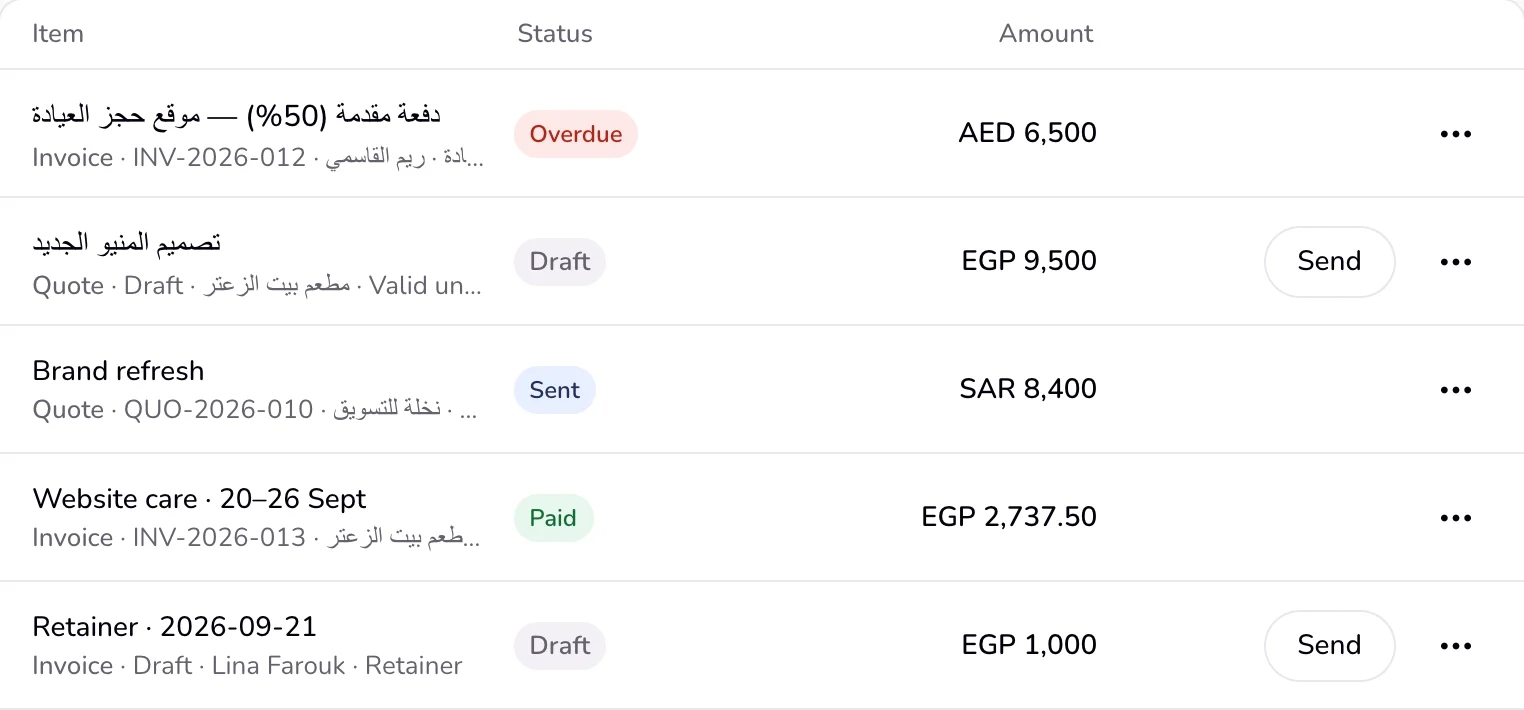
Open a list, such as Documents, Projects, or Clients, or Needs you on Home. Press a row itself to open it.
- 2
Press the row's button for its next step. It is always one of these: “Send”, “Follow up”, “Create contract”, “Deposit invoice”, “Balance invoice”, “Invoice hours”, “Invoice this month”, “Review payment”, “Finish draft”, “Turn into invoice”, “New invoice”, or “New quote”. A row with nothing to do has no button.
- 3
“Review payment” appears when a client says they paid. It opens a panel with what the client wrote: press “Confirm payment” to mark the invoice paid, or “Not yet” if the money has not arrived.
- 4
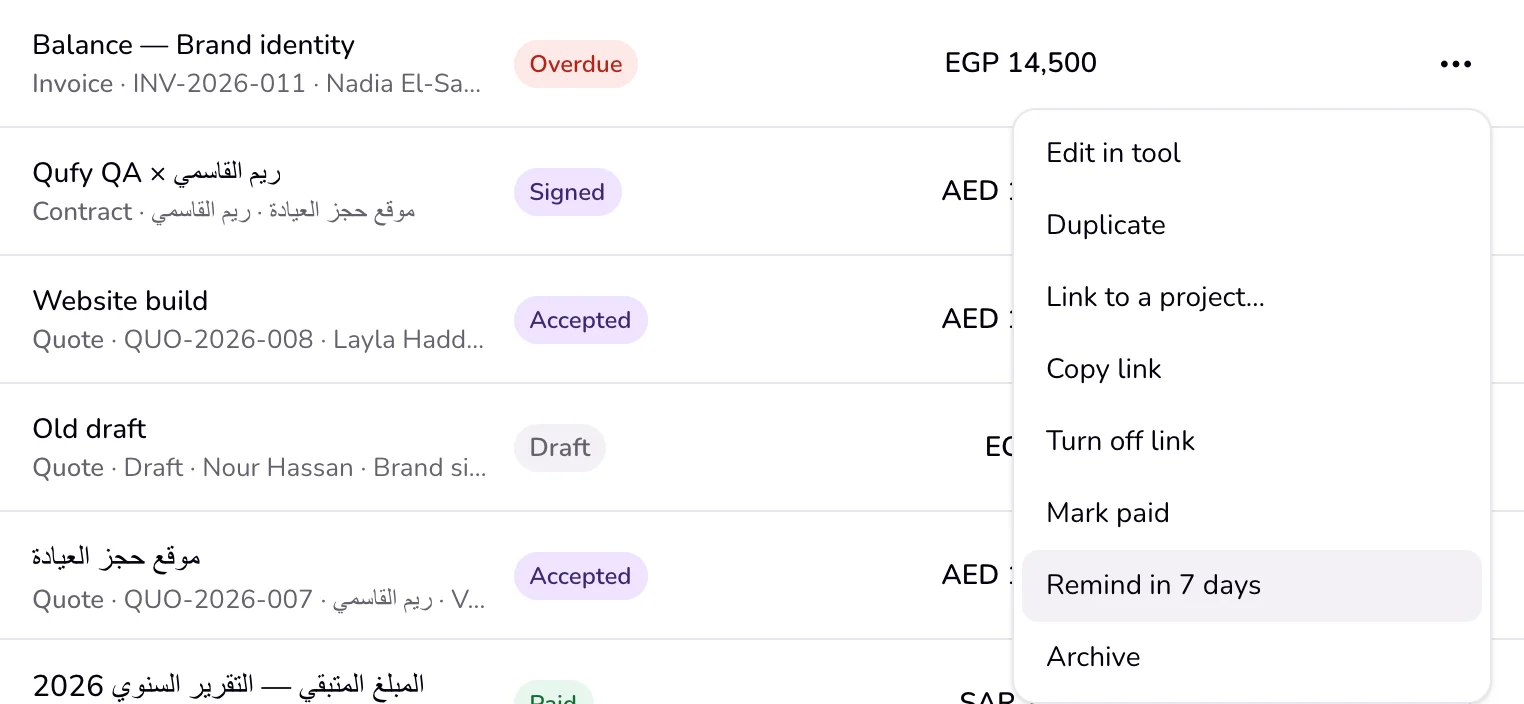
For anything else, press ⋯ (“More”) at the end of the row and choose from the menu.
- 5
To delete, choose “Delete” in the menu, then confirm in the box that asks, such as “Delete this document?”. Nothing is deleted from a single click.
Good to know
- A document's menu depends on its kind and status. “Mark paid” and “Remind in 7 days” are for sent invoices only. “Copy link” and “Turn off link” appear only while the client link works. “Create contract” is for an accepted quote. Drafts and declined documents can be deleted; anything sent, accepted, signed, or paid is archived instead.
- A project's menu has “Open”, “New quote”, “New invoice” (or “Invoice hours” for an hourly project), “Edit”, “Archive” or “Unarchive”, and “Delete” while none of its documents has been sent. A client's menu has “Open”, “Edit”, “New project”, “New invoice”, and “Delete” while the client has no documents.
- On Needs you, an overdue invoice also offers “Mark paid” in its menu, and an old draft offers “Delete”.
- A past invoice brought in by an import has no button; its menu offers only “Link to a project…”, “Mark paid” while unpaid, and “Archive”.
Last updated 6 Oct 2026
Was this helpful?